

Prerequisites
Set up Google Tag Manager first, with the contentgrove tag installed in your container. See Set up tracking in Google Tag Manager. You’ll need your GTM container ID (formatGTM-XXXXXXX).
Add your GTM tag to a landing page
1
Open your landing page
In Kit, open the landing page you want to track.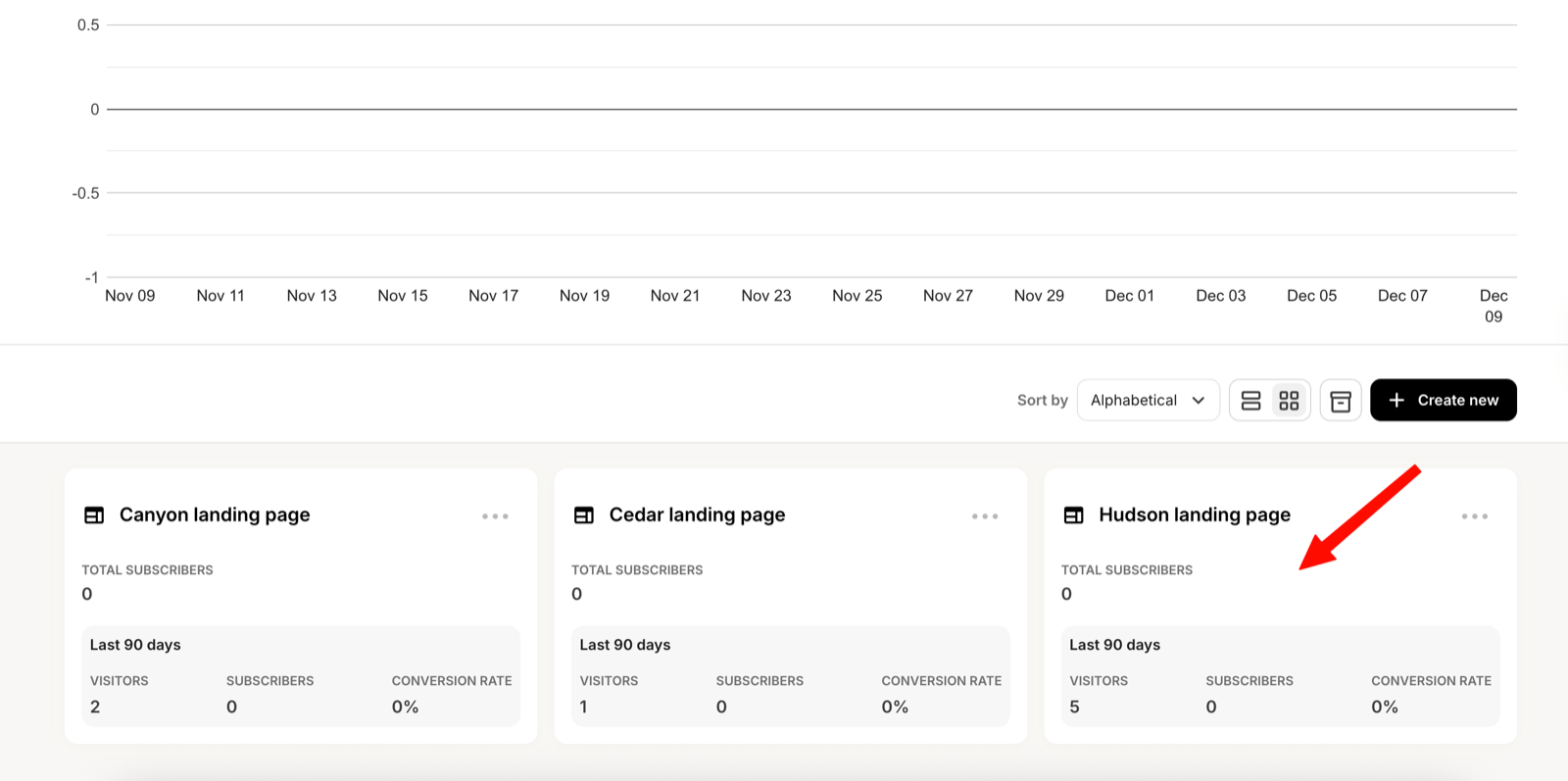
2
Open settings
Open the landing page’s Settings.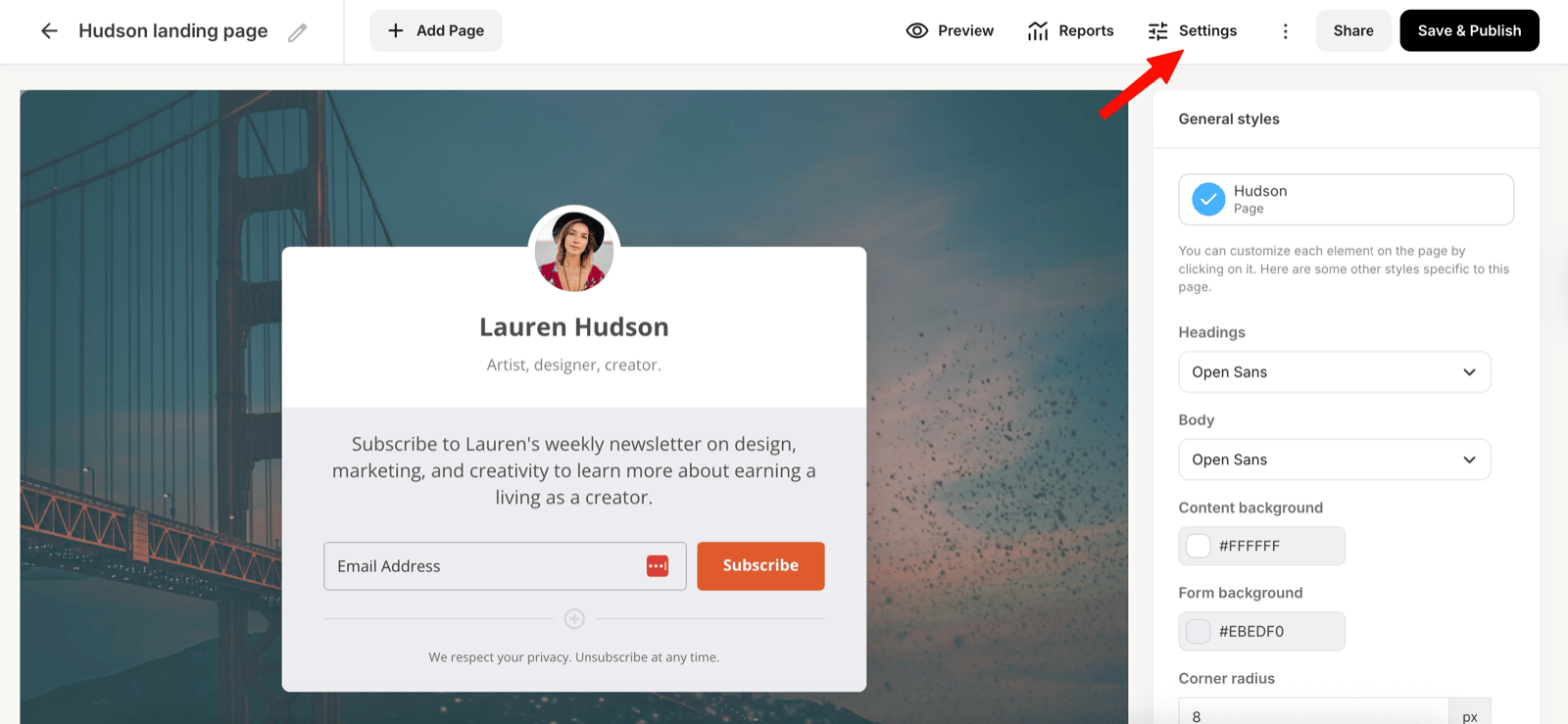
3
Go to SEO & Analytics
Select the SEO & Analytics tab.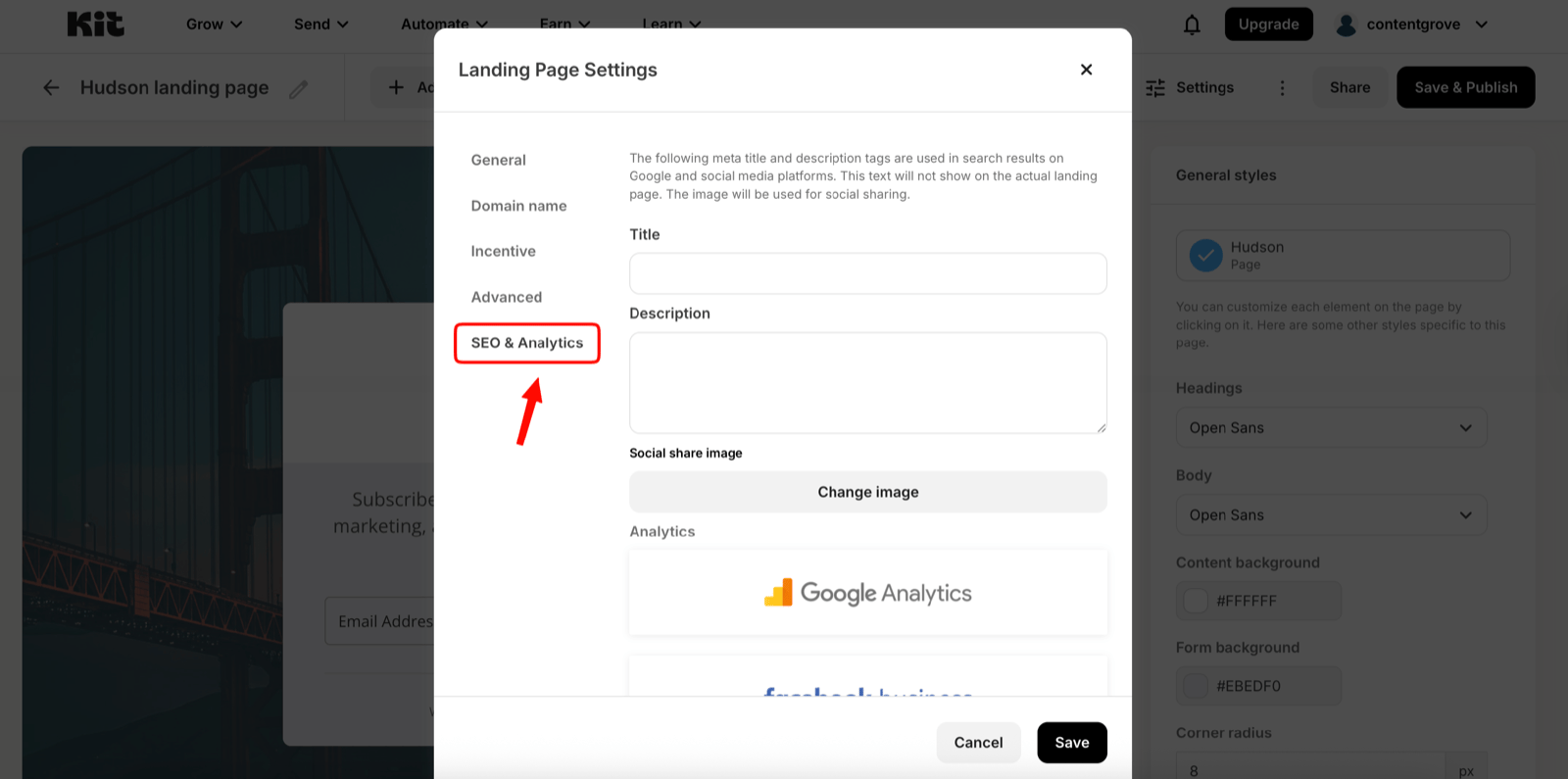
4
Enter your GTM ID
In the Google Tag Manager field, paste your container ID (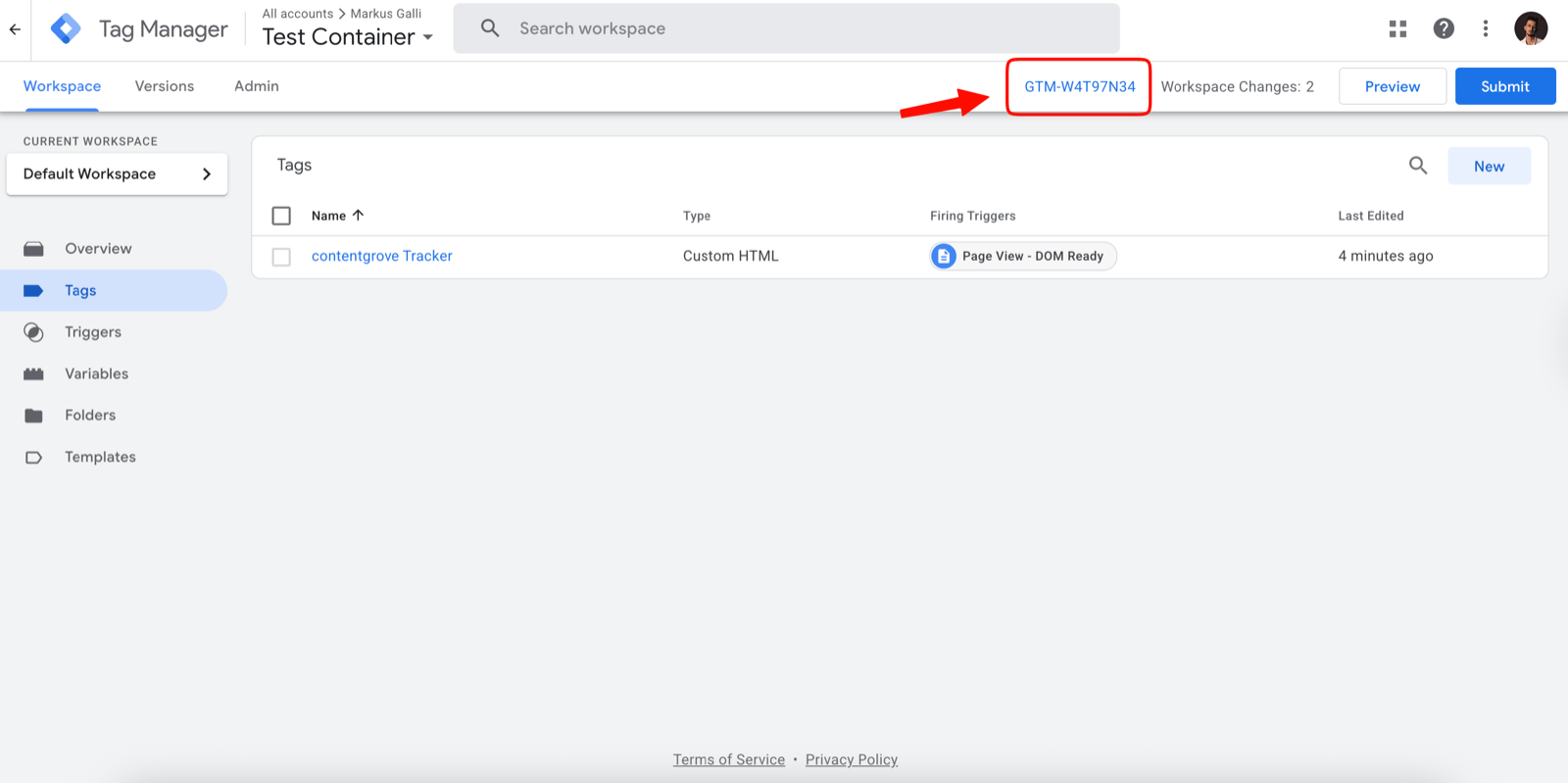
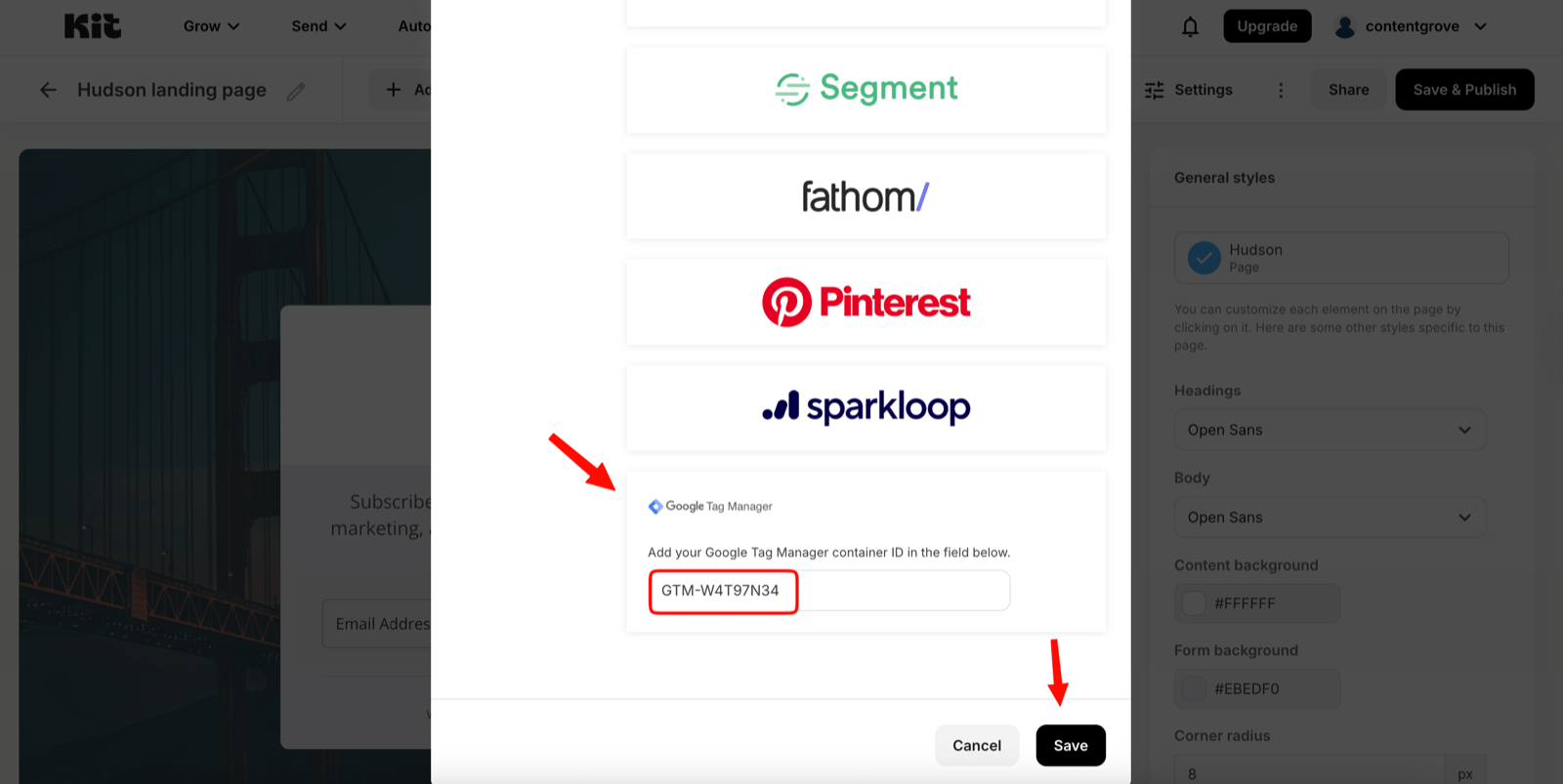
GTM-XXXXXXX).5
Save and publish
Click Save & Publish.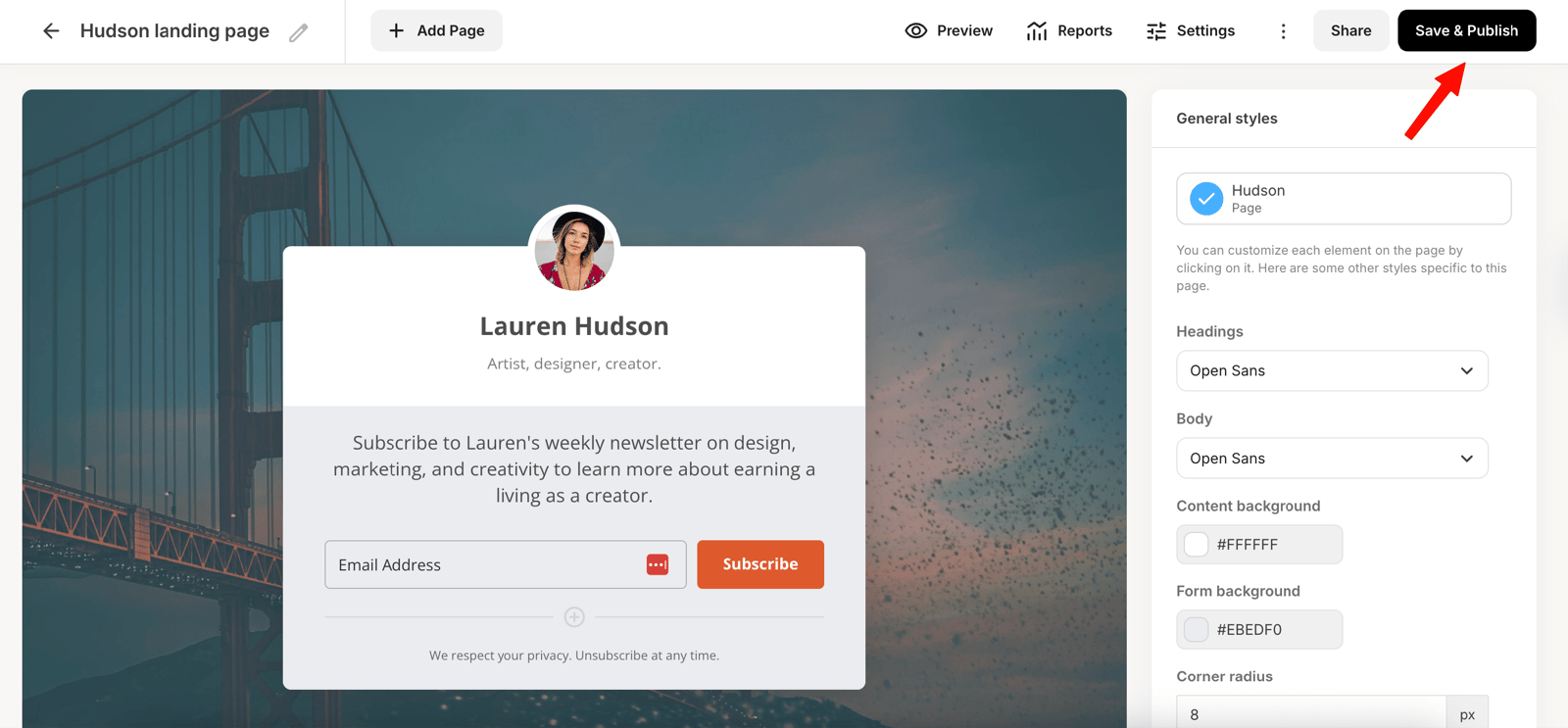
You have to add the GTM ID to every Kit landing page you want to track, including both your landing pages and your thank-you pages.