

Prerequisites
You need a GTM account and a container installed on your site. If you don’t have one yet, create it at tagmanager.google.com.Add the tag
1
Create a new tag
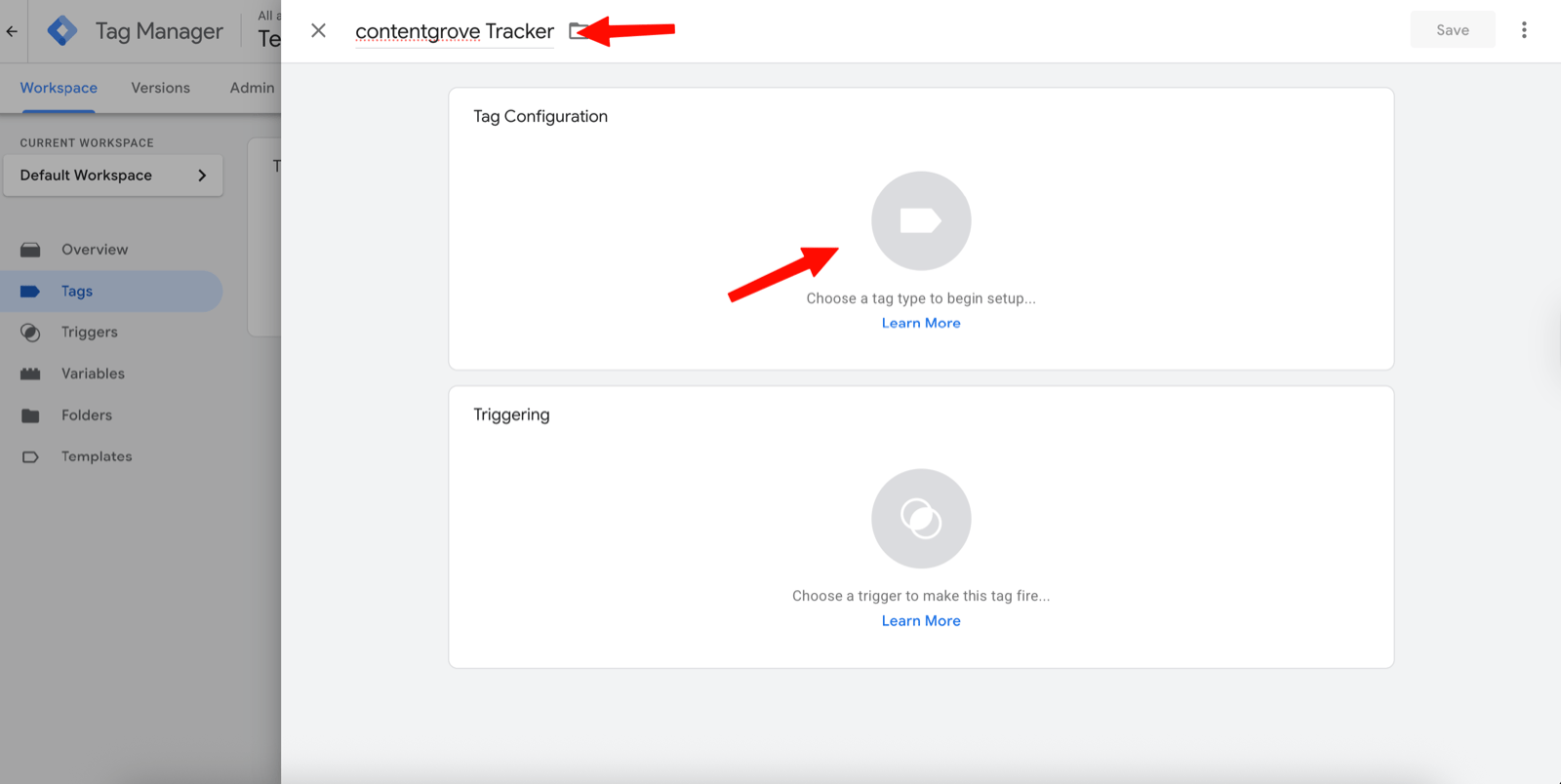
In your GTM container, go to Tags and click New. Name it something like “contentgrove Tracker”, then open Tag Configuration.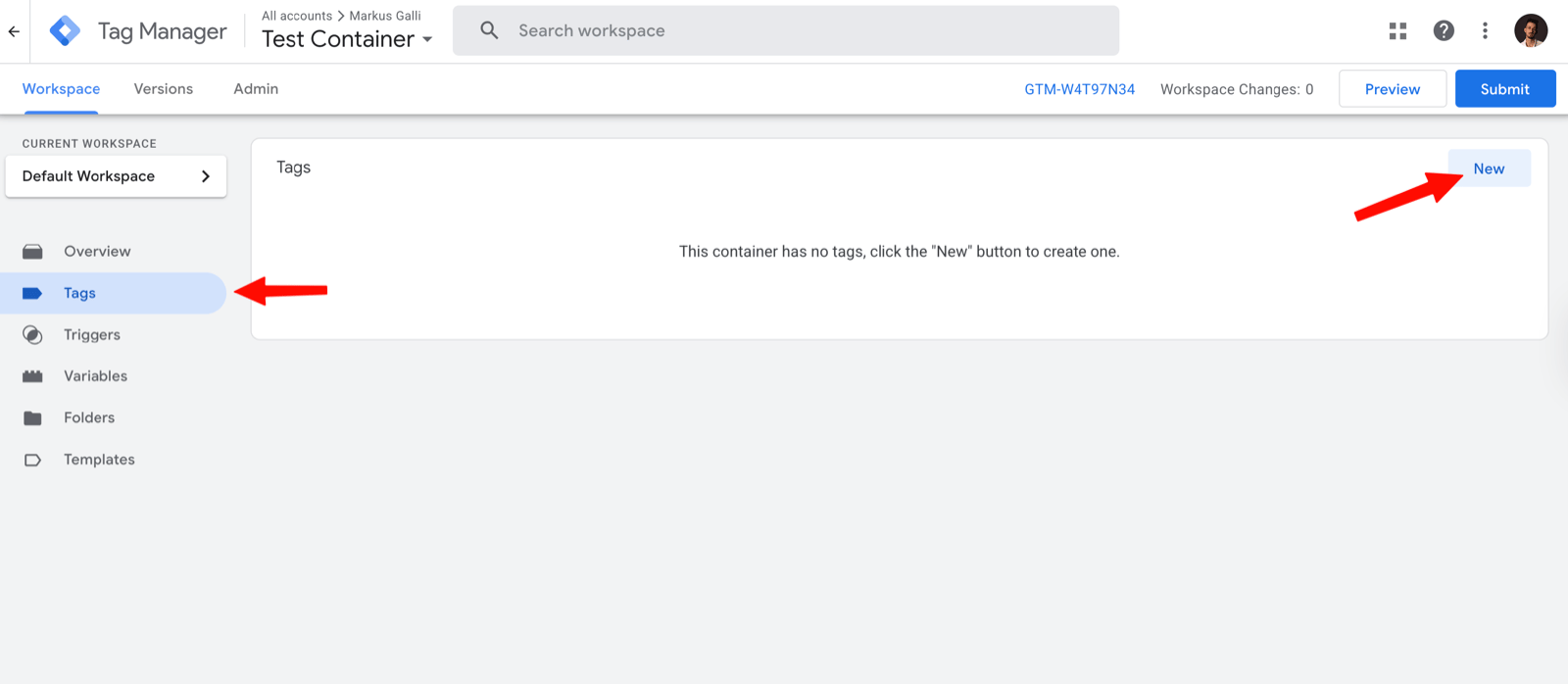
2
Choose Custom HTML
Set the tag type to Custom HTML.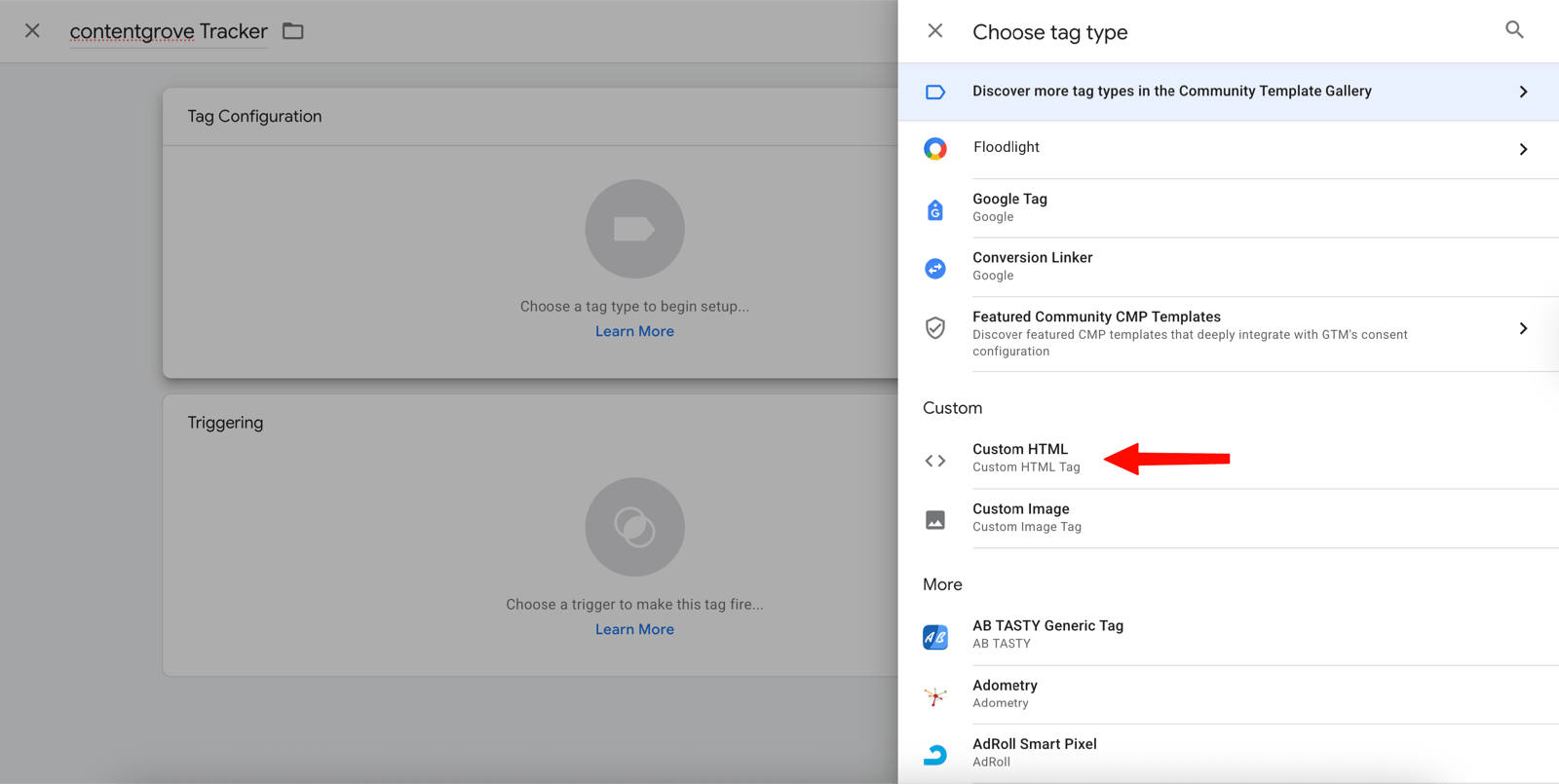
3
Paste the snippet
Copy your GTM snippet from Settings → Tracking in contentgrove and paste it into the HTML field. See Install the tracking script for the snippet format.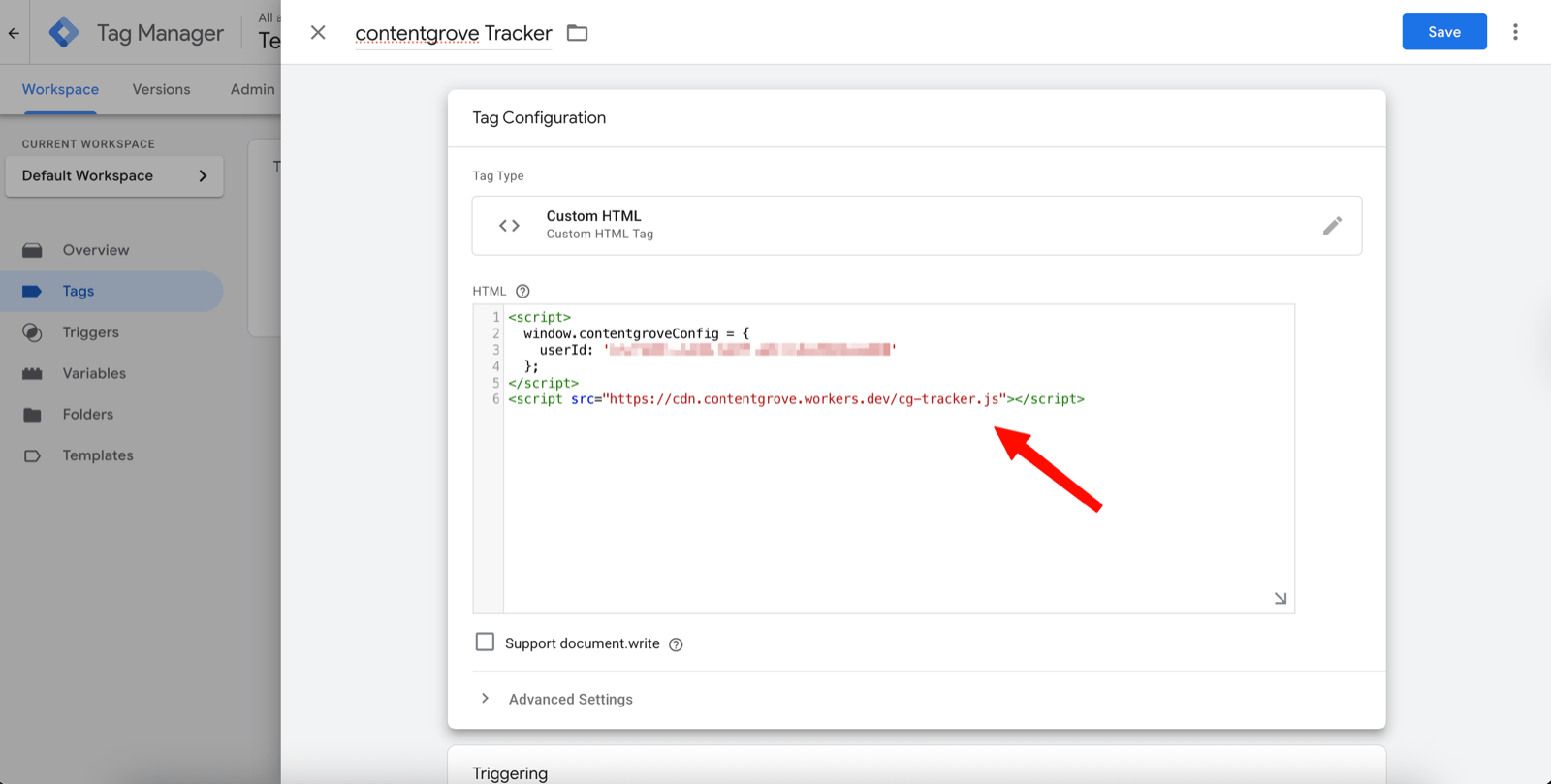
4
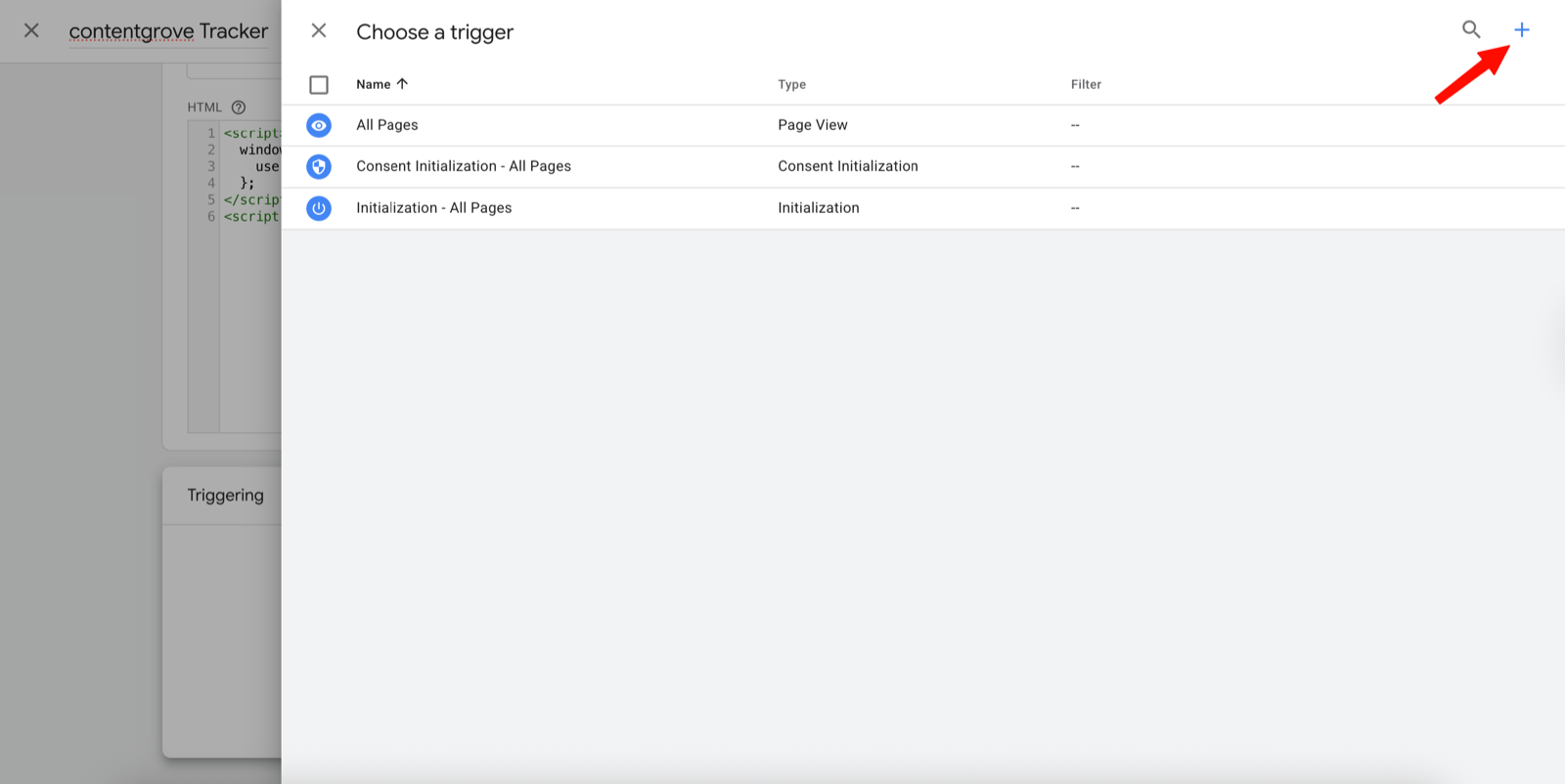
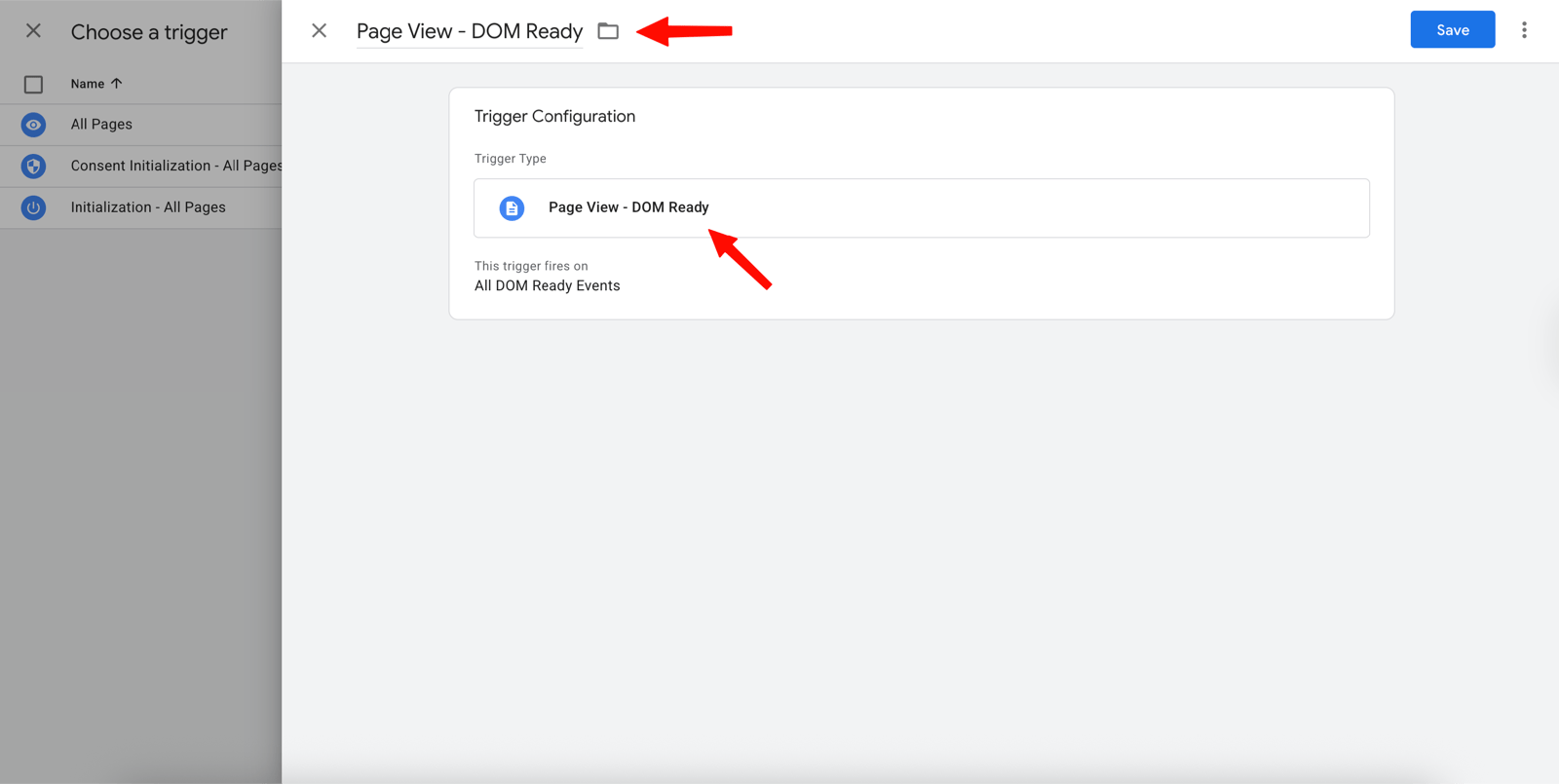
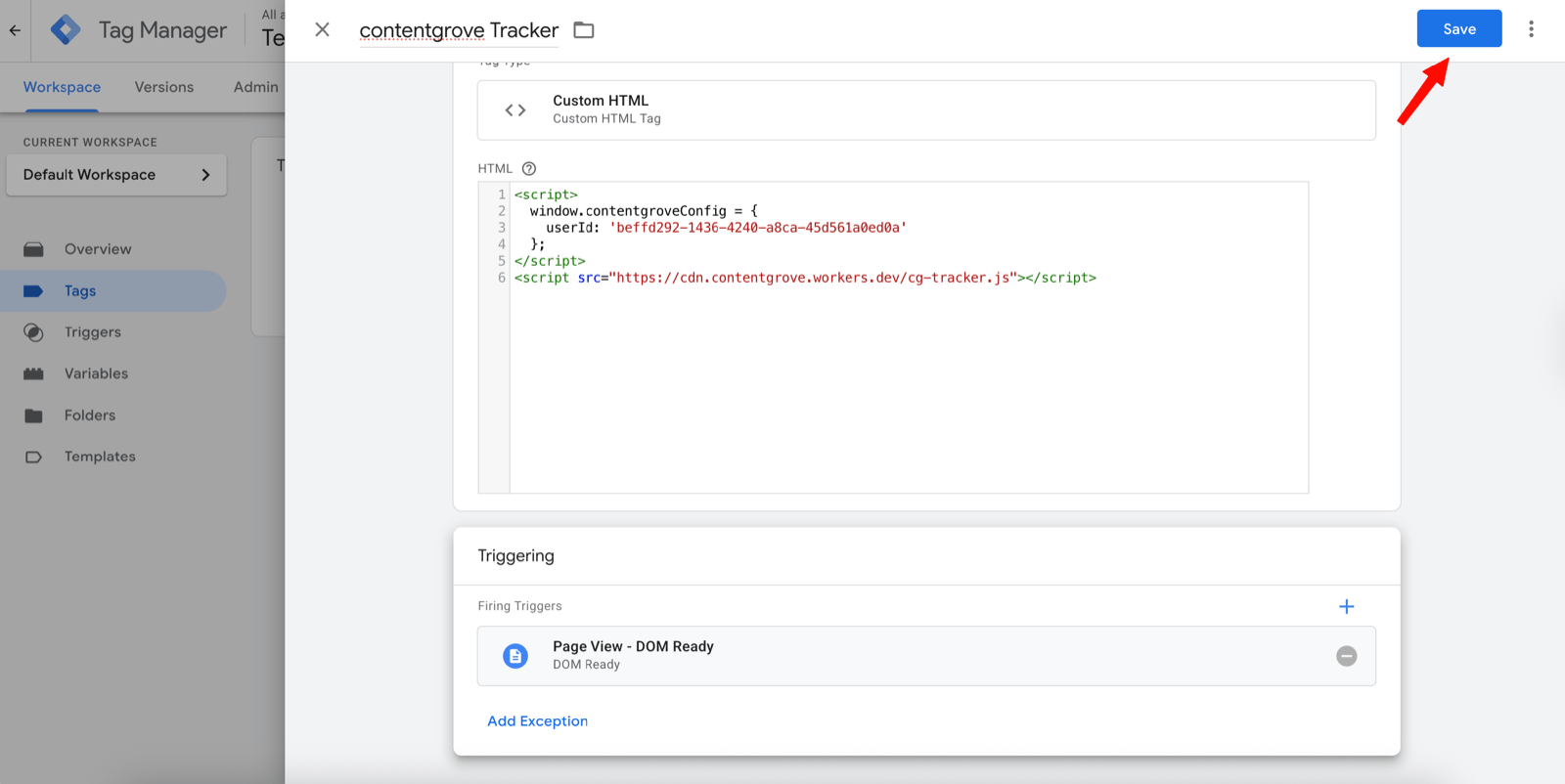
Set the trigger
Click Triggering and add a trigger of type Page View – DOM Ready. If you don’t have one yet, click the plus icon to create it, name it, and save.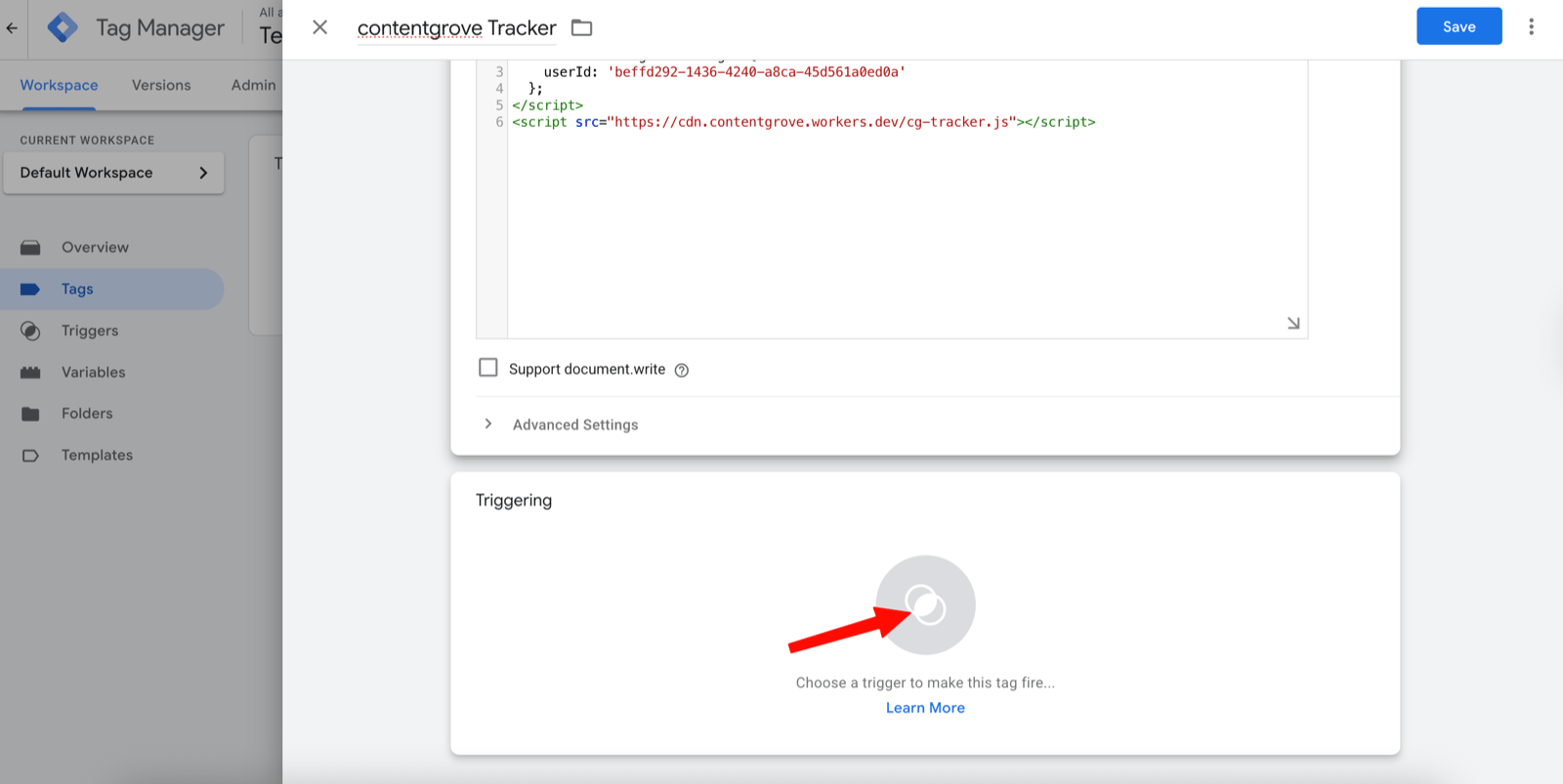
5
Submit and publish
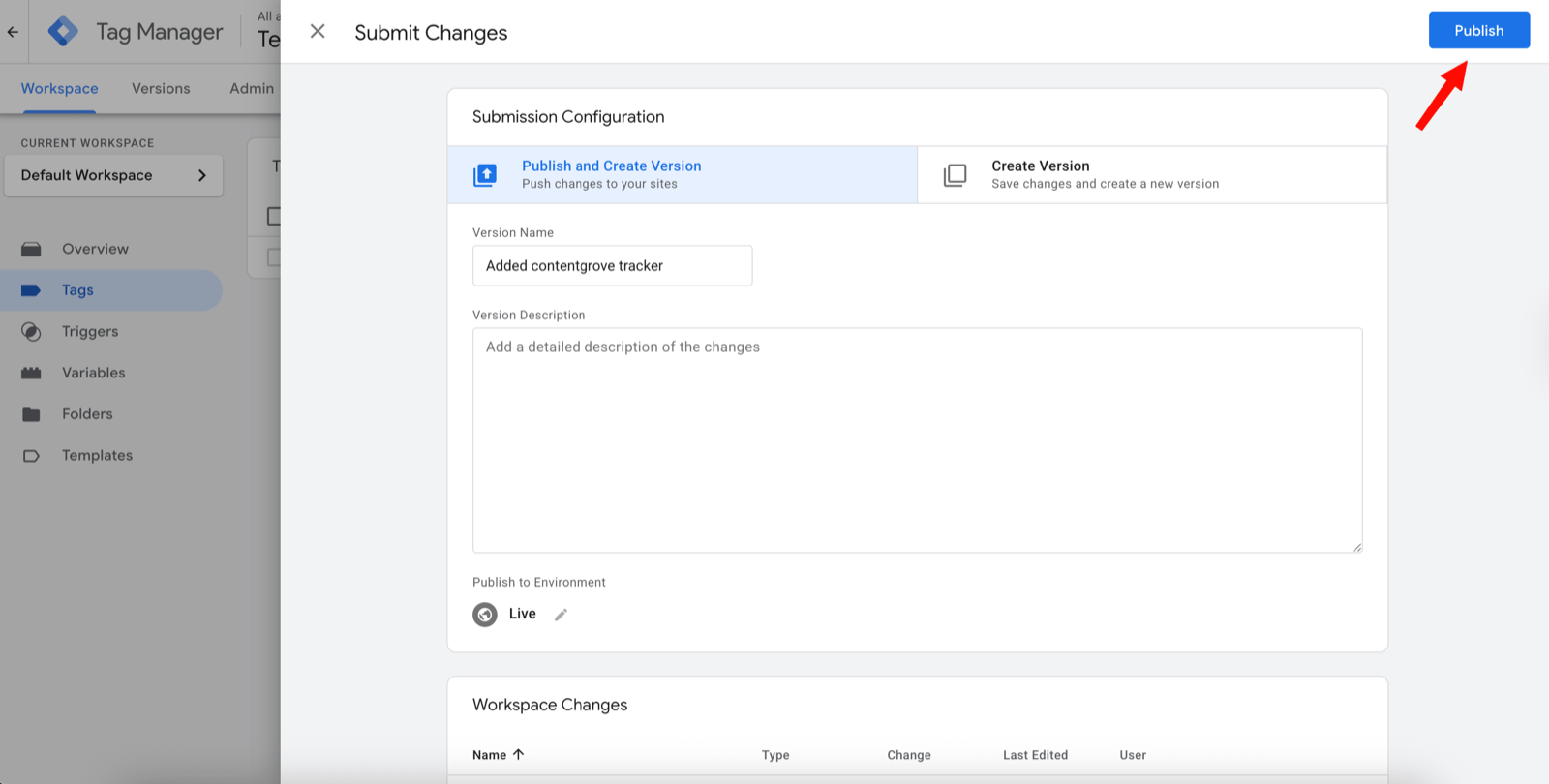
Click Submit, then Publish. Without publishing, the tag won’t be active.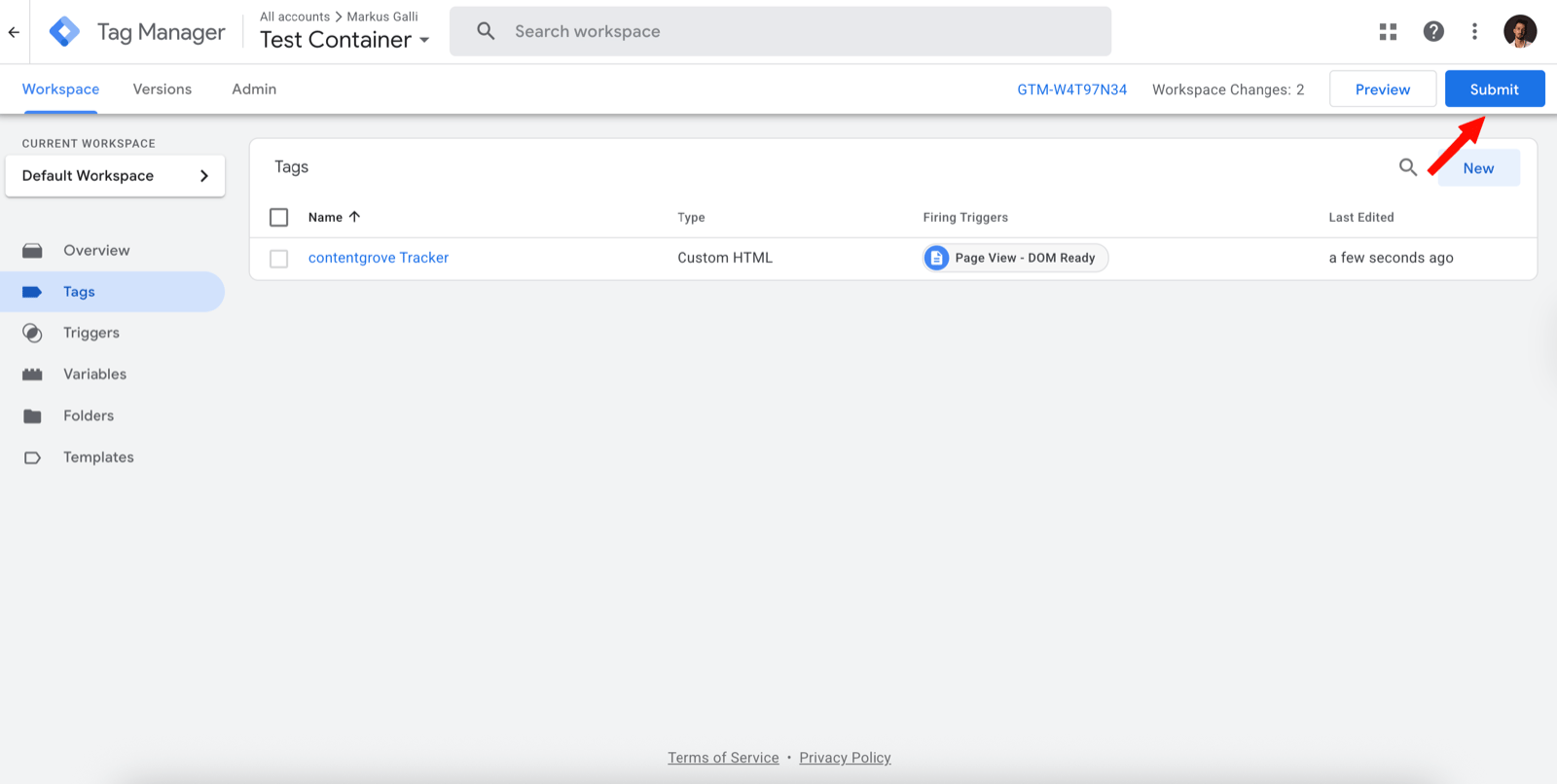
Verify it works
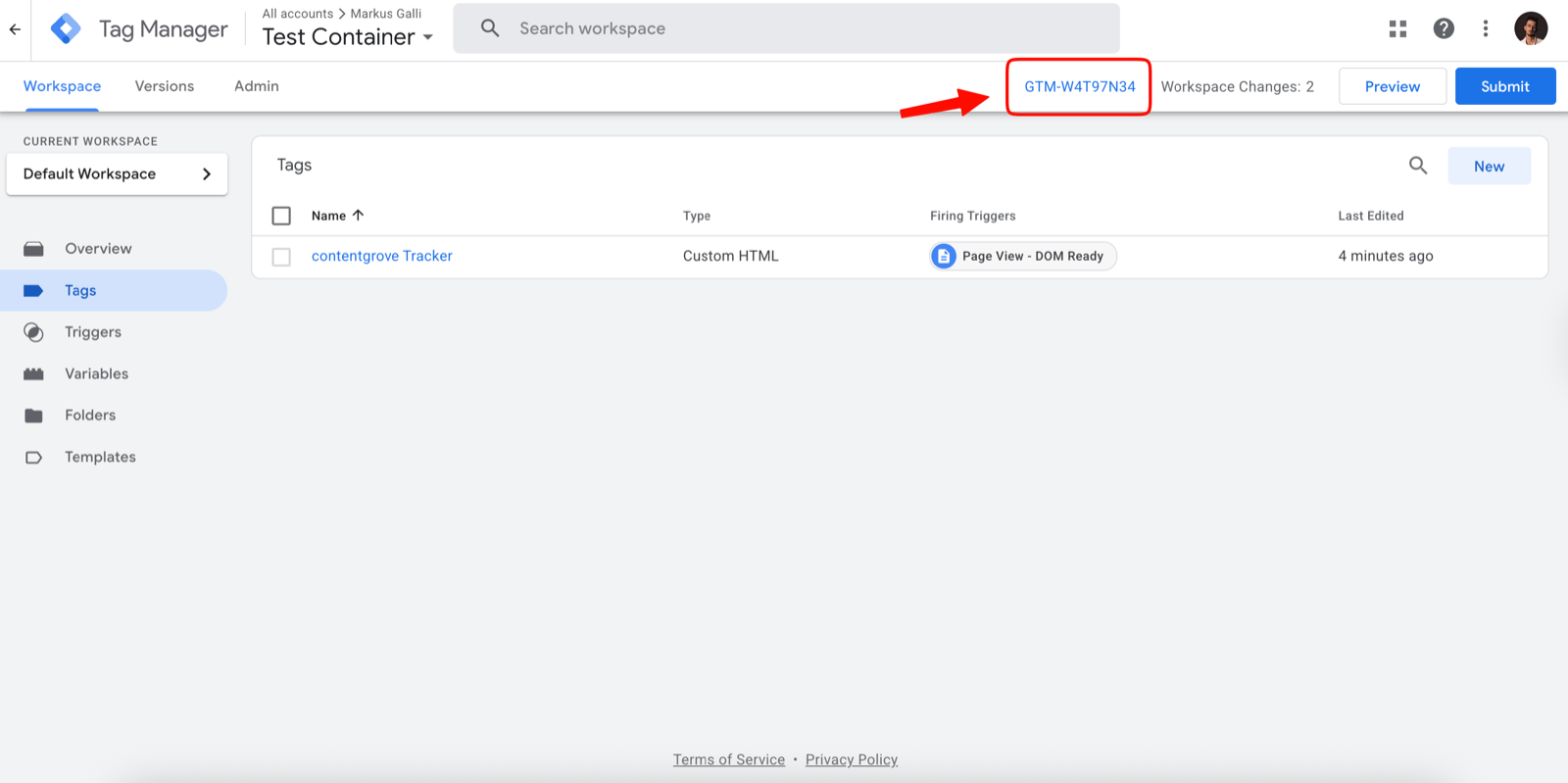
In contentgrove, open Settings → Tracking and use the Verify tracker tool. You can also use GTM’s preview mode to confirm the tag fires on your pages. Once configured, you can deploy the same tag on any platform that supports GTM by adding your container ID (formatGTM-XXXXXXX). If tracking isn’t recording, see Tracking isn’t recording clicks.