

How they work
1
Create a dynamic link
Define a variable name like
{{workshop-link}} and a destination URL.2
Add the variable to descriptions
Put 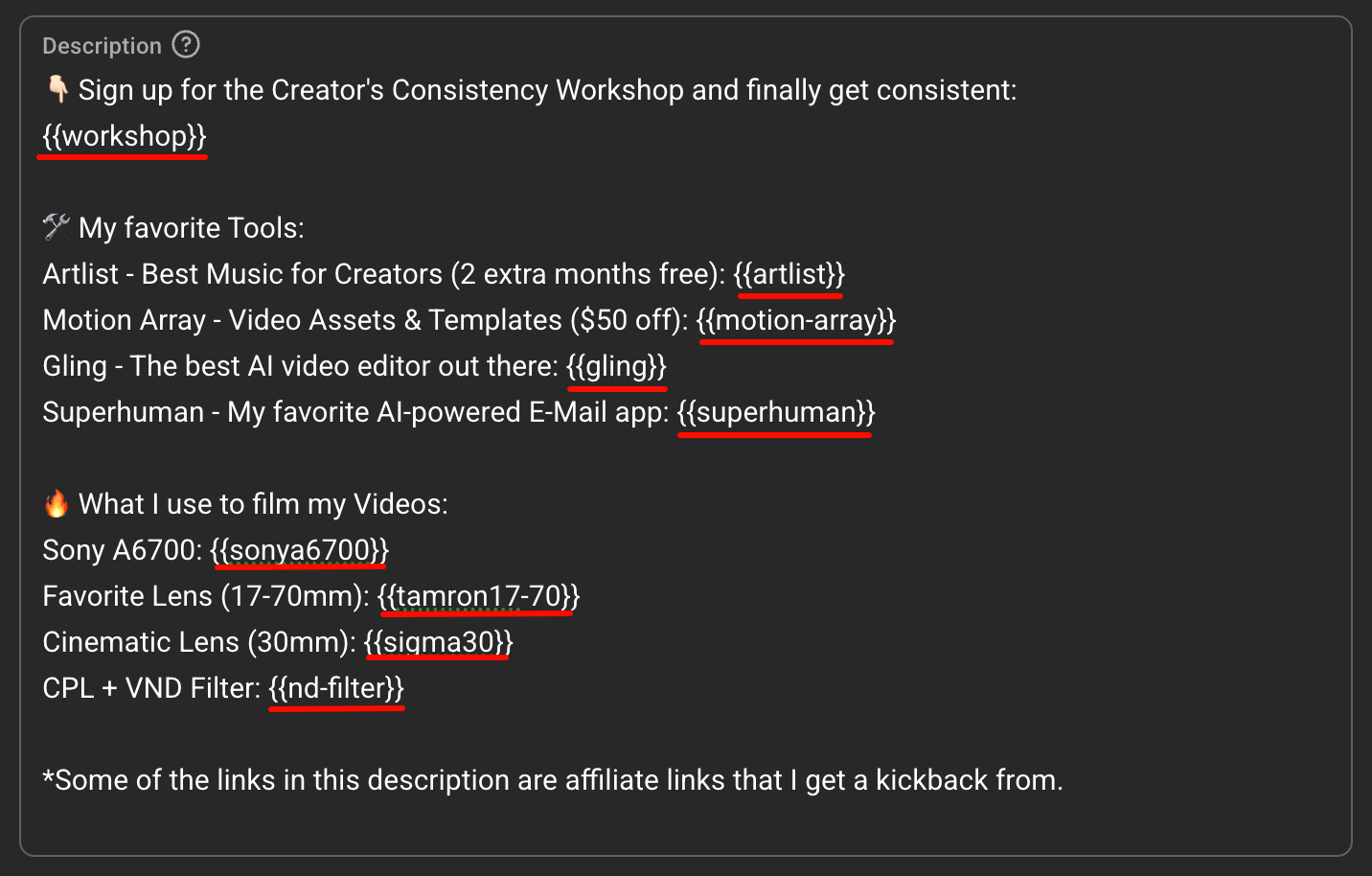
{{workshop-link}} anywhere in your video descriptions.3
Process variables
On the Dynamic links tab, click Process Variables. Each video’s variable is replaced with its own unique tracking link.
Create a dynamic link
1
Open the dialog
On the Dynamic links tab, click Create Dynamic Link.
2
Fill in the details
Set:
- Name — a descriptive label, such as “Free workshop”.
- Destination URL — where the link sends traffic.
- Variable name — wrapped in double curly braces, such as
{{workshop-link}}. Use hyphens or underscores instead of spaces. - Link type — Offer (select an offer for conversion tracking) or Affiliate.
- Domain — which domain the generated short links use.
3
Save
Click Create Dynamic Link.
Variable names are case-insensitive, so
{{Workshop-Link}} matches {{workshop-link}}. Each variable name must be unique across your dynamic links.Manage dynamic links
Each dynamic link appears as a card showing the name, variable, destination, type, how many videos use it, and the created date. You can:- Edit a dynamic link to change its name, variable, destination, type, offer, or domain.
- Copy the variable to paste into your descriptions.
- Delete a dynamic link you no longer need.
When to use it
Dynamic links are best when you have one link you use again and again across many videos — your free workshop, your main course or product page, your newsletter, or an affiliate link. Instead of creating a tracking link and pasting it into each video description by hand, you add a single variable, and contentgrove generates a unique tracking link for every video automatically — including new videos you publish later.If variables aren’t replacing
Check that the variable spelling and{{ }} formatting match the dynamic link’s variable name, that you’ve run Process Variables on the Dynamic links tab, and that the dynamic link still exists. After processing, use Verify links in descriptions in Create links to confirm the replacements.