

Add the tracking code
1
Copy your snippet
In contentgrove, open Settings → Tracking and choose GoHighLevel. Copy the snippet it gives you. See Install the tracking script.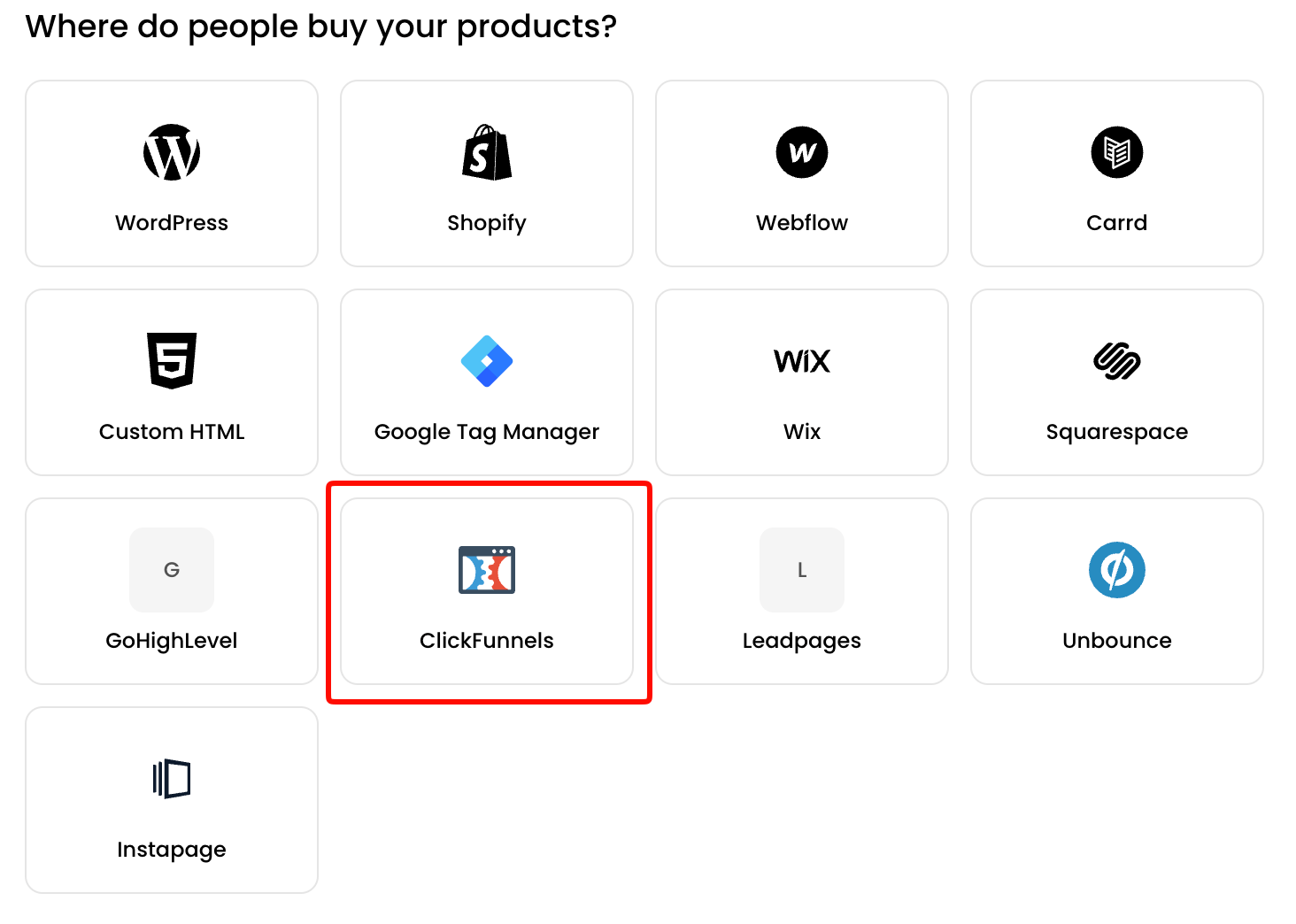
2
Open your landing page step
Open the funnel step your tracking links point to, then click the code icon in the upper-left toolbar to open Tracking Code.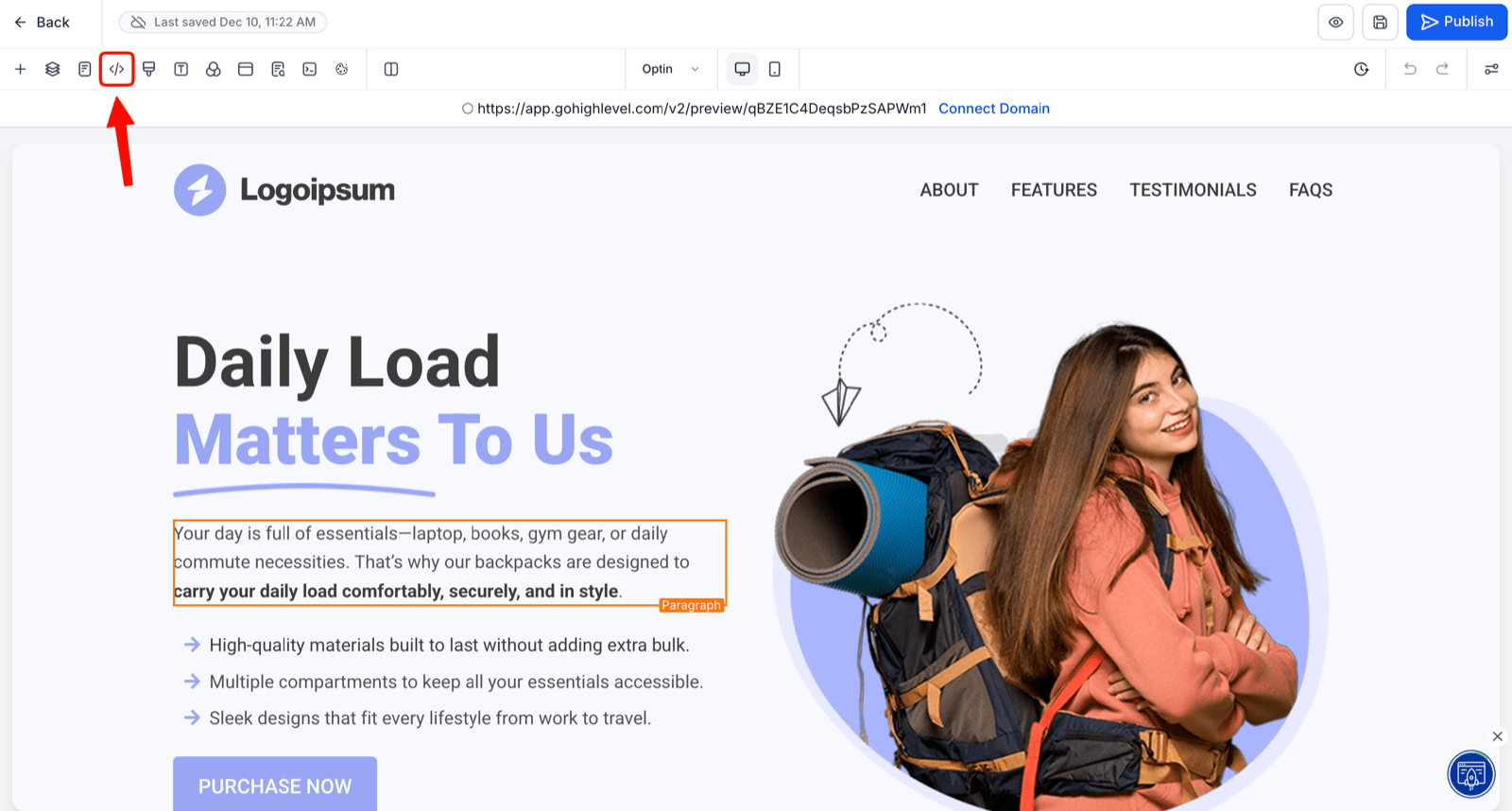
3
Paste into Footer Tracking
Paste the snippet into the Footer Tracking tab and click Save.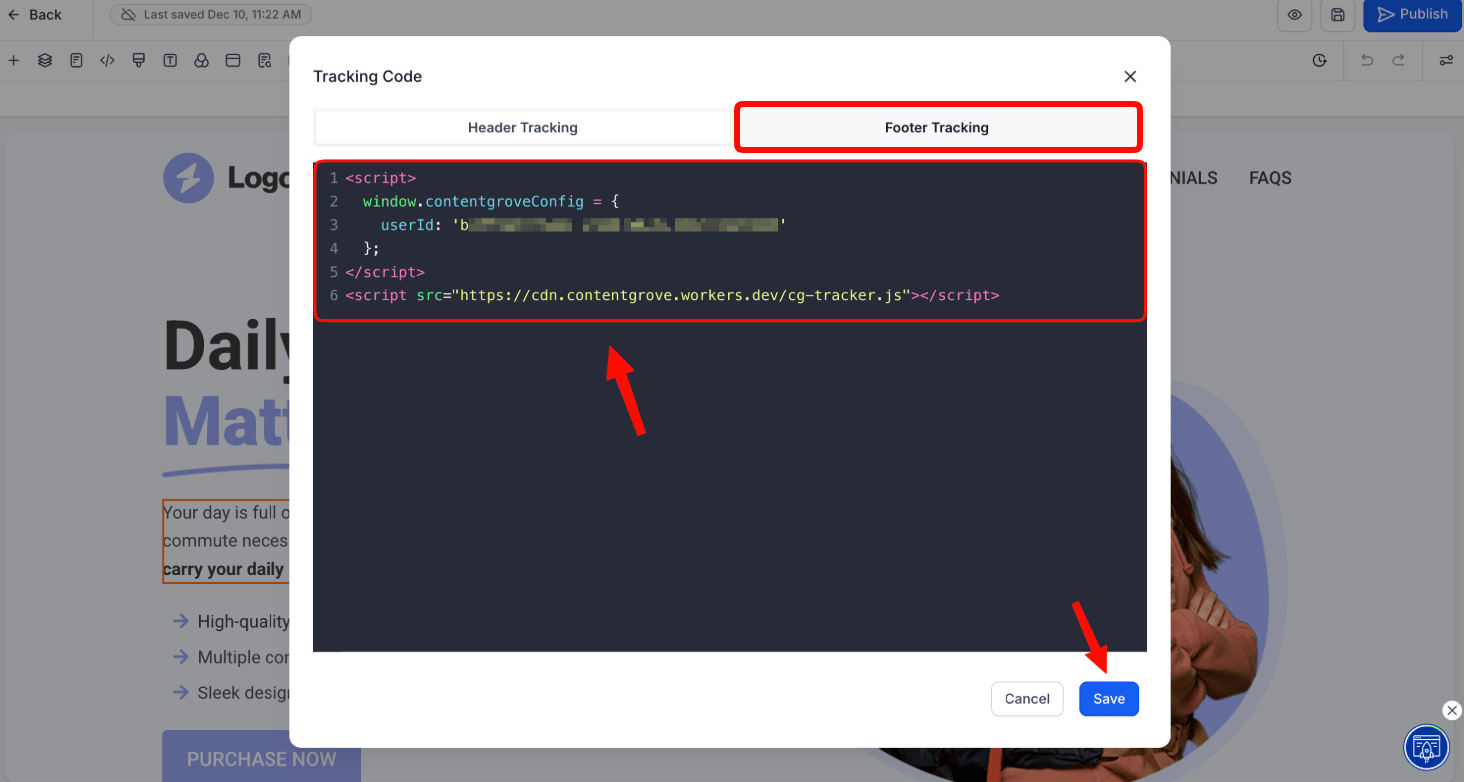
4
Repeat for every other step
Switch steps using the dropdown in the toolbar and paste the same snippet again. Don’t skip your thank-you page — that’s the step that records conversions.
5
Publish
Click Publish to activate tracking.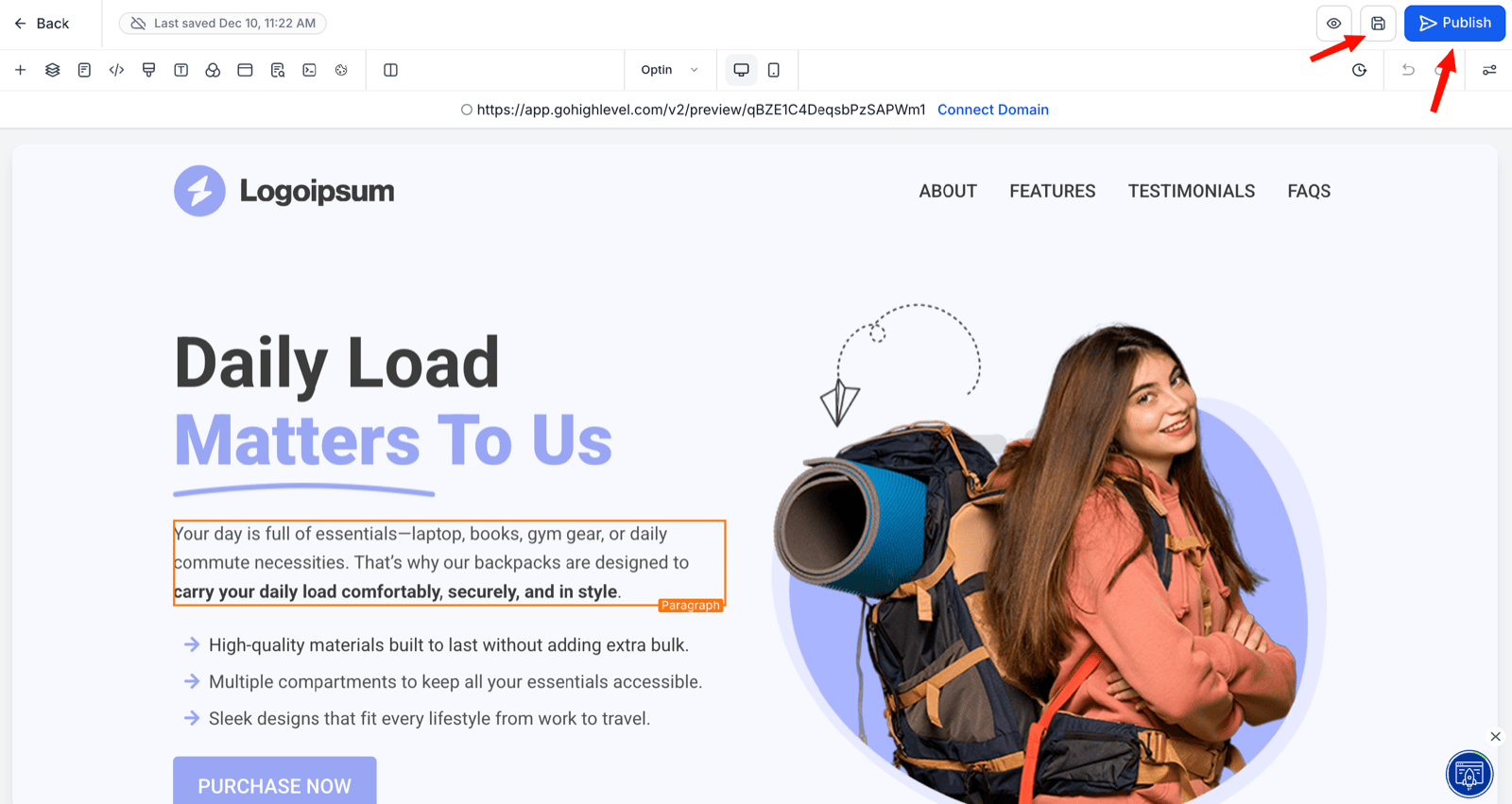
What each page does
- Your landing page stores the click ID, which links the visitor back to the video they came from.
- Your thank-you page records the conversion, using the click ID your landing page stored.
Healthy click numbers don’t mean the snippet is installed. contentgrove counts a click when someone follows your tracking link, before they ever reach your site — so clicks keep arriving whether or not the snippet is on your landing page. Conversions are the part that depends on it.