
How to get Started With contentgrove in 5 Minutes
contentgrove helps you understand which of your YouTube videos drive the most clicks and conversions to your offers. Set up takes just 5 minutes, and you'll start seeing insights within a few days.
The easiest way to get started is to follow our onboarding. If you want to setup your account manually, you can follow the steps outlined below.
Important: The video below is slightly outdated, but still helpful if you need help to setup your tracking script on your website.
1. Connect Your YouTube Account
After signing up, you'll need to connect your YouTube channel to contentgrove. This allows us to sync your video analytics data and automatically update your tracking links.
Steps:
- Click "Connect YouTube" on the settings page

- Sign in with your Google/Youtube account
- Grant contentgrove permission to access your YouTube analytics
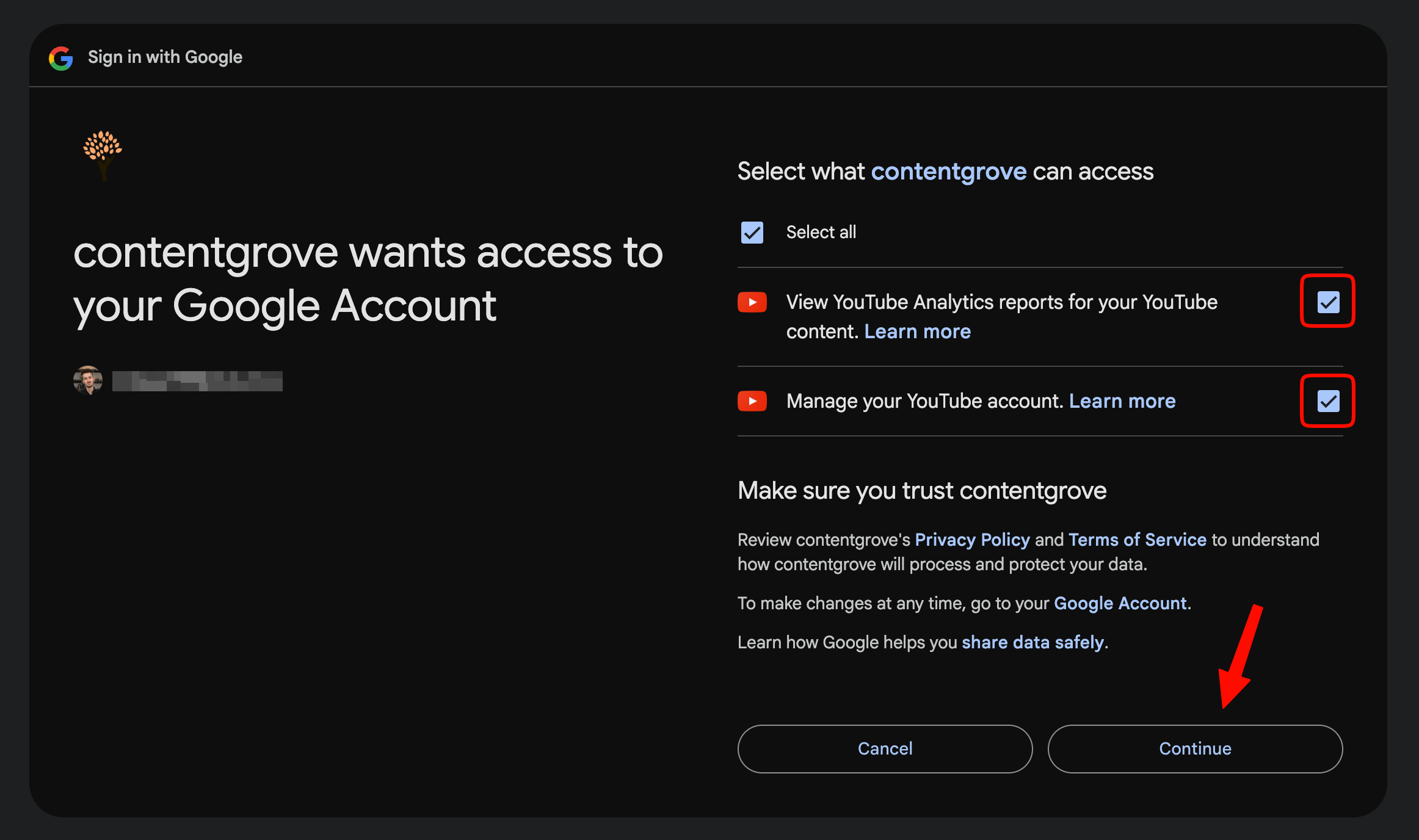
- Your videos will automatically sync with contentgrove
Why do we needs these permissions?
- View YouTube Analytics reports for your YouTube content: This allows us to access your YouTube analytics data, which is used to calculate different metrics in our app.
- Manage your YouTube account: This allows us to auto-update tracking links in your video descriptions (if you choose to use that feature).
2. Set Up Tracking on Your Website
To start tracking clicks and conversions, add the contentgrove tracking script to you website. This is just a quick overview. We also created a few in-depth guides for different providers here.
Steps:
- Go to Settings → Tracking
- Choose your website provider and follow the specific instructions outlined

- Add the tracking script to your website's footer

Verify Tracking Installation
To verify if the snippet is correctly setup, you can go to the contentgrove settings and use the "Verify Tracker" tool. Simply enter the URL of your website and click on "Check Tracker".
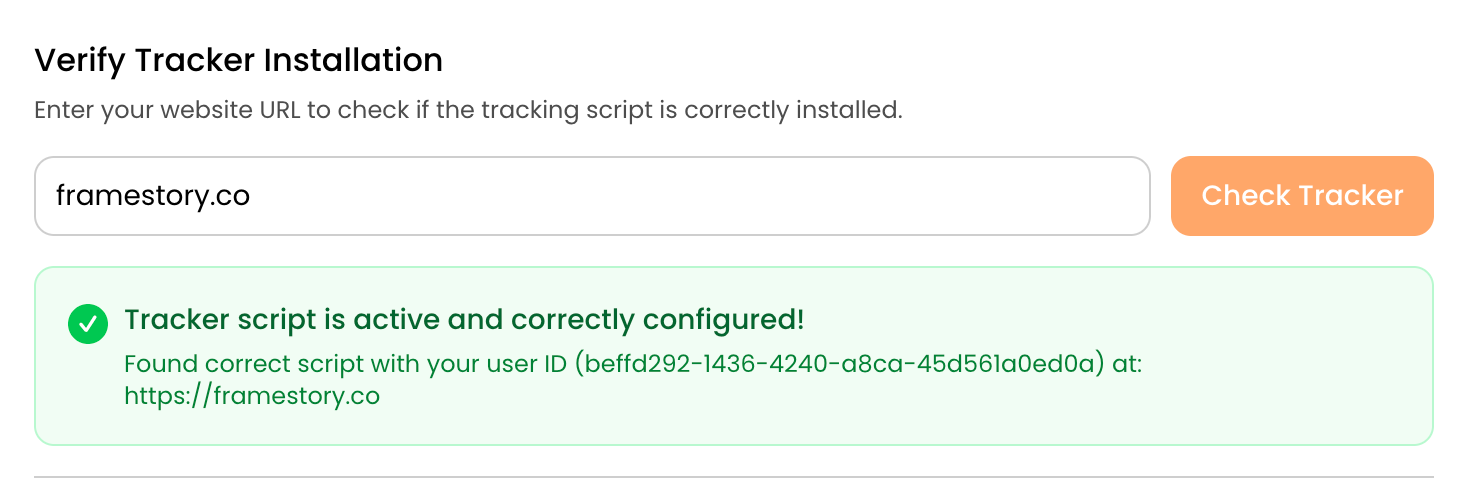
If you have any troubles setting up your tracking snippet, feel free to contact our support and we're happy to help.
3. Create Your First Offer
Offers help contentgrove understand which pages to track as landing pages and which pages represent successful conversions.
Steps:
- Navigate to the Offers page
- Click "Create New Offer"
- Fill in the details:
- Offer Title - Give it a memorable name (e.g., "Storytelling Course")
- Offer Value - The sales price of your offer (leave blank for free offers without specific value)
- Landing Page URL - Where you send traffic (e.g.,
yoursite.com/storytelling) -> write/storytelling(no need to write the full URL) - Thank You Page URL - Where customers land after converting (e.g.,
yoursite.com/thank-you) -> write/thank-you(no need to write the full URL) - Matching Type - Choose how contentgrove should match your URLs (includes, exact match, start with, etc.)

- Click "Save Offer"
Example: If you're promoting a free ebook, your landing page might be where visitors sign up, and your thank-you page is where they receive the download link. The value would be $0 since it's a free download.
4. Generate Your First Tracking Link
Once you've created an offer, it's time to create trackable links for your YouTube videos. There are currently three modes to generate tracking links:
- Single Video - Creates a tracking link for one video
- Multiple Videos - Creates tracking links for all videos that have matching landingpage links (very convenient if you use the same landingpage link in multiple videos)
- Bio Link - Creates a link you can use to track your YouTube bio links
Next we show you how to generate a link for a single video.
Steps:
- Open the Links page
- Enter your Destination URL (Landingpage URL)

- Select your YouTube video

- Select your offer or use the Affiliate Link type if you want to create a tracking link without an offer

- Check "Replace existing URL" if you want contentgrove to update the link automatically in the video's description
- Generate your tracking link
If you didn't use auto-update, paste your tracking link into your YouTube video description, pinned comment, or anywhere else you direct viewers.
What happens next? Every time someone clicks your link, contentgrove automatically tracks it. If they complete your offer (reach the thank-you page), it's recorded as a conversion.
5. View Your Analytics
After you someone clicks on your tracking link, the video will appear on your Analytics page. Head to the Analytics page to see your performance at a glance.
What you'll see:
- Total Clicks - How many times your links were clicked
- Unique Clicks - How many people with distinct IP addresses clicked your links
- Total Conversions - How many completed your offer
- Conversion Rate - Percentage of clicks that turned into conversions
- Top Performing Videos - Which videos drive the most results
- And many more...
Pro Tip: Compare different videos to identify what topics and styles resonate most with your audience. Double down on what works!
What's Next?
Now that you're set up, you can:
- Create multiple offers for different products or services
- Track performance across all your YouTube videos
- Optimize your video descriptions based on what converts best
- Scale your best-performing content
Need help? Click the help icon in the bottom-right corner to chat with our support team, or explore our detailed guides in the help center.