
How to setup contentgrove tracking in Wordpress
Learn how to install the contentgrove tracking snippet on your Wordpress website to track video engagement and conversions. This guide will show you how to add the tracking code to your site in just a few minutes.
WordPress offers several ways to add custom code to your site. We'll cover the setup via a plugin, but if you want to add the snippet directly to your theme or page builder, you can do that too.
Setup via Plugin
- Login to your Wordpress dashboard and go to Plugins -> Add Plugin
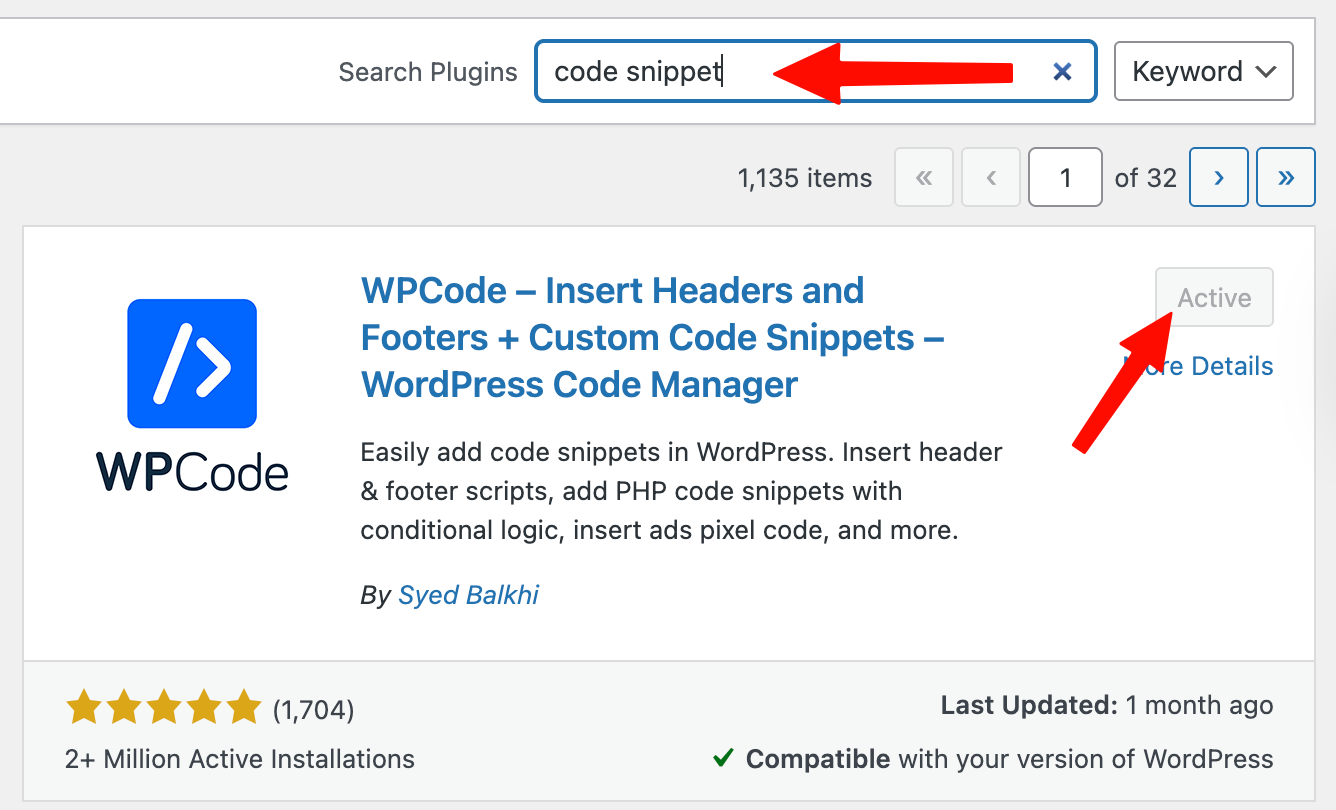
- Search for "code snippet" and install + activate "WPCode"
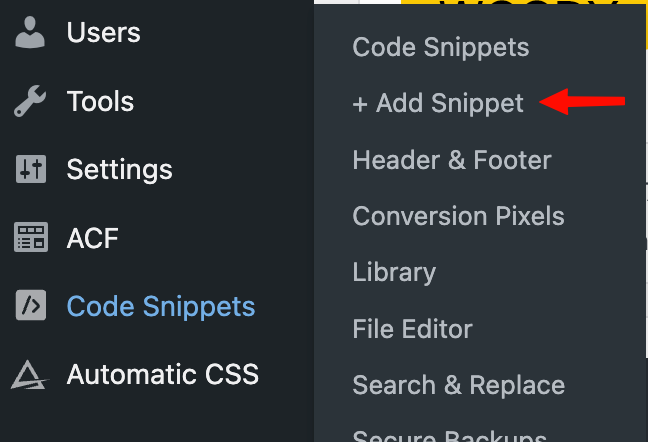
- Go to the plugin and click on "+ Add Snippet"
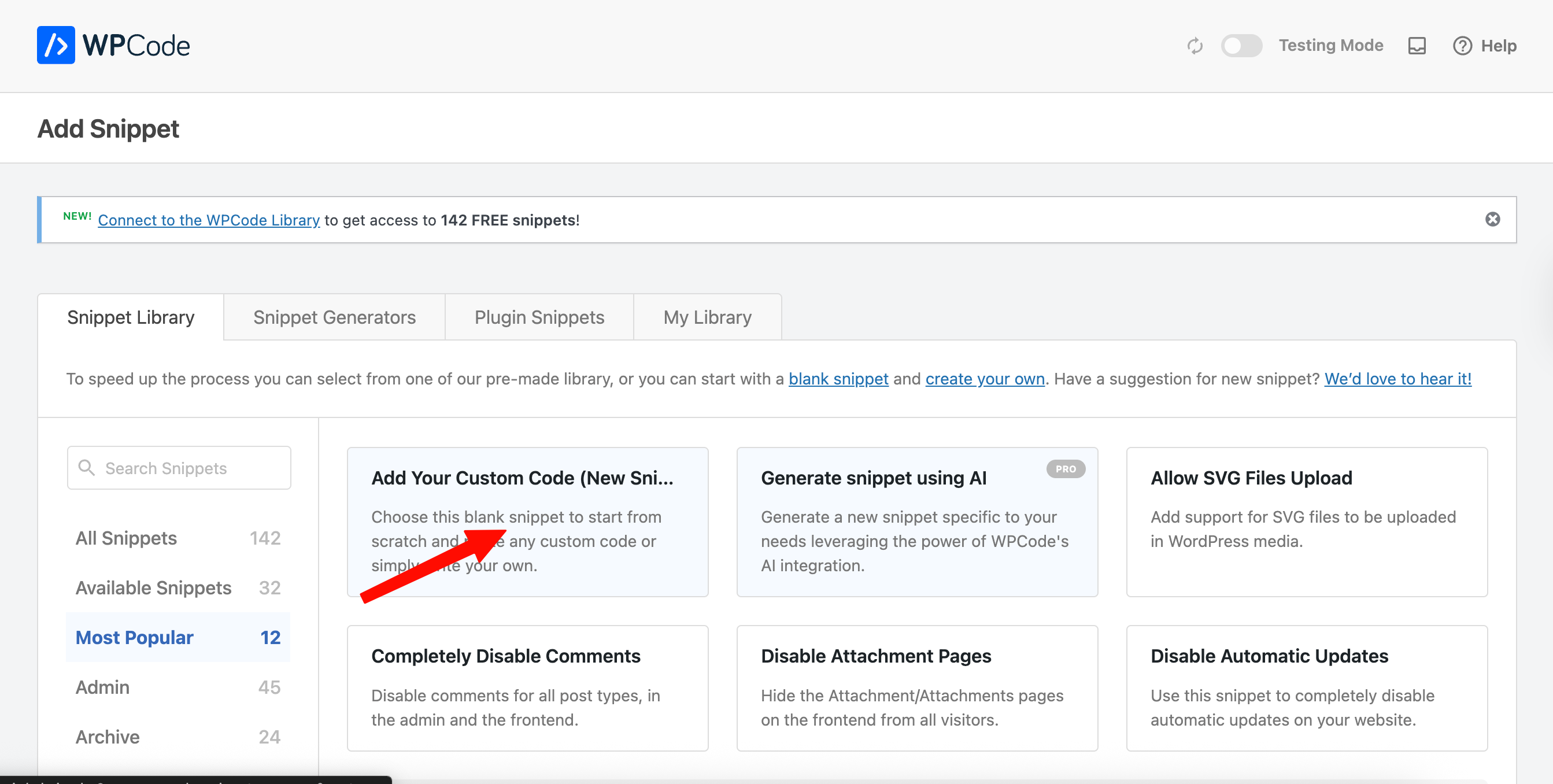
- Click on "Add Your Custom Snippet"
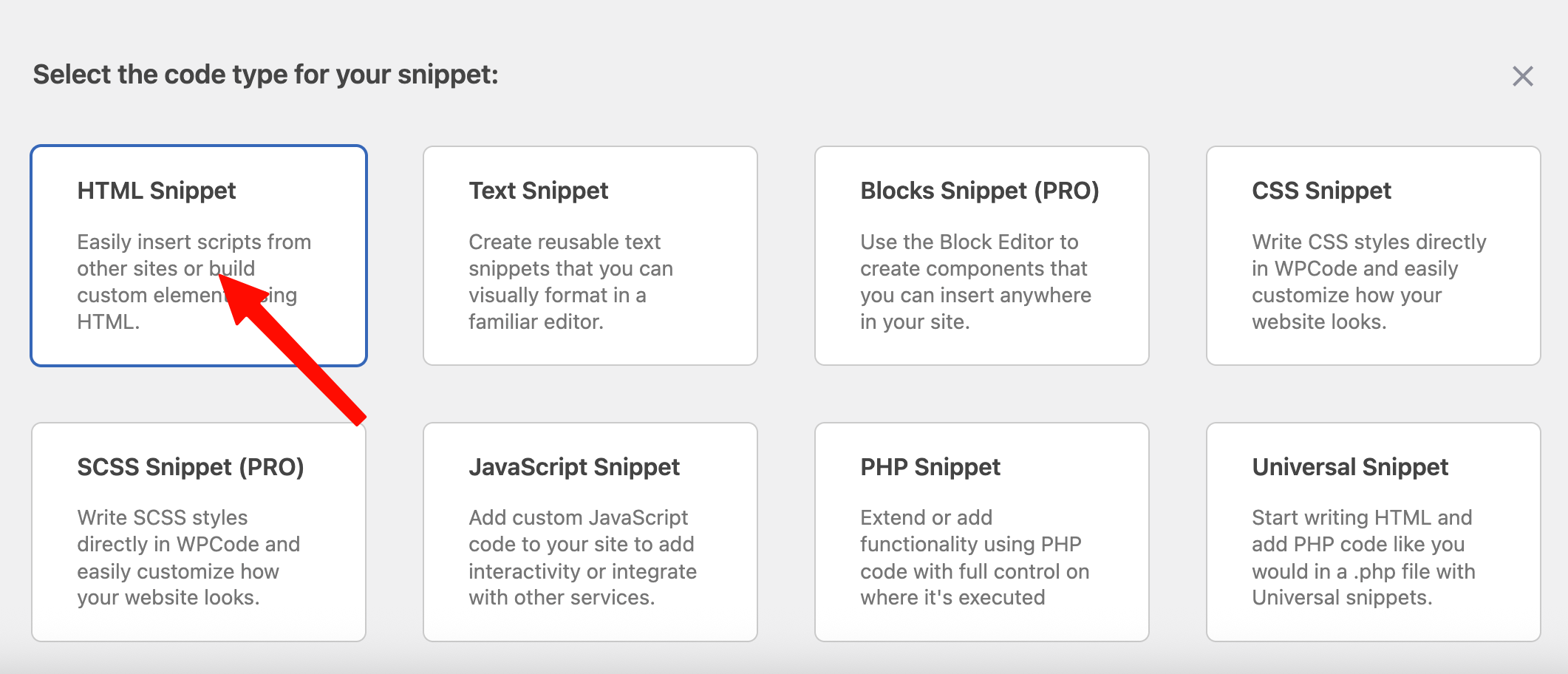
- Select "HTML Snippet"
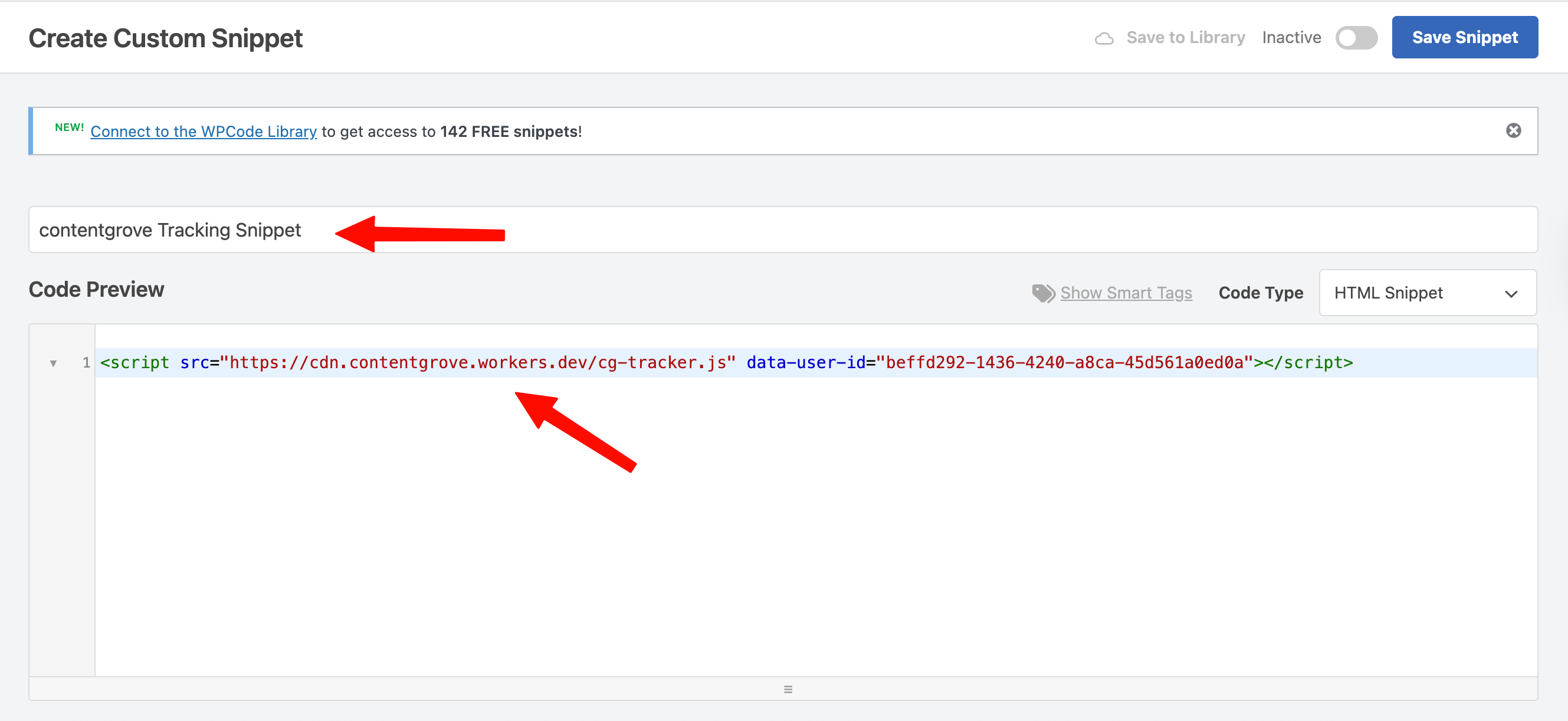
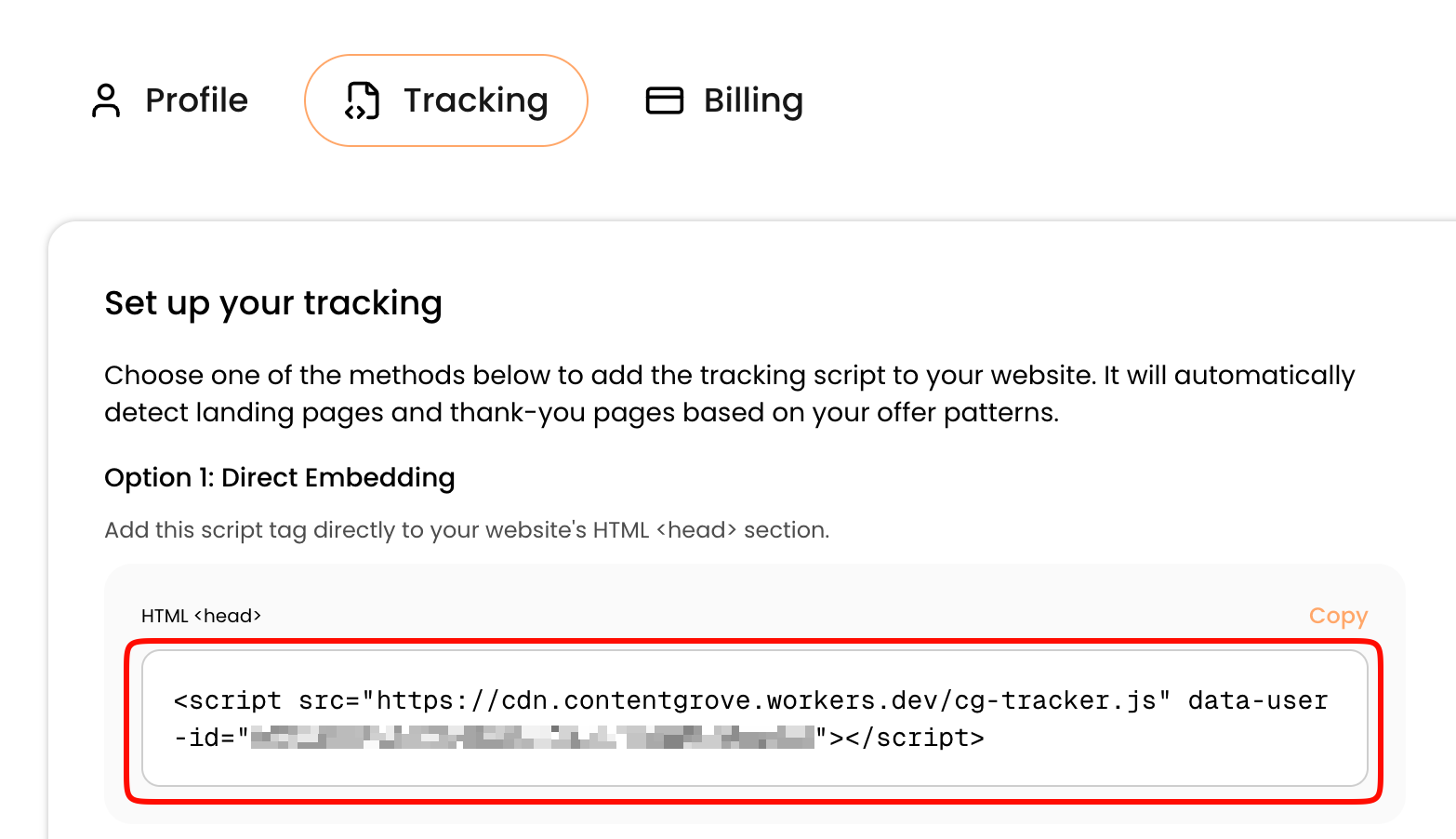
- Enter a title for your snippet and copy the HTML snippet from your contentgrove settings
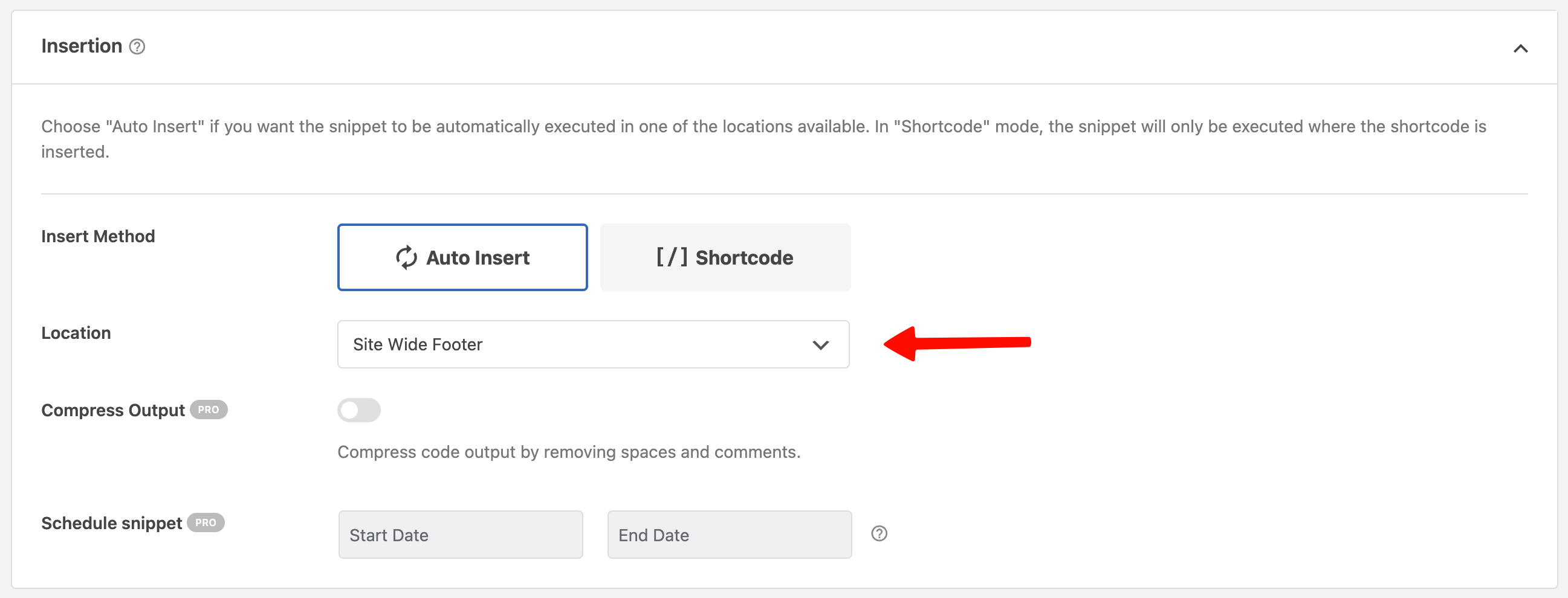
- Make sure the Location is set to "Site Wide Footer" for best page performance.
- Set the snippet to Active and click on "Save Snippet"
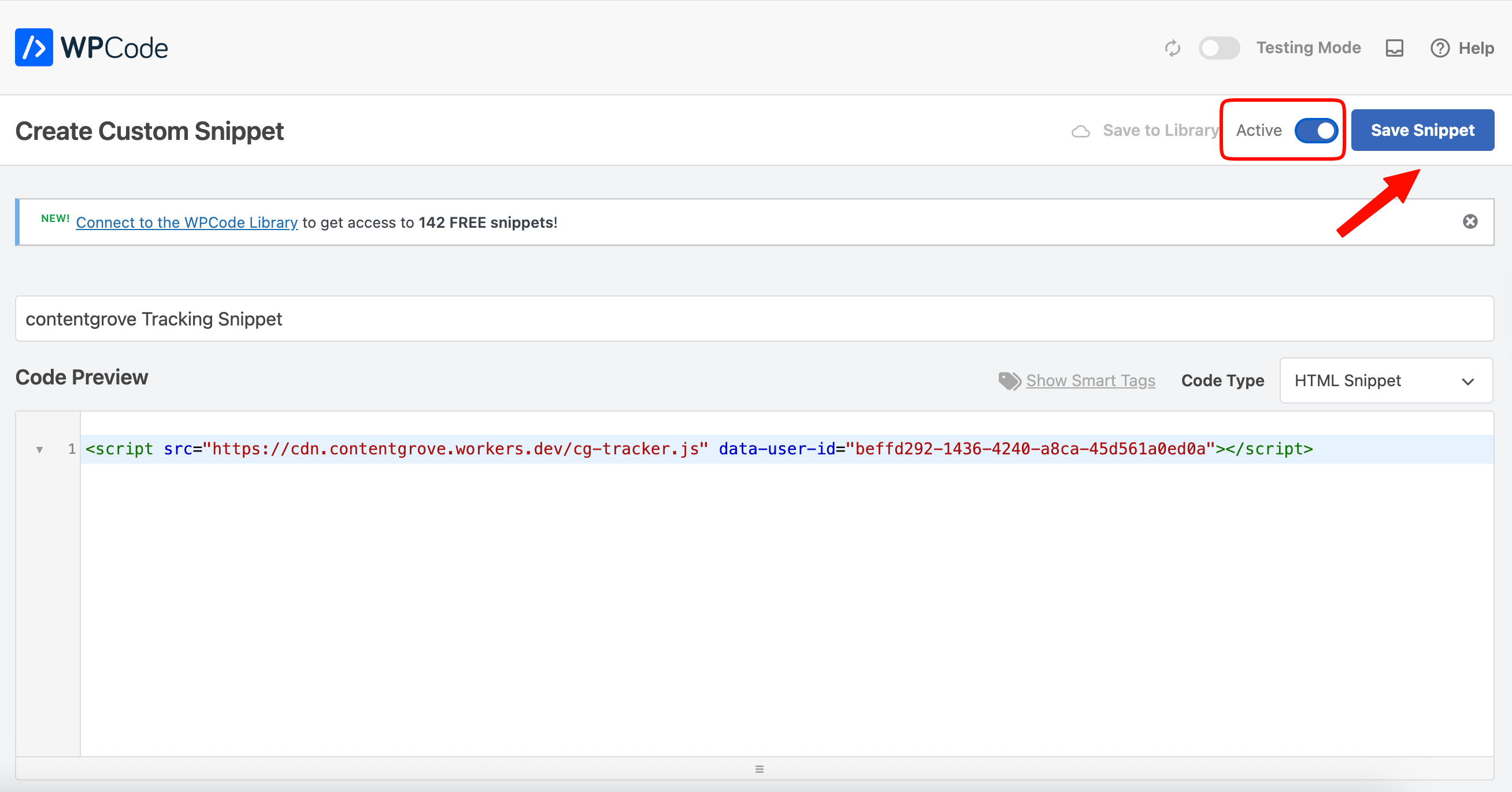
Now your snippet is setup and you're ready to start tracking.
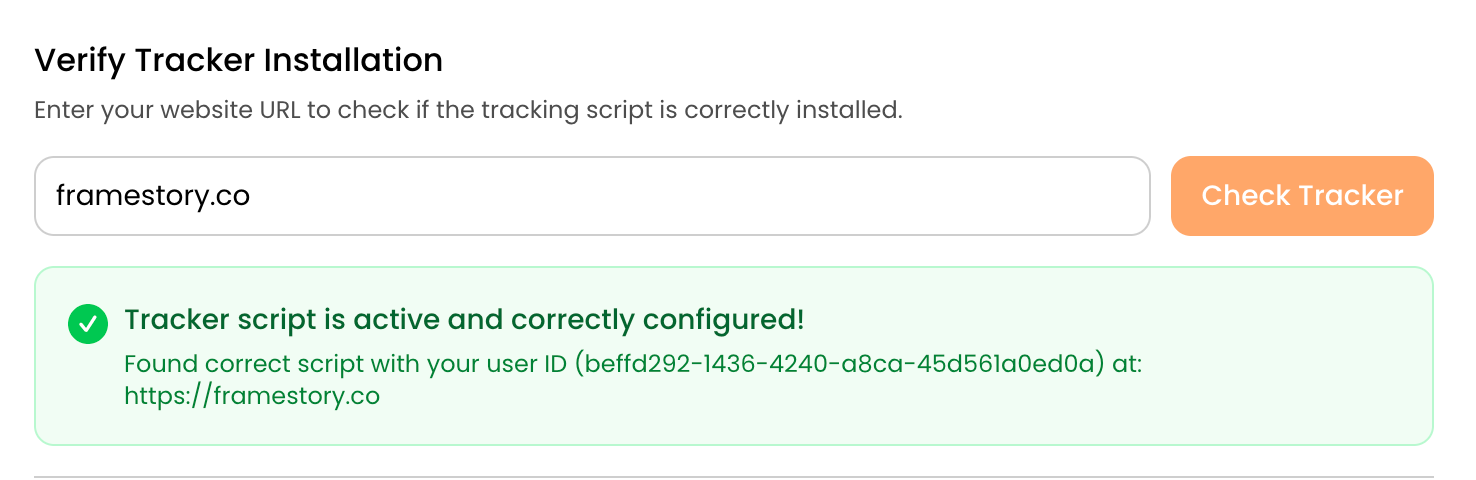
Verify Tracker Installation
To verify if the snippet is correctly setup, you can go to the contentgrove settings and use the "Verify Tracker" tool. Simply enter the URL of your website and click on "Check Tracker".
If you have any troubles setting up your tracking snippet, feel free to contact our support and we're happy to help.