How to setup contentgrove tracking in Google Tag Manager (GTM)
Learn how to install the contentgrove tracking snippet on your Google Tag Manager to track video engagement and conversions. This guide will show you how to add the tracking code to your GTM container in just a few minutes.
Setup in Google Tag Manager (GTM)
If you're new to Google Tag Manager, you need to setup your account and container first. This is usually really straightforward and you can find plenty of tutorials online.
And if you're already using GTM, you can just add the snippet to your existing container.
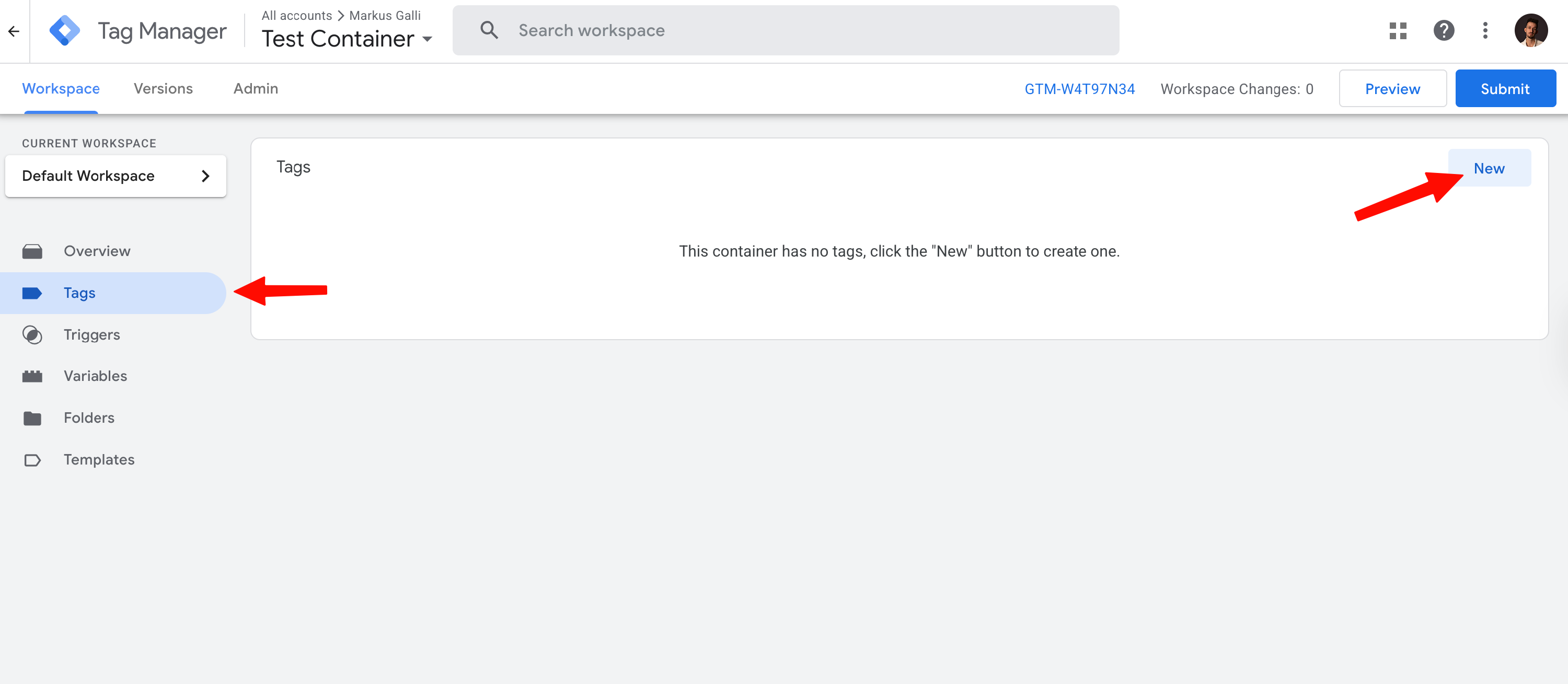
- Go to the "Tags" tab and click on "New"
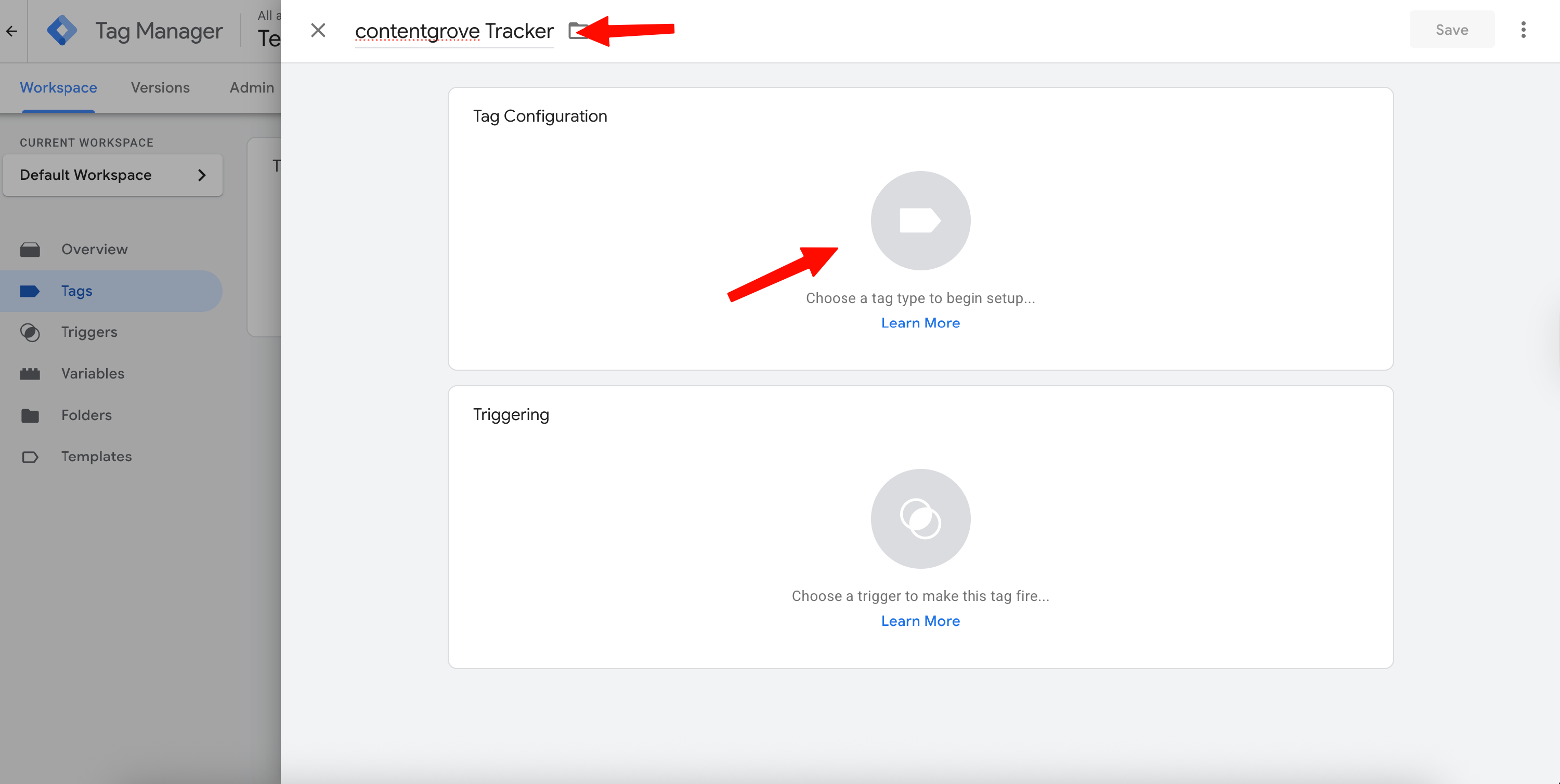
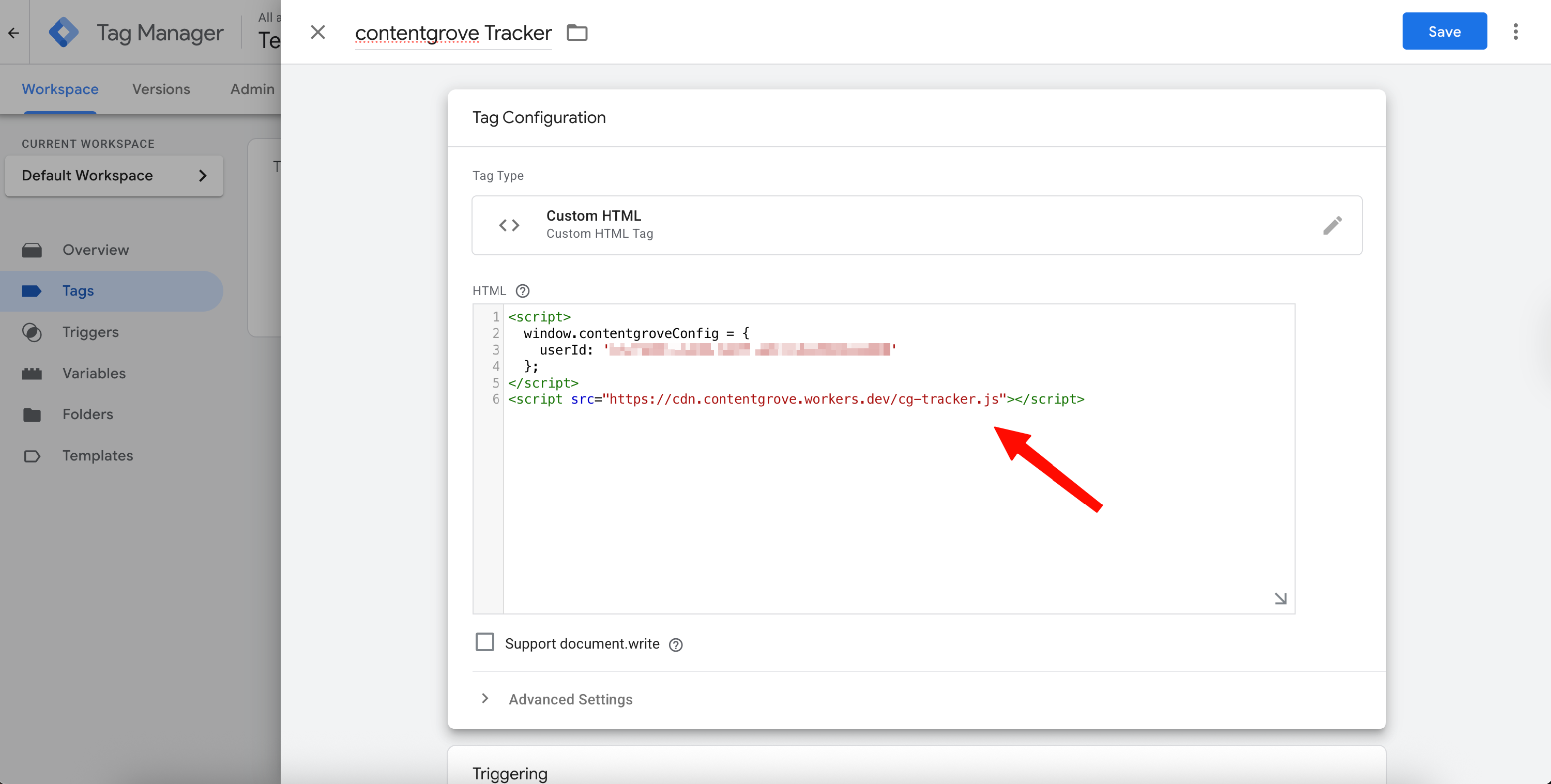
- Enter a name for your new tag like "contentgrove Tracker" and click on the Tag Configuration
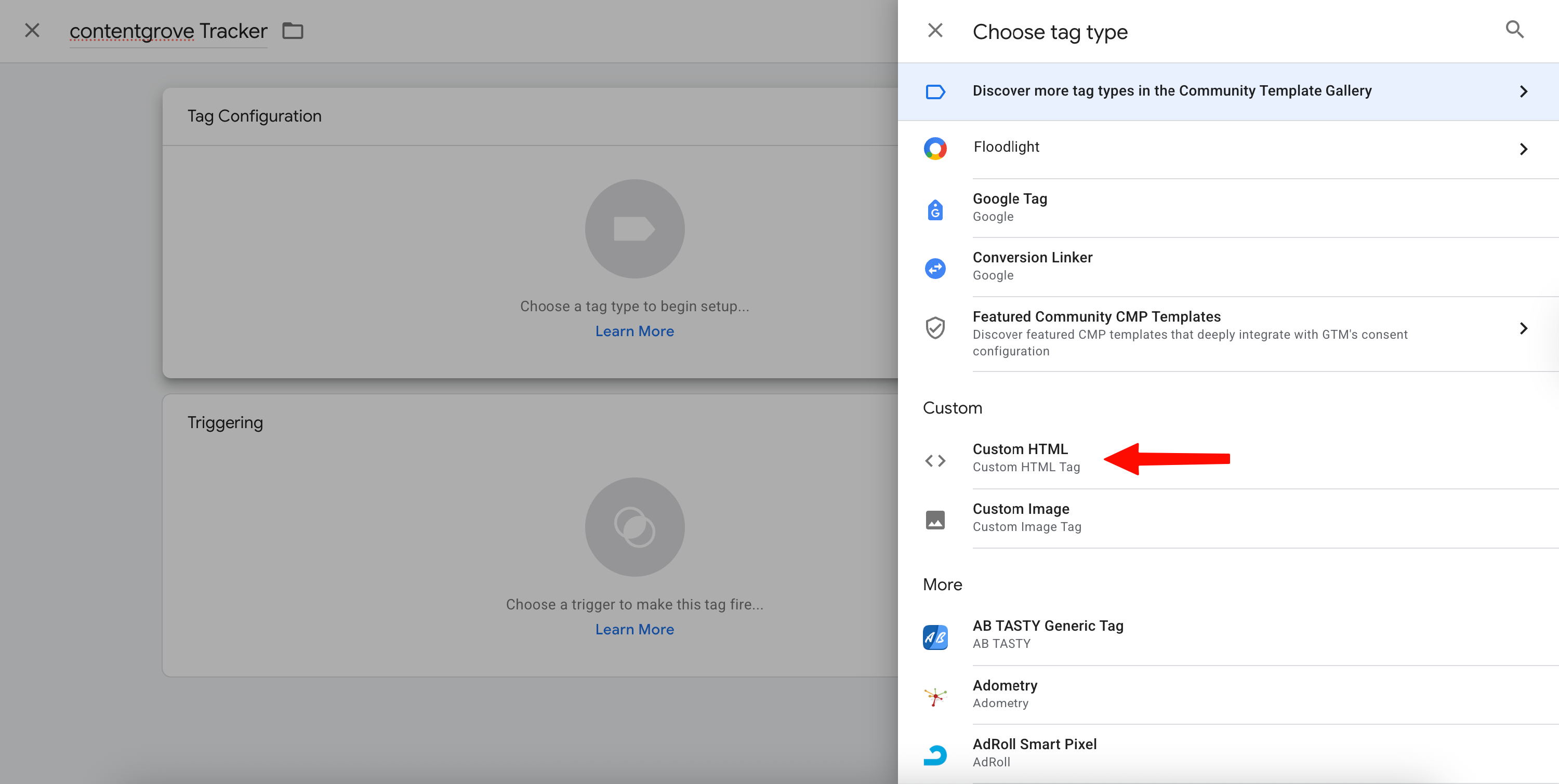
- Select "Custom HTML"
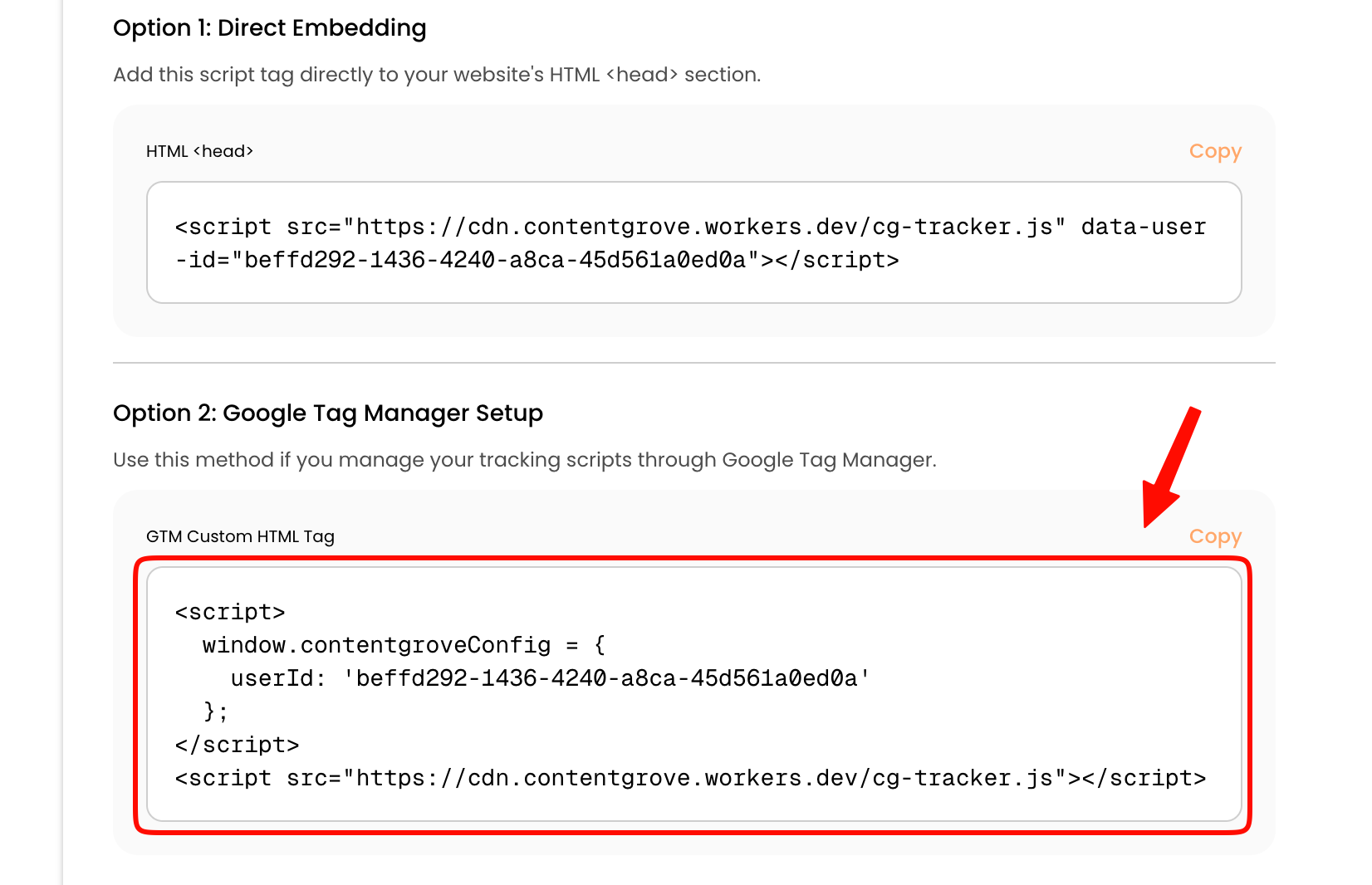
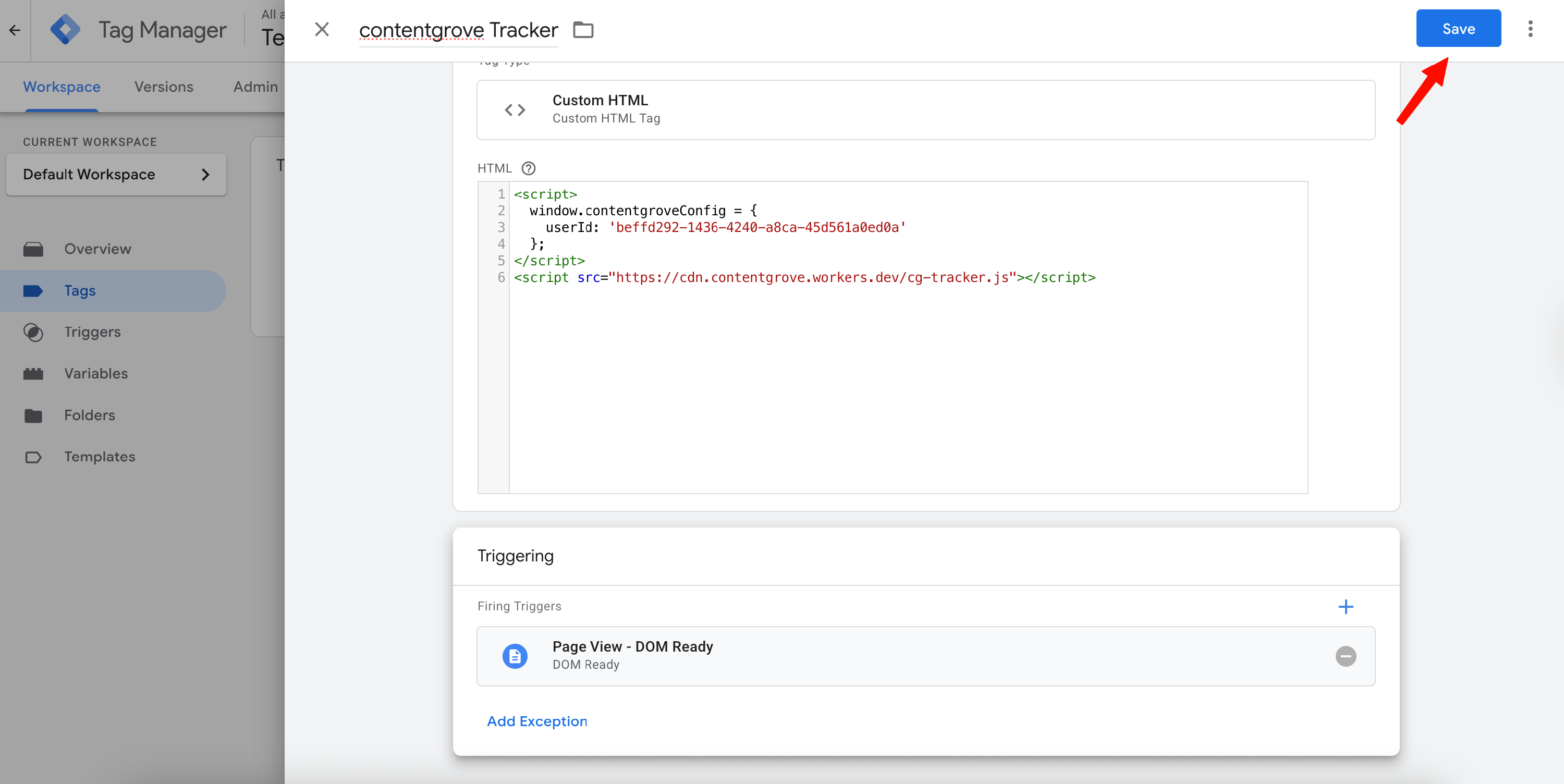
- Copy your contentgrove GTM Snippet from the contentgrove Settings page and insert it in the HTML field in GTM
- Click on "Triggering" to create a new trigger
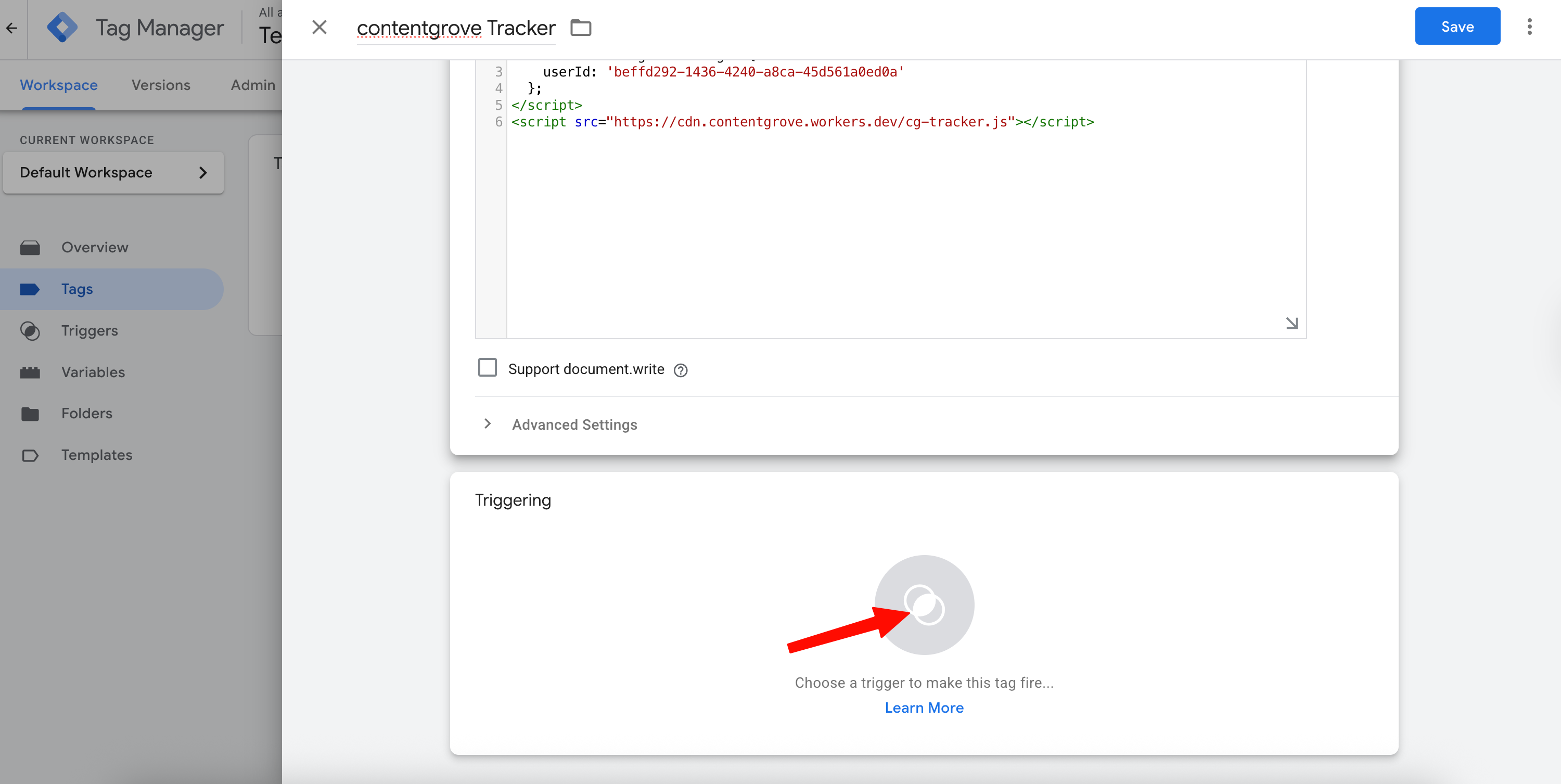
- If you don't have a DOM Ready trigger yet, click on the plus in the right top corner to create one
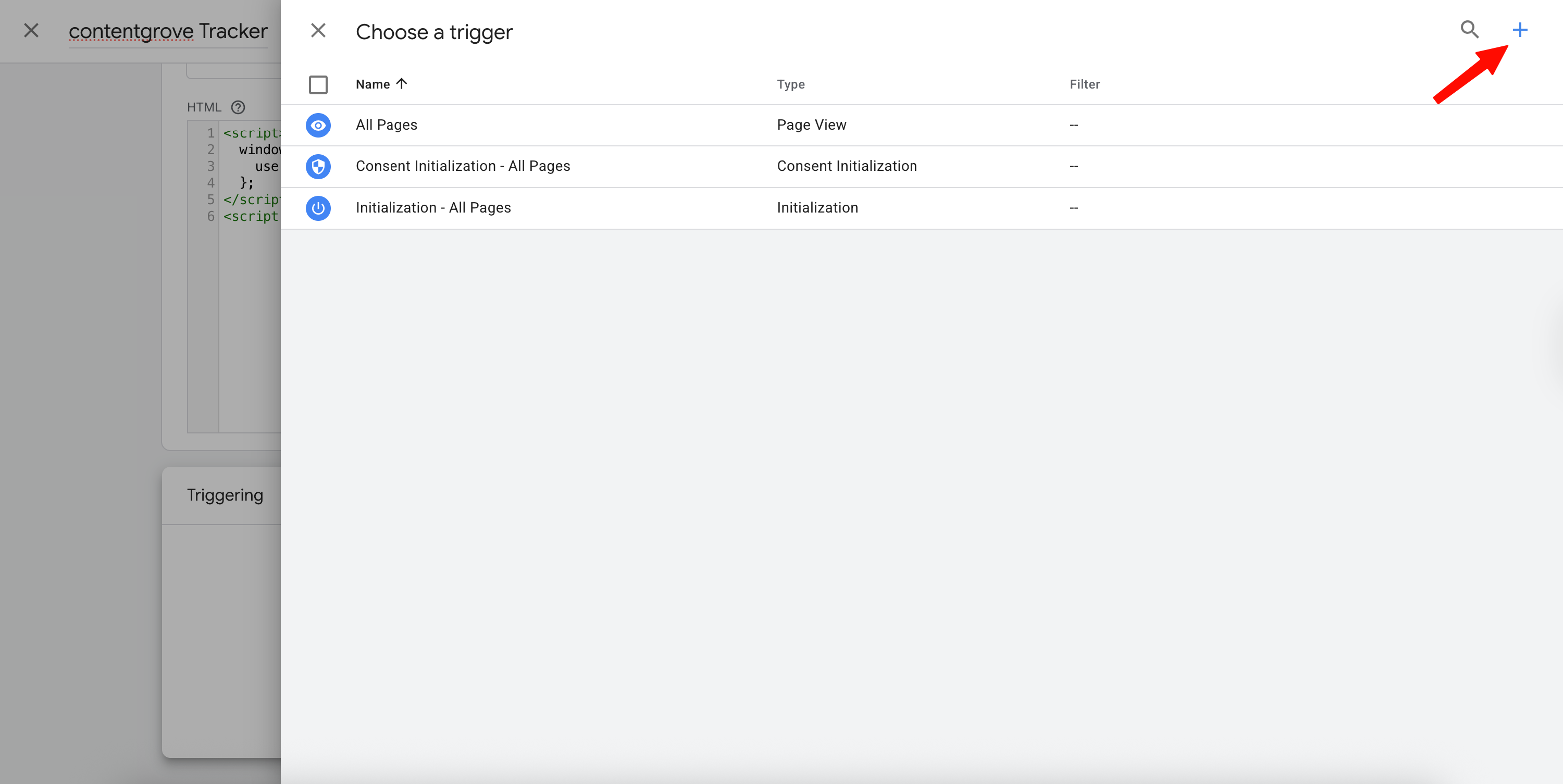
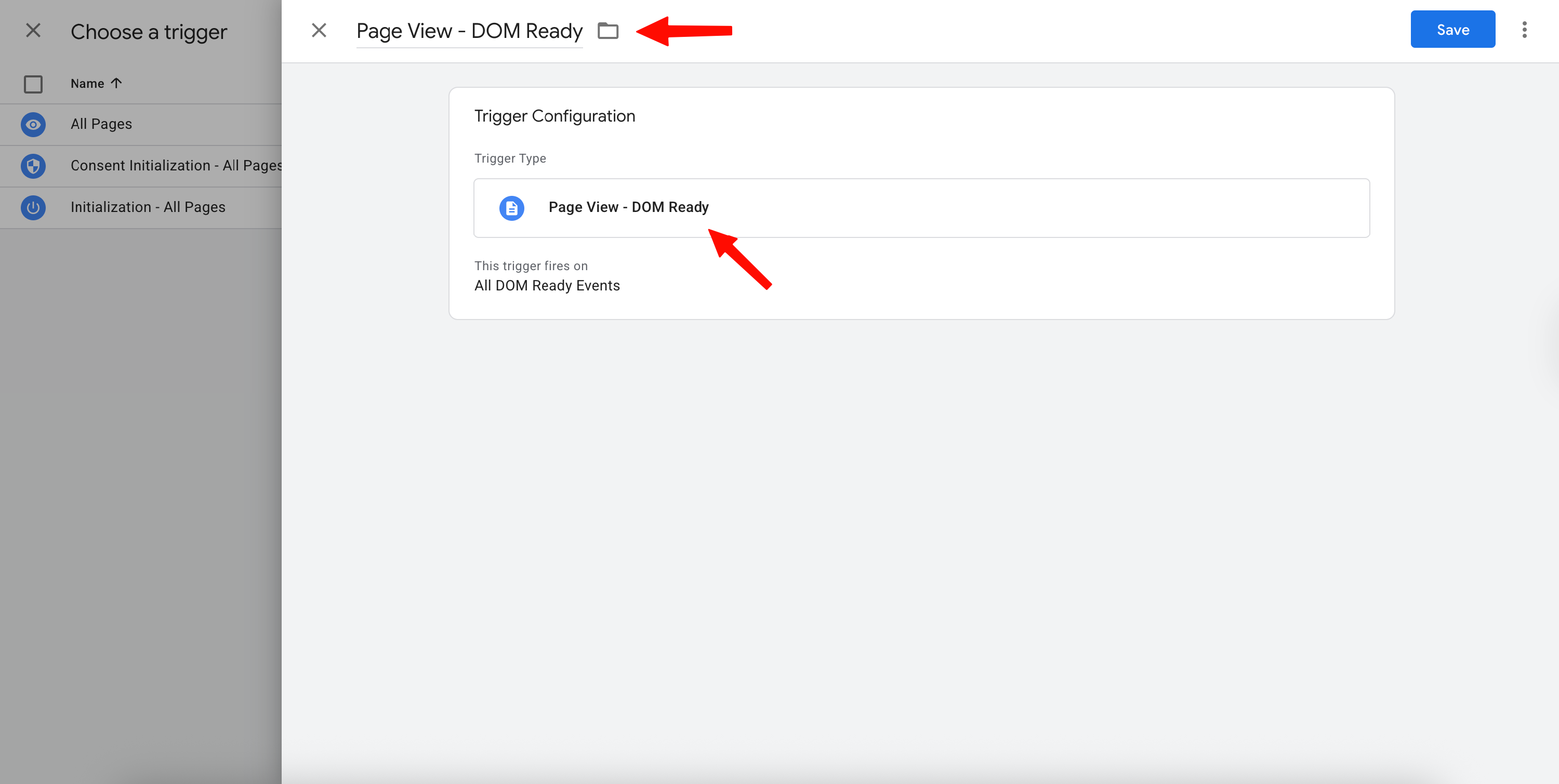
- Enter a name for the trigger and select "Page View - DOM Ready" as trigger type. Click Save
- Now your tag should look like this, click on Save
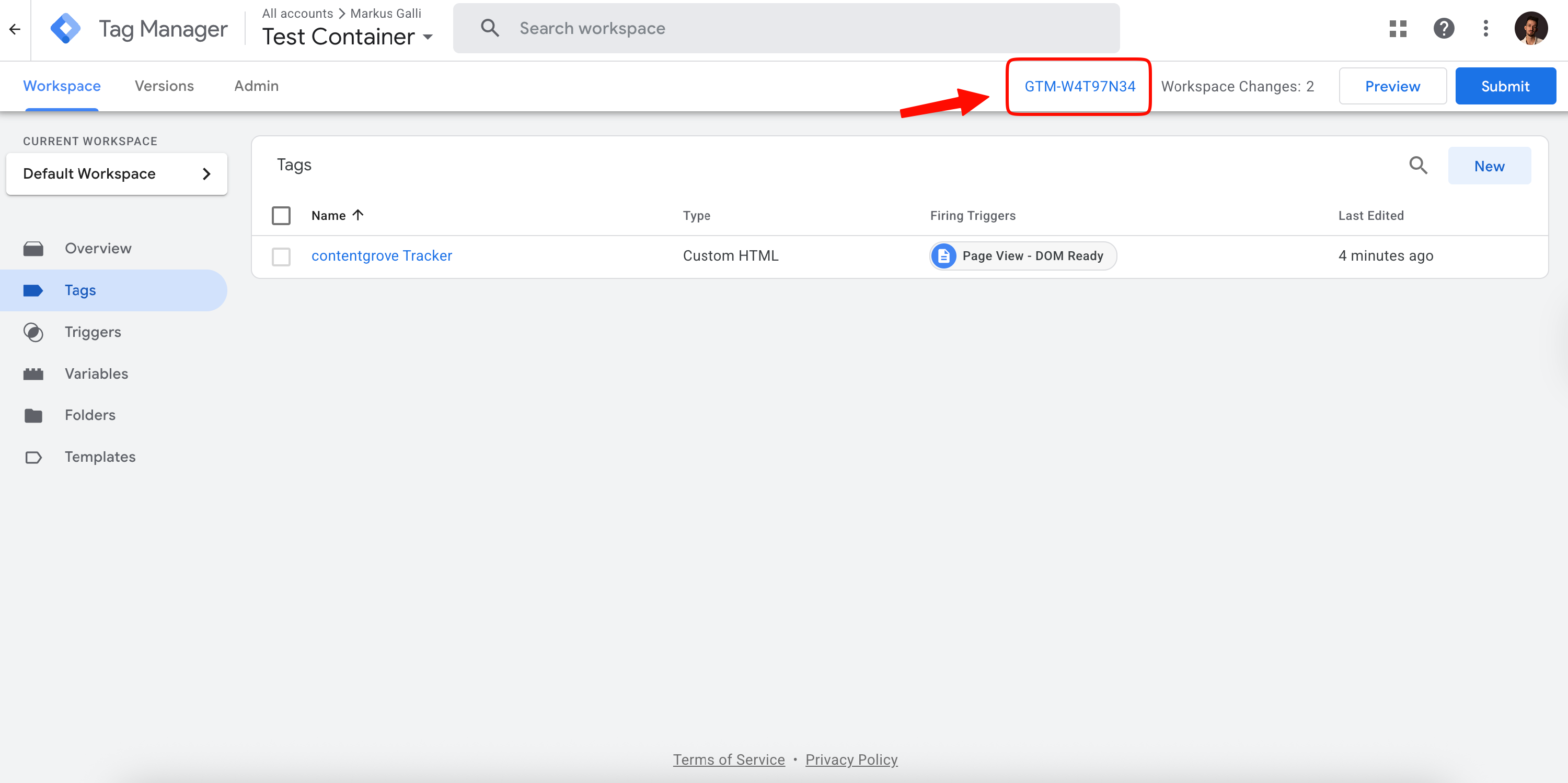
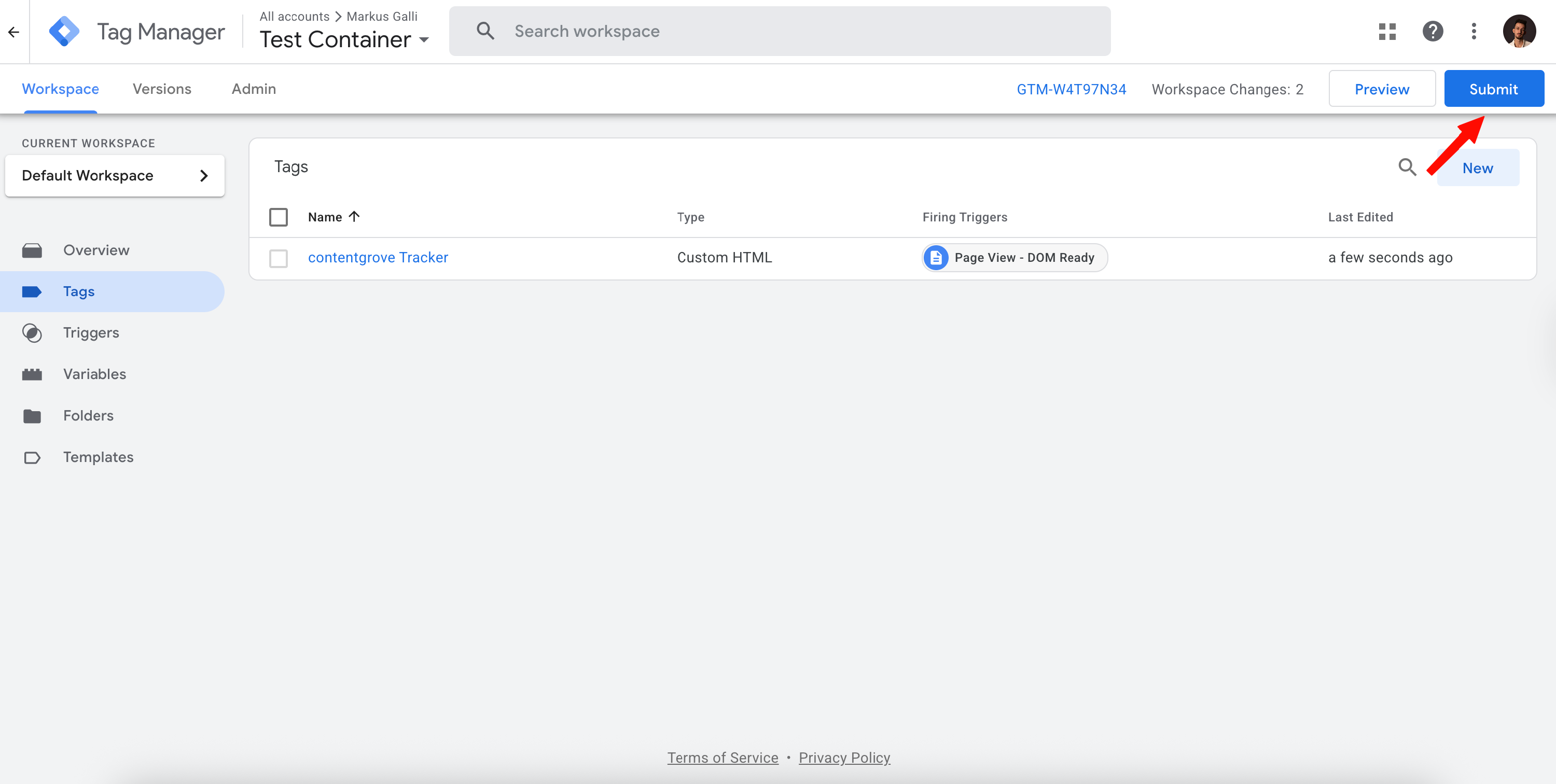
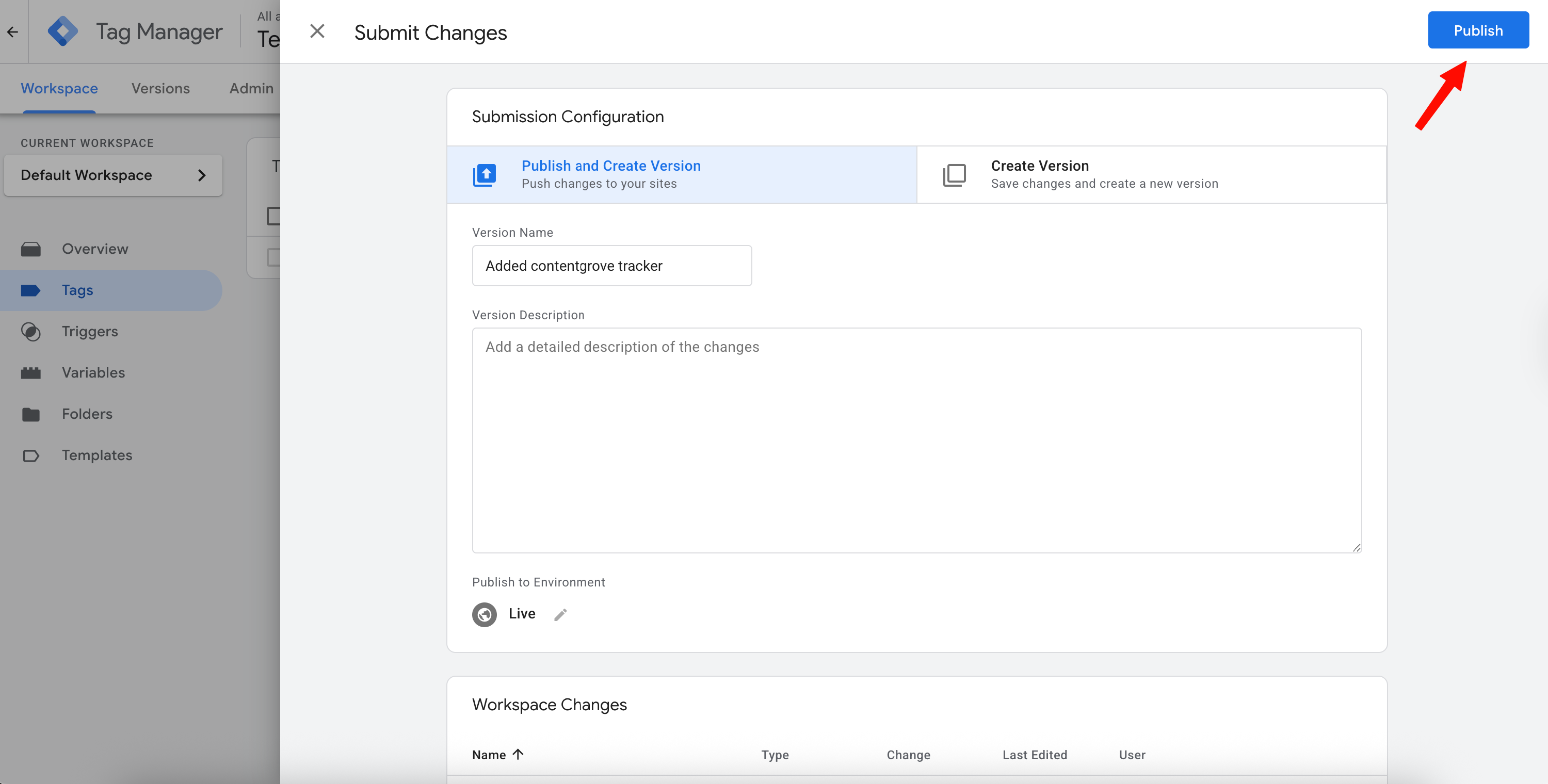
- Don't forget to publish your changes by clicking on "Submit" and "Publish". Without this step your tag won't be active
You've now correctly setup your contentgrove GTM tag. Now you can use your GTM tag on any platform that supports GTM tracking by inserting your GTM-xxxxxxxx code.