> ## Documentation Index
> Fetch the complete documentation index at: https://help.contentgrove.io/llms.txt
> Use this file to discover all available pages before exploring further.

# Install contentgrove tracking in Kit (ConvertKit)

> Track contentgrove clicks and conversions on your Kit (ConvertKit) landing pages by adding the tracking script through the Google Tag Manager integration.

Kit (formerly ConvertKit) doesn't accept a raw script tag on landing pages, so contentgrove tracks Kit pages through Kit's built-in Google Tag Manager integration.

## Prerequisites

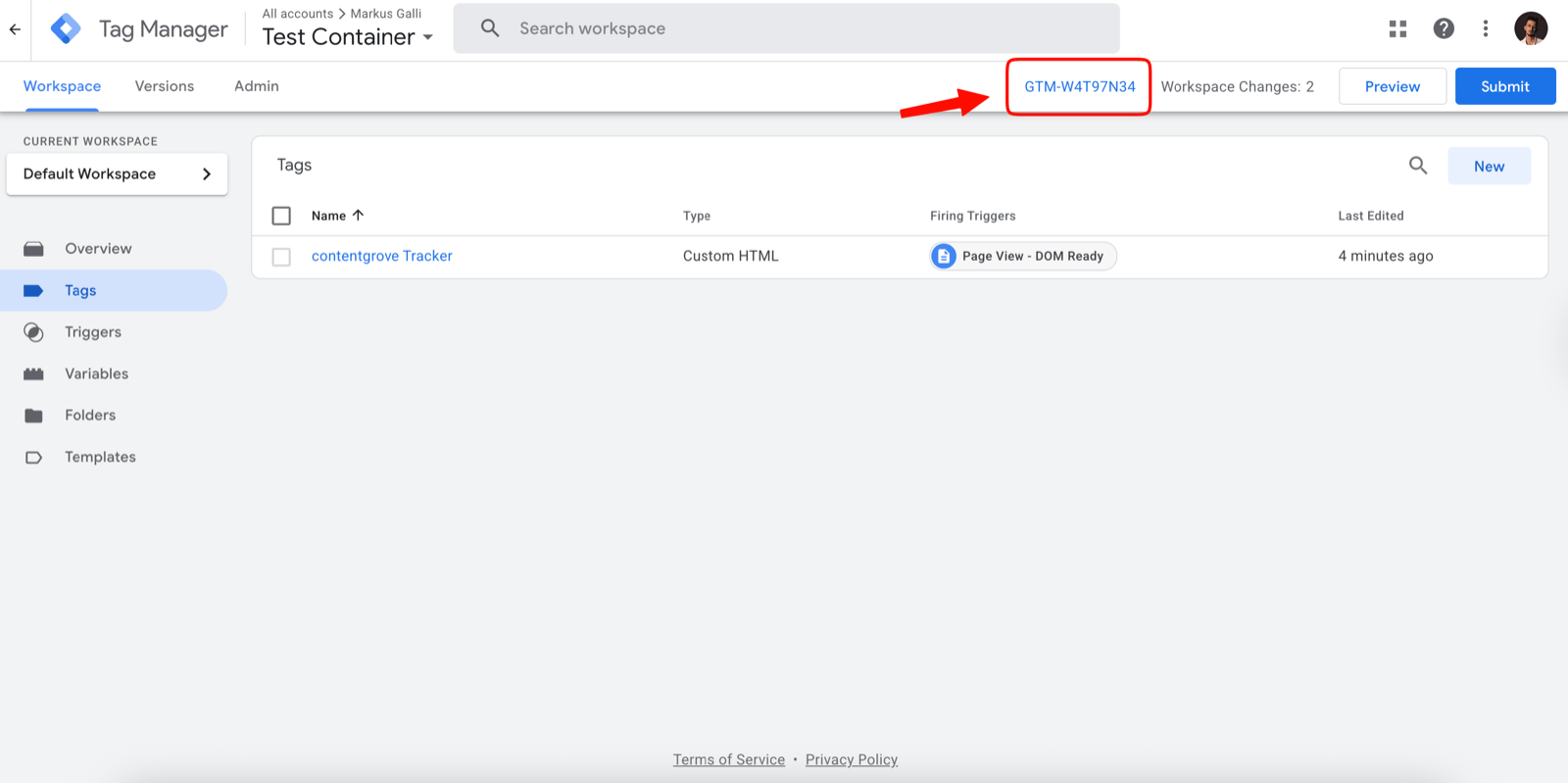
Set up Google Tag Manager first, with the contentgrove tag installed in your container. See [Set up tracking in Google Tag Manager](/tracking/google-tag-manager). You'll need your GTM container ID (format `GTM-XXXXXXX`).

## Add your GTM tag to a landing page

<Steps>
  <Step title="Open your landing page">
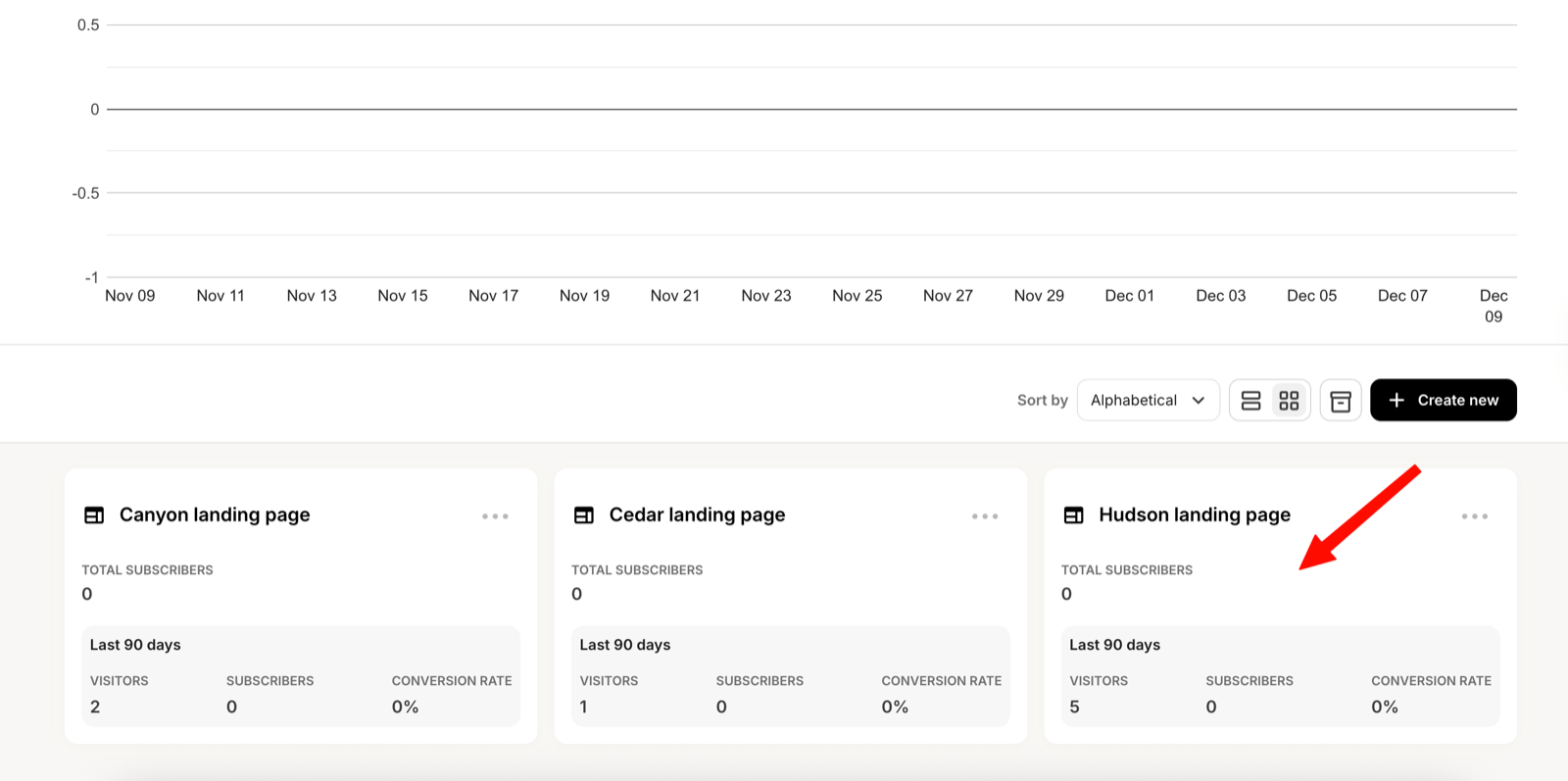
    In Kit, open the landing page you want to track.
    <Frame>
      <img src="https://mintcdn.com/contentgrove/M4nyy69B00uCNdVa/images/kit/01-open-landingpage.png?fit=max&auto=format&n=M4nyy69B00uCNdVa&q=85&s=be7525cc3088a54a7f14c4a39446a80b" alt="Opening a landing page in Kit" width="1600" height="797" data-path="images/kit/01-open-landingpage.png" />
    </Frame>
  </Step>

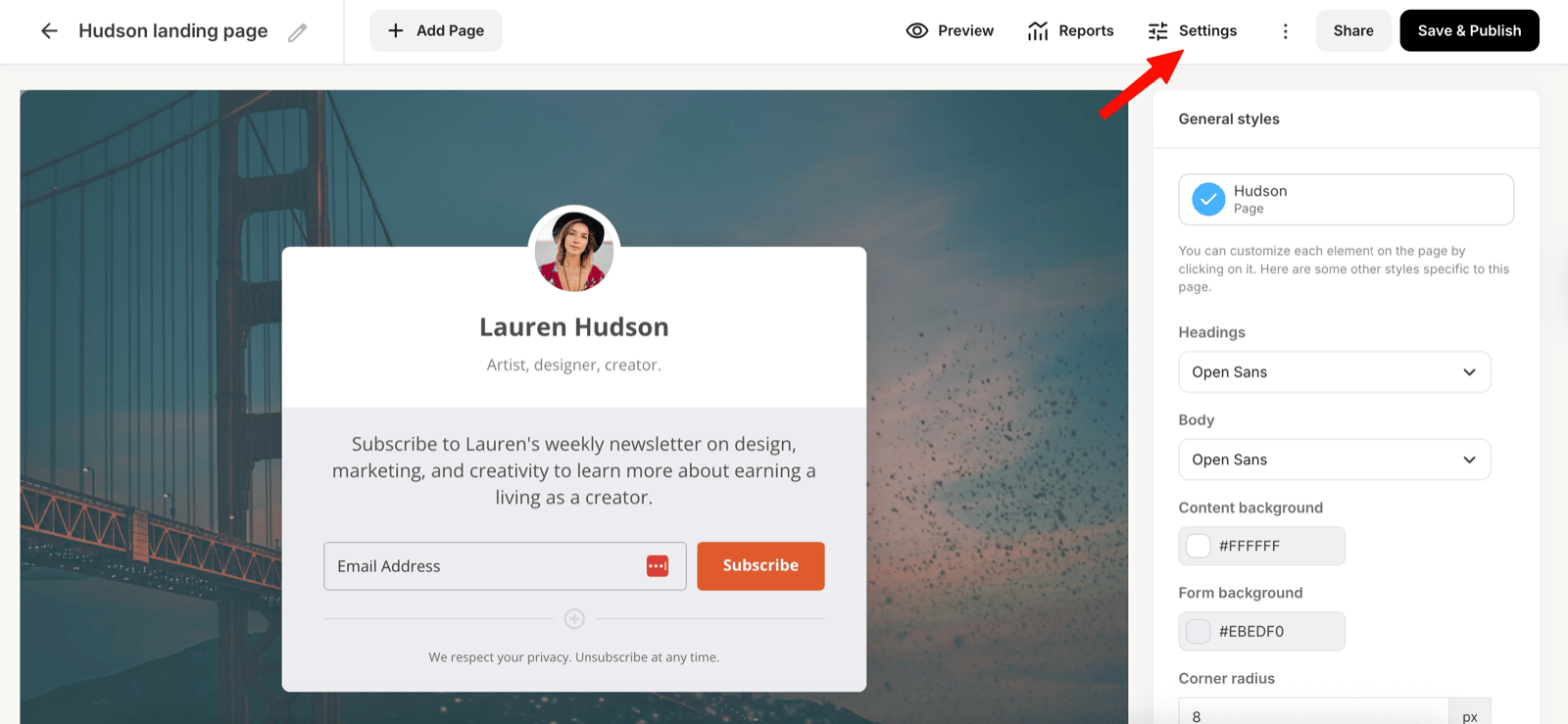
  <Step title="Open settings">
    Open the landing page's **Settings**.

    <Frame>
      <img src="https://mintcdn.com/contentgrove/M4nyy69B00uCNdVa/images/kit/02-open-settings.png?fit=max&auto=format&n=M4nyy69B00uCNdVa&q=85&s=099191aa7906628cb84af40ee879d55f" alt="Opening the settings for a Kit landing page" width="1600" height="739" data-path="images/kit/02-open-settings.png" />
    </Frame>
  </Step>

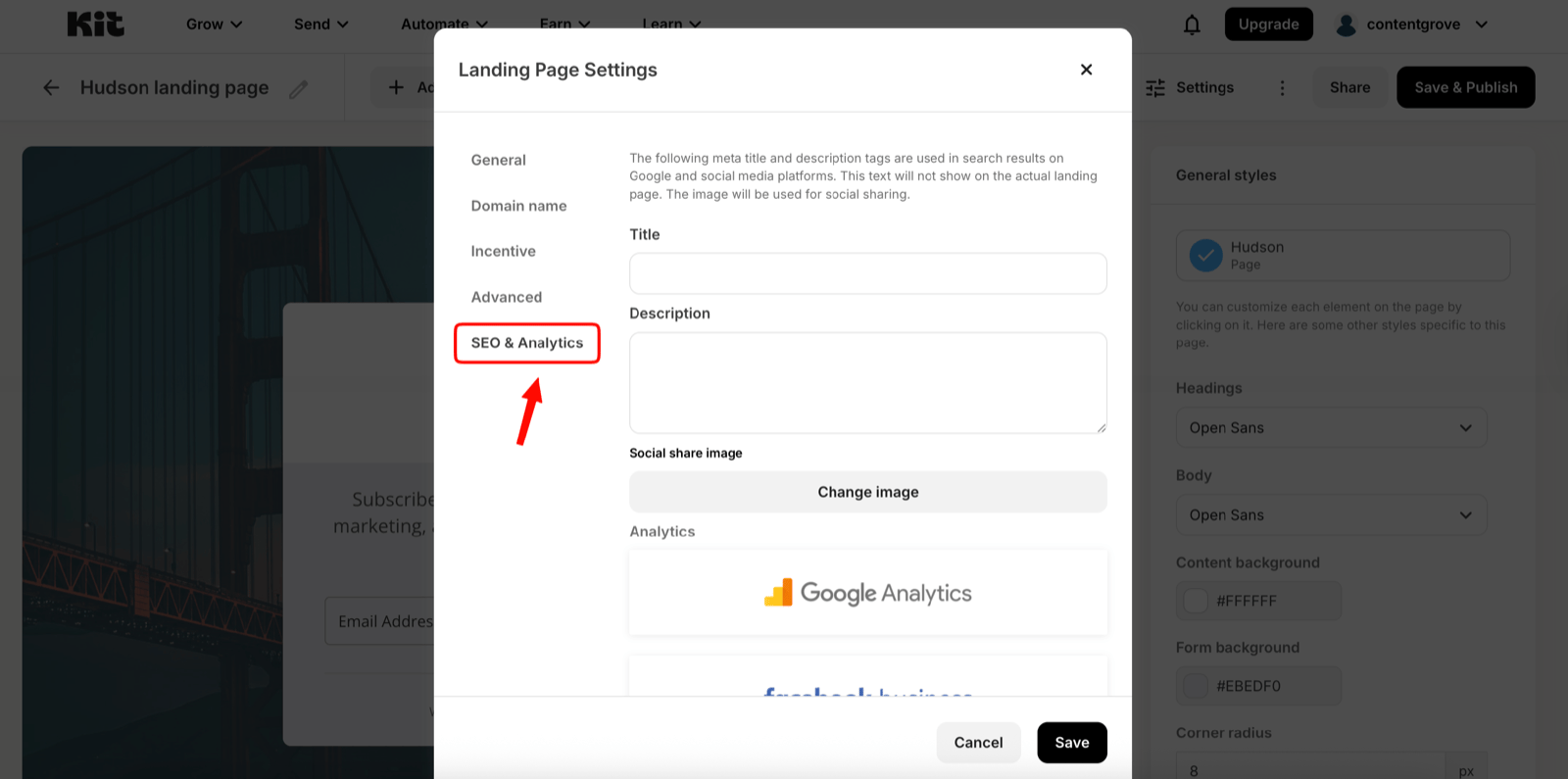
  <Step title="Go to SEO & Analytics">
    Select the **SEO & Analytics** tab.

    <Frame>
      <img src="https://mintcdn.com/contentgrove/M4nyy69B00uCNdVa/images/kit/03-seo-analytics.png?fit=max&auto=format&n=M4nyy69B00uCNdVa&q=85&s=f75ea473f8461a78450f3ccd8fd9c9f0" alt="The SEO & Analytics tab in Kit landing page settings" width="1600" height="795" data-path="images/kit/03-seo-analytics.png" />
    </Frame>
  </Step>

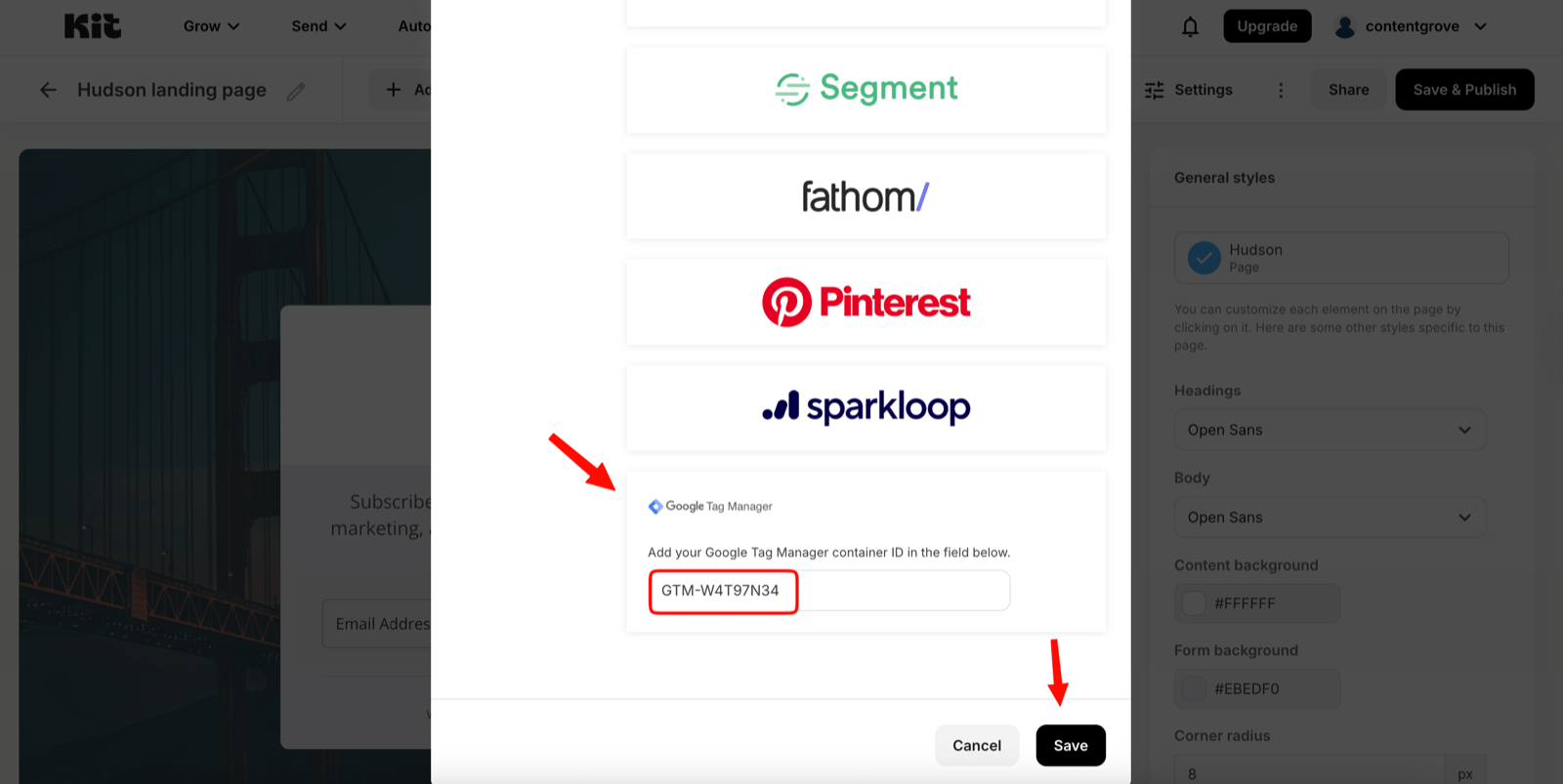
  <Step title="Enter your GTM ID">
    In the Google Tag Manager field, paste your container ID (`GTM-XXXXXXX`).
    <Frame>
      <img src="https://mintcdn.com/contentgrove/M4nyy69B00uCNdVa/images/kit/04-enter-gtm.png?fit=max&auto=format&n=M4nyy69B00uCNdVa&q=85&s=629547867f2940ce6e161e2c21521073" alt="Entering the Google Tag Manager container ID in Kit" width="1600" height="799" data-path="images/kit/04-enter-gtm.png" />
    </Frame>

    <Frame>
      <img src="https://mintcdn.com/contentgrove/M4nyy69B00uCNdVa/images/kit/05-gtm-field.png?fit=max&auto=format&n=M4nyy69B00uCNdVa&q=85&s=180dc86ad2f6ee0975ae29e489da0e8d" alt="The Google Tag Manager field in Kit's SEO & Analytics settings" width="1600" height="803" data-path="images/kit/05-gtm-field.png" />
    </Frame>
  </Step>

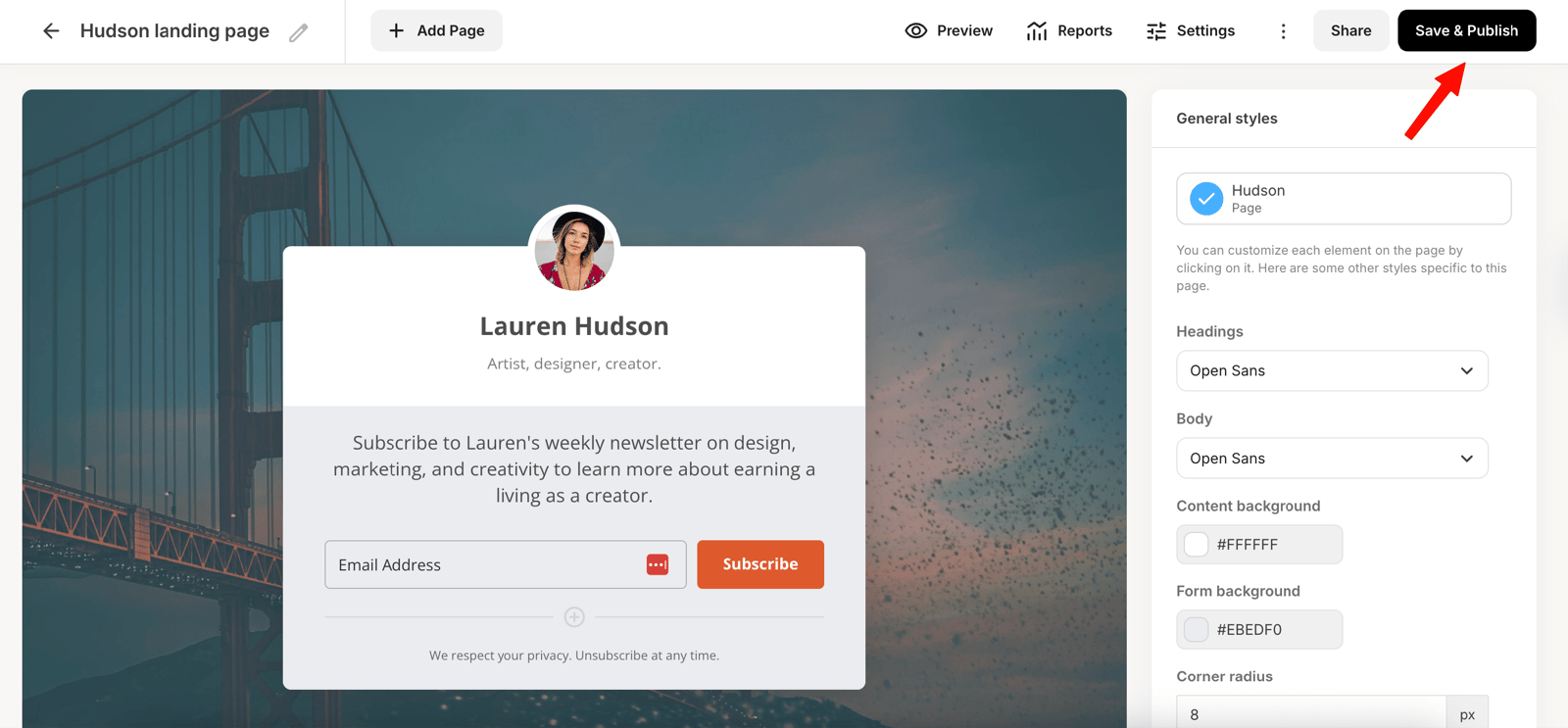
  <Step title="Save and publish">
    Click **Save & Publish**.

    <Frame>
      <img src="https://mintcdn.com/contentgrove/M4nyy69B00uCNdVa/images/kit/06-save-publish.png?fit=max&auto=format&n=M4nyy69B00uCNdVa&q=85&s=beaccafb0cb88340a4c52762134957ab" alt="Saving and publishing the Kit landing page" width="1600" height="743" data-path="images/kit/06-save-publish.png" />
    </Frame>
  </Step>
</Steps>

<Warning>
  Kit sometimes adds a leading space when you paste your GTM ID. Remove any space before the `GTM-` prefix before saving, or the integration won't work.
</Warning>

<Note>
  You have to add the GTM ID to every Kit landing page you want to track, including both your landing pages and your thank-you pages.
</Note>