> ## Documentation Index
> Fetch the complete documentation index at: https://help.contentgrove.io/llms.txt
> Use this file to discover all available pages before exploring further.

# Install the tracking script

> Install the contentgrove tracking script using a script tag, Google Tag Manager, or window config, and confirm it's firing on your landing pages.

The tracking script records clicks and conversions on your site. Add it to your landing pages and your thank-you pages. It loads asynchronously, so it won't slow down your pages.

## Find your platform

If you use one of these platforms, follow its step-by-step guide — it's the fastest path:

<Columns cols={2}>
  <Card title="WordPress" icon="wordpress" href="/tracking/wordpress">
    Install the official contentgrove plugin — no code needed.
  </Card>

  <Card title="Google Tag Manager" icon="google" href="/tracking/google-tag-manager">
    Deploy the script as a Custom HTML tag across any GTM site.
  </Card>

  <Card title="Kit (ConvertKit)" icon="envelope" href="/tracking/kit">
    Track Kit landing pages through its GTM integration.
  </Card>

  <Card title="GoHighLevel" icon="filter" href="/tracking/gohighlevel">
    Paste the snippet into your funnel's footer tracking.
  </Card>

  <Card title="Any other platform" icon="code" href="#choose-an-installation-method">
    Paste the universal snippet anywhere you can add custom HTML.
  </Card>
</Columns>

Don't see your platform? contentgrove works anywhere you can add custom HTML or a script — use the universal snippet below. See [all supported platforms](/tracking/supported-platforms) to check yours.

## Get your tracking snippet

<Steps>
  <Step title="Open tracking settings">
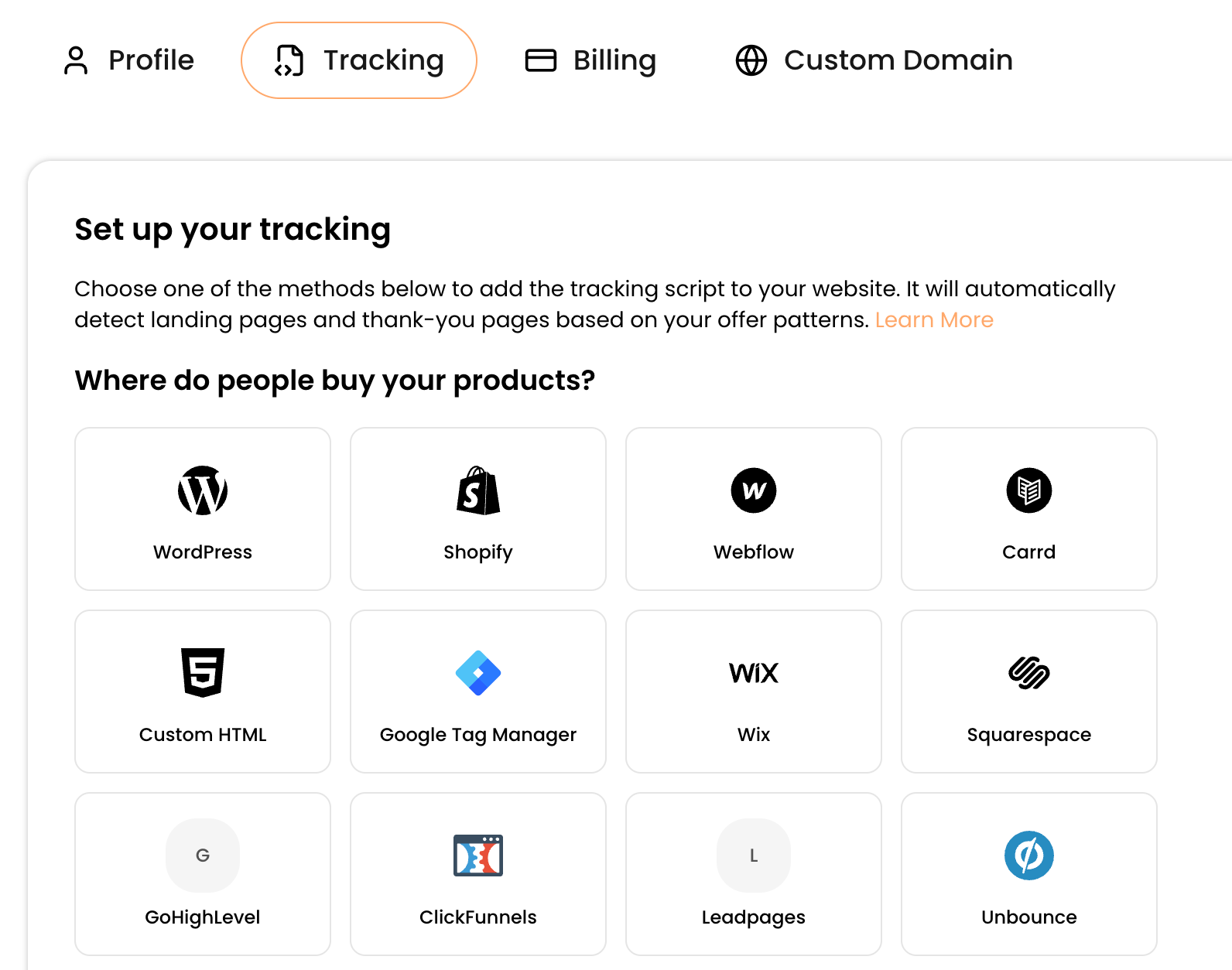
    In contentgrove, go to **Settings → Tracking**.
  </Step>

  <Step title="Choose your platform">
    Choose the platform you are using.
  </Step>
</Steps>

<Frame caption="Settings → Tracking: choose your website provider for tailored instructions">
  <img src="https://mintcdn.com/contentgrove/M4nyy69B00uCNdVa/images/install-script/01-choose-provider.png?fit=max&auto=format&n=M4nyy69B00uCNdVa&q=85&s=c5fb8f61bffa0acc5ff591e41656cd18" alt="The tracking settings page in contentgrove with website provider options" width="1592" height="1254" data-path="images/install-script/01-choose-provider.png" />
</Frame>

## Choose an installation method

<Tabs>
  <Tab title="Script tag">
    The simplest option. Paste this just before the closing `</body>` tag on every page you want to track, and replace `YOUR_TRACKING_ID` with your own:

    ```html theme={null}
    <script
      src="https://cdn.contentgrove.workers.dev/cg-tracker.js"
      data-tracking-id="YOUR_TRACKING_ID"
      async
    ></script>
    ```
  </Tab>

  <Tab title="Google Tag Manager">
    Create a **Custom HTML** tag with this code, replacing `YOUR_TRACKING_ID`:

    ```html theme={null}
    <script>
      window.contentgroveConfig = {
        trackingId: "YOUR_TRACKING_ID",
      };
    </script>
    <script src="https://cdn.contentgrove.workers.dev/cg-tracker.js" async></script>
    ```

    Set the trigger to **Page View – DOM Ready** (not "Container Loaded"), then save and publish. For the full walkthrough, see [Google Tag Manager](/tracking/google-tag-manager).
  </Tab>

  <Tab title="Window config">
    Set the config in a script block that runs before the tracker loads:

    ```html theme={null}
    <script>
      window.contentgroveConfig = {
        trackingId: "YOUR_TRACKING_ID",
      };
    </script>
    <script src="https://cdn.contentgrove.workers.dev/cg-tracker.js" async></script>
    ```

    Make sure the config block loads before the tracking script.
  </Tab>
</Tabs>

<Tip>
  Place the script in your footer (just before `</body>`) for the best page speed. Add it to both your landing pages and your thank-you pages, or tracking will miss conversions.
</Tip>

## Verify your installation

In **Settings → Tracking**, use the **Verify tracker** tool. Enter your website URL and run the check to confirm the script is loading.

<Frame>
  <img src="https://mintcdn.com/contentgrove/M4nyy69B00uCNdVa/images/install-script/03-verify-tracker.png?fit=max&auto=format&n=M4nyy69B00uCNdVa&q=85&s=b712f011c798de82cae769030f3e5046" alt="The Verify tracker tool in contentgrove confirming the script is installed" width="1476" height="480" data-path="images/install-script/03-verify-tracker.png" />
</Frame>

You can also verify manually: open your site, press <kbd>F12</kbd>, open the **Network** tab, and look for `cg-tracker.js`.

## GDPR and consent

By default, the script tracks as soon as it loads. If you need tracking to wait for visitor consent, add `data-require-consent="true"` to the script tag (or `requireConsent: true` in the window config) to turn on strict consent mode. In that mode the script only tracks after the visitor grants consent through a supported consent platform — Cookiebot, CookieYes, CookieScript, OneTrust, or the WordPress Consent API — and stays blocked if none is present. See [How tracking works](/concepts/how-tracking-works#consent-mode) for the full behavior.

If you declare cookies in your consent platform, use these details:

| Field              | Value                                                |
| ------------------ | ---------------------------------------------------- |
| Cookie name        | `contentgrove_click_id`                              |
| Script URL pattern | `*cg-tracker.js*`                                    |
| Category           | Analytics / Statistics                               |
| Duration           | 30 days                                              |
| Purpose            | Stores a click ID to link conversions back to clicks |

## Good to know

* **Use it on multiple sites.** The same Tracking ID works across all your websites; data lands in that workspace's dashboard.
* **Blocked cookies.** If cookies are blocked, the script falls back to session storage, so tracking still works for that browser session.
* **HTTPS.** Serve your pages over HTTPS for reliable cookie storage.

If tracking isn't recording, see [Tracking isn't recording clicks](/troubleshooting/tracking-not-recording).