> ## Documentation Index
> Fetch the complete documentation index at: https://help.contentgrove.io/llms.txt
> Use this file to discover all available pages before exploring further.
# Set up offers to track conversions
> Set up offers in contentgrove by defining landing and thank-you page URLs, so it can measure the conversions and revenue your videos drive.
An offer tells contentgrove which pages on your site are landing pages and which represent a successful conversion. Without an offer, contentgrove can track clicks but not conversions.
## Create an offer
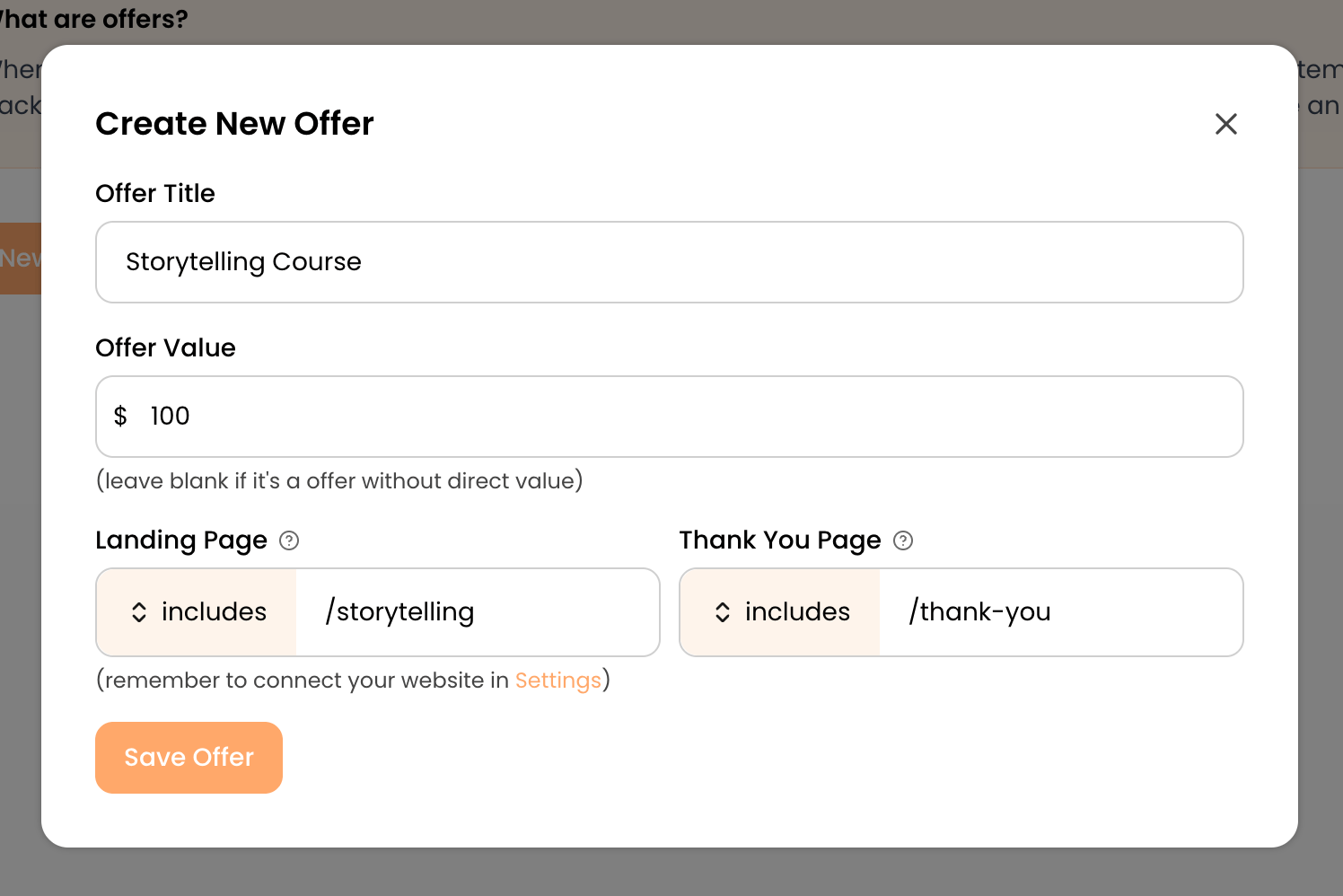
Go to the **Offers** page and click **Create offer**.
Give it a memorable name, such as "Free course download". This is how it appears in your analytics and link settings.
Enter the **Offer Value** — the revenue you earn each time this offer converts — and contentgrove attributes that amount to every conversion, so you can see revenue by video. Leave it blank for conversions with no direct dollar value, such as a newsletter signup or a free download. Those still count as conversions; their value simply shows as **Untracked**.
Enter the landing page URL (where you send viewers) and choose how it should match. For landing pages, **Starts with** is usually best because it still matches when tracking parameters are appended. See [how clicks and conversions are counted](/concepts/clicks-and-conversions#how-contentgrove-matches-your-pages).
Enter the thank-you page URL (where visitors land after converting) and choose its match type. **Includes** is flexible; **Starts with** is more specific.
Click **Create**.
Example: for a free ebook, your landing page is where visitors sign up, and your thank-you page is where they get the download. A conversion is counted when a visitor who clicked a tracked link reaches the thank-you page.
## Use offers with links
When you generate a tracking link, choose **Offer link** and select the offer to enable conversion tracking. **Affiliate links** track clicks only, without an offer. See [Create links](/links/create-links#link-type).
You can create a new offer directly from the offer dropdown while generating a link, so you don't have to switch pages.
## Multi-step funnels
Some funnels have an intermediate step before the real sale — visitors book a call, register for a webinar, or fill out an application, and only buy later (often on the call itself). contentgrove counts a conversion the moment a tracked visitor reaches an offer's thank-you page, and it doesn't chain funnel steps together automatically. You can still represent a multi-step funnel well by choosing which step your offer measures.
Decide which single action is the conversion you want to attribute to your videos. For call, webinar, or application funnels, this is usually the **booking or registration confirmation** — it's the last online step you can reliably measure, and it tells you which videos drive booked calls and leads.
Set the offer's thank-you page to that step's confirmation page — for example, the "You're booked" or "Thanks for registering" page. A conversion is counted when a tracked visitor reaches it.
Leave the **Offer Value** blank to simply count bookings (they show as **Untracked**), or enter an **expected value per booking** — your average sale price multiplied by the share of bookings that go on to buy — for a modeled revenue view.
If the final purchase has its own online confirmation or receipt page, you can instead set that as the thank-you page and use the real price as the offer value, so you measure closed revenue rather than bookings.
To watch two steps at once, create a separate offer and tracking link for each and use them on the matching calls to action. contentgrove measures the two offers independently — it won't automatically link a later sale back to the same visitor's earlier booking click.