> ## Documentation Index
> Fetch the complete documentation index at: https://help.contentgrove.io/llms.txt
> Use this file to discover all available pages before exploring further.
# Generate tracking links for your videos
> Generate contentgrove tracking links for one video or all of them at once, and manage your video descriptions in bulk from the Create links tab.
The **Create links** tab is your main workspace for creating tracking links. Generate a link for a single video, or generate links across all videos that point to the same destination. The tab has two sides: link generation on the left, bulk actions on the right.
## Generate a tracking link
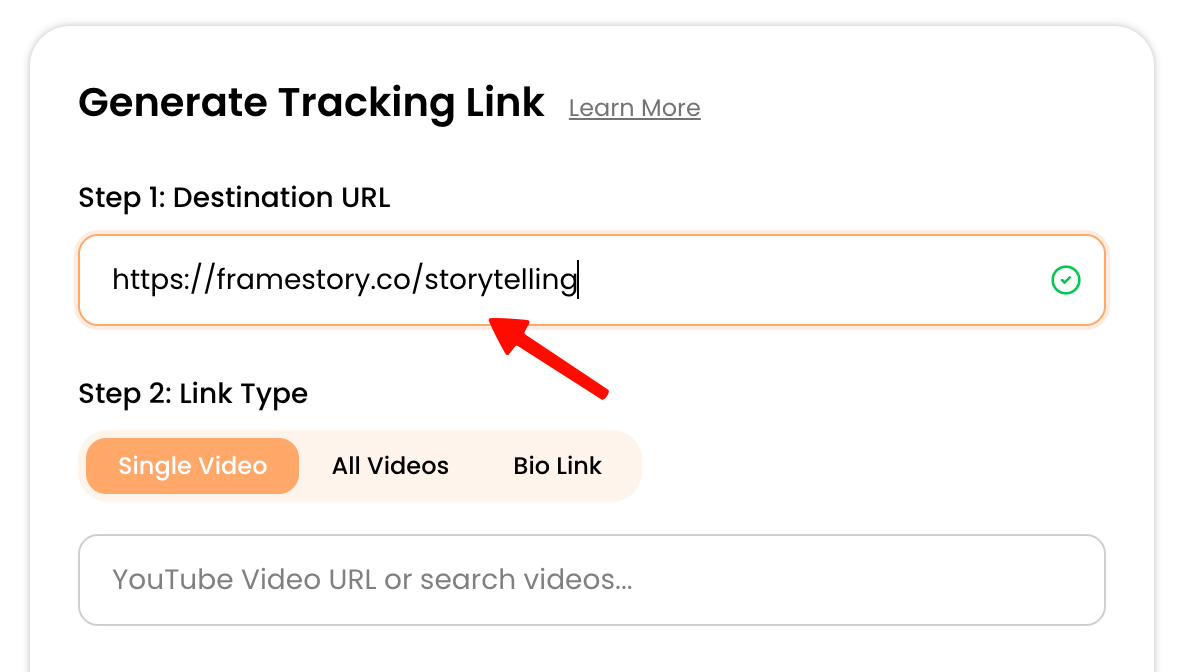
Type the URL where you want to send traffic, usually your landing page. The field validates as you type and adds `https://` if you leave it off.
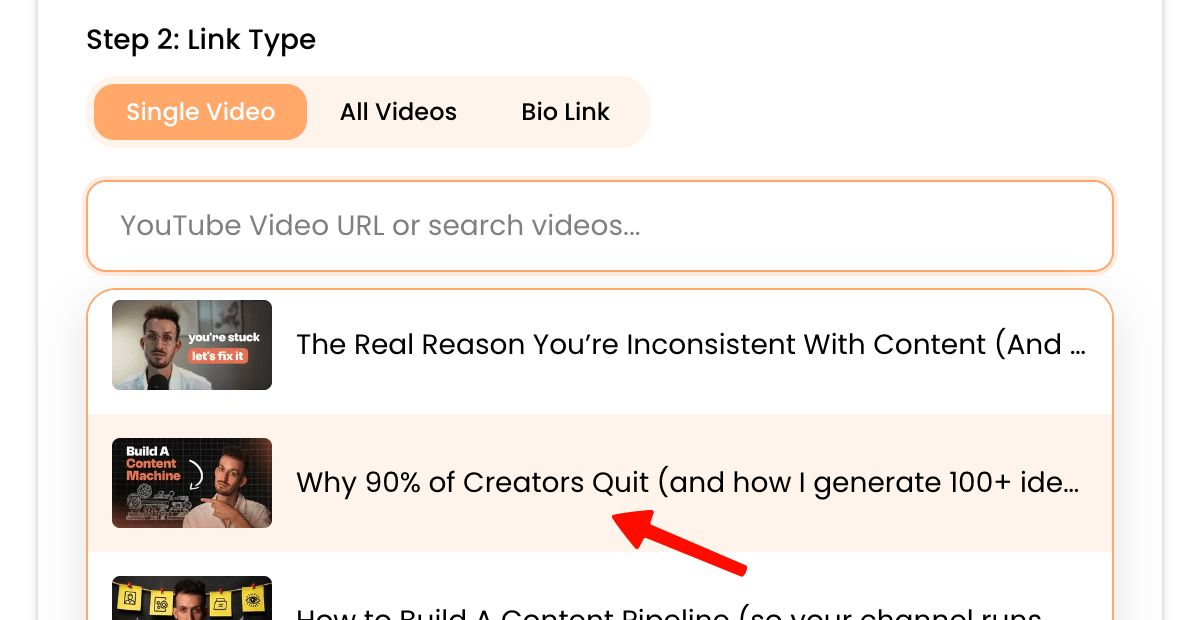
Choose a single video, or switch to **All videos** mode (see below).
Pick the link type, the domain, and an optional custom back-half.
Click **Generate link**, then copy the result.
### Single video vs all videos
Use the toggle in the video step to switch modes:
* **Single video** — create one link for a specific video. You can set a custom back-half and optionally auto-update that video's description.
* **All videos** — contentgrove finds every video whose description contains the destination URL and creates a unique link for each. Custom back-halves are off in this mode (links are auto-generated), and descriptions are updated automatically.
All-videos mode relies on the destination URL already appearing in each video's description.
### Link type
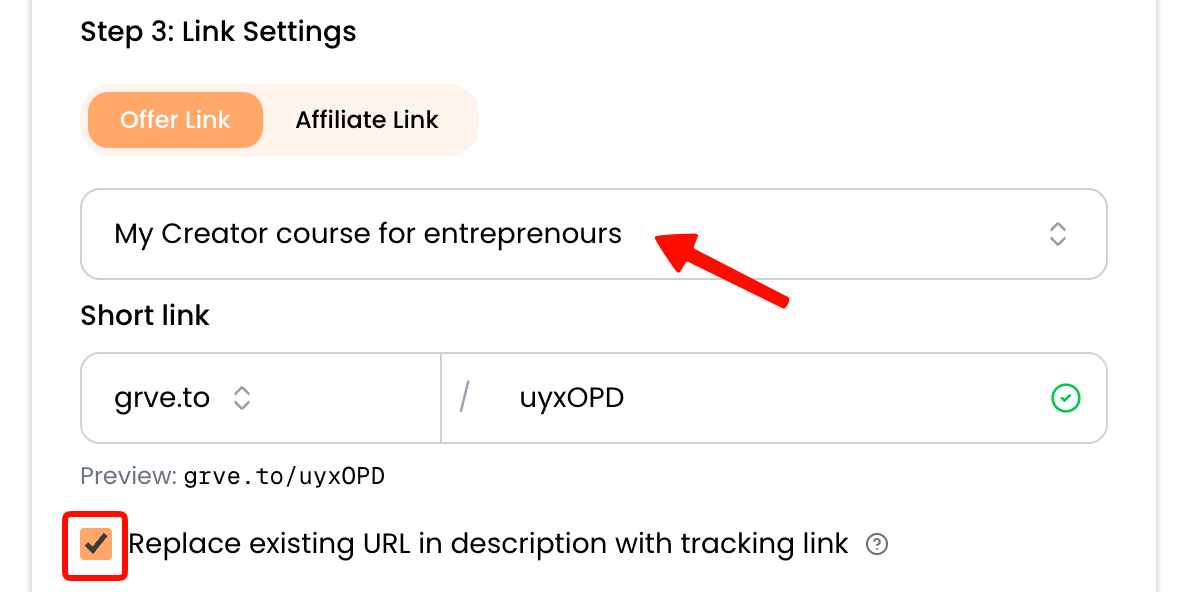
* **Offer link** — tied to a specific offer, so conversions are tracked. Select the offer from the dropdown (you can create one inline). See [Offers](/links/offers).
* **Affiliate link** — a general tracking link with no offer, so it tracks clicks only.
* **Bio link** — a link for your YouTube channel bio rather than a specific video. Bio links are grouped separately in the [All links](/links/all-links) tab and in analytics.
### Short link builder
Choose which **domain** to use, and in single-video mode set a **custom back-half** for a memorable URL.
| Part | Example |
| ---------------- | ------------------------------- |
| Domain | `track.example.com` |
| Custom back-half | `free-course` |
| **Result** | `track.example.com/free-course` |
### Auto-update YouTube description
In single-video mode, check the auto-update box to update the video's YouTube description directly. This only works when the destination URL is already in the description — contentgrove replaces that URL with your new tracking link rather than appending a new one. In all-videos mode, matching descriptions update automatically.
## Bulk actions
The right column handles your videos and links at scale.
Swap an existing link — like a genius link or a Bitly link — for another one across all your YouTube video descriptions. Useful when you're migrating off a third-party shortener before you create tracking links.
Re-sync titles, thumbnails, descriptions, and other metadata from YouTube. Use it after uploading new videos, editing descriptions on YouTube, or if you notice a mismatch.
Check that each tracking link is still present in its video's description, so you can catch links that were accidentally removed.
## Tips
* Test your destination URL before generating links.
* Use descriptive custom back-halves so links are easy to recognize.
* Use auto-update when generating a single-video link to drop the tracking link straight into that video's description — it replaces the destination URL you already placed there.
* Use all-videos mode only when the destination URL is already in each description.
To view and manage what you've created, see [All links](/links/all-links).