> ## Documentation Index
> Fetch the complete documentation index at: https://help.contentgrove.io/llms.txt
> Use this file to discover all available pages before exploring further.
# The contentgrove Chrome extension
> Connect the contentgrove Chrome extension to generate tracking links right inside YouTube while you write and edit your video descriptions.
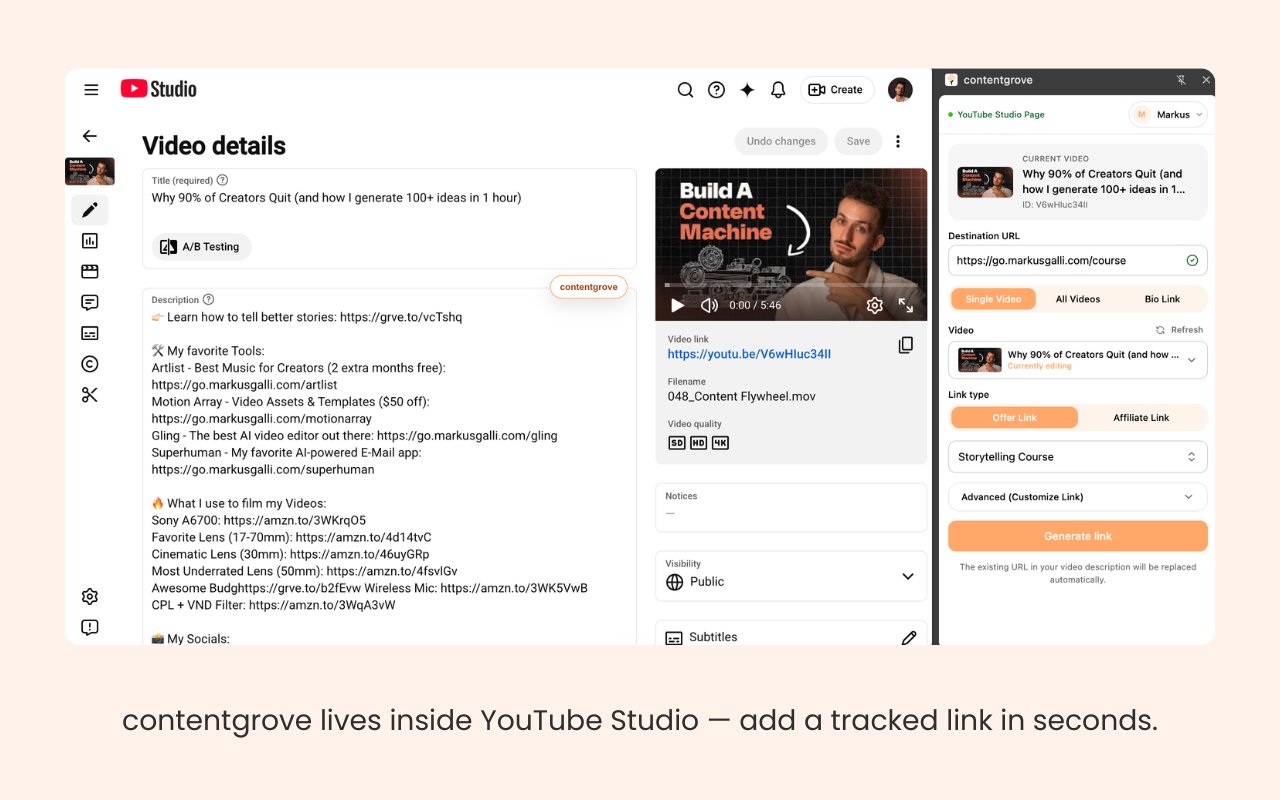
The contentgrove Chrome extension lets you create and manage tracking links without leaving YouTube. It adds a side panel to YouTube Studio so you can generate a tracked link and drop it into your description while you write. You connect it once to your contentgrove account, then it works alongside your normal workflow.
 ## Install the extension
Install the extension from the Chrome Web Store, then pin it to your toolbar.
## Connect it to your account
The extension connects to contentgrove using a one-time approval in your browser.
Click the contentgrove icon in your browser toolbar and choose **Connect**.
A contentgrove page opens. Sign in with your account if you aren't already.
Confirm the connection to link the extension to your account. You only do this once.
If you're signed out when you approve, contentgrove sends you to the login page first and returns you to the approval step automatically.
## What you can do with it
From the side panel in YouTube Studio, you can:
* Generate a tracked link for the **current video**, for **all matching videos**, or for your **bio** — without leaving YouTube.
* Insert the link straight into the description editor. The existing URL in your description is replaced automatically, so there's no copy-paste between tabs.
* Choose an **offer link** (to track conversions) or an **affiliate link** (to track clicks). See [Offers](/links/offers).
* Use your own [custom domain](/links/custom-domains) and a custom back-half for a branded, memorable link.
For the full set of link options and how they work, see [Create links](/links/create-links).
## Install the extension
Install the extension from the Chrome Web Store, then pin it to your toolbar.
## Connect it to your account
The extension connects to contentgrove using a one-time approval in your browser.
Click the contentgrove icon in your browser toolbar and choose **Connect**.
A contentgrove page opens. Sign in with your account if you aren't already.
Confirm the connection to link the extension to your account. You only do this once.
If you're signed out when you approve, contentgrove sends you to the login page first and returns you to the approval step automatically.
## What you can do with it
From the side panel in YouTube Studio, you can:
* Generate a tracked link for the **current video**, for **all matching videos**, or for your **bio** — without leaving YouTube.
* Insert the link straight into the description editor. The existing URL in your description is replaced automatically, so there's no copy-paste between tabs.
* Choose an **offer link** (to track conversions) or an **affiliate link** (to track clicks). See [Offers](/links/offers).
* Use your own [custom domain](/links/custom-domains) and a custom back-half for a branded, memorable link.
For the full set of link options and how they work, see [Create links](/links/create-links).